

Advertisement
Advertisement
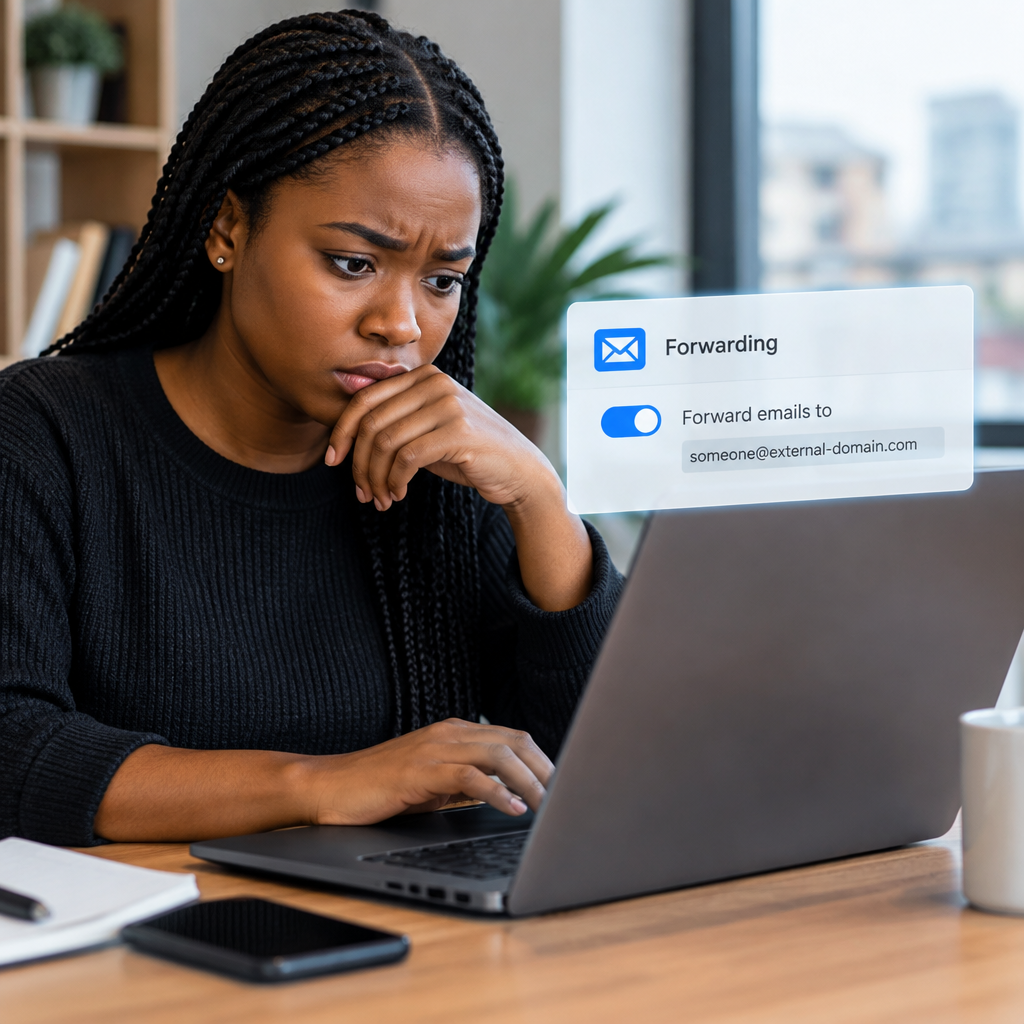
If someone has accessed your email account, changing the password may not be enough. An attacker could have created a forwarding address or an inbox rule that automatically sends copies of your messages to another account. They may also hide selected emails, mark them as read or move them into a folder.
This can expose password-reset links, bank notifications, work messages, scholarship correspondence, travel documents and private conversations. After securing the account, check forwarding and filtering settings carefully. The exact menu names differ between Gmail, Outlook, Yahoo Mail and other services, but the warning signs are similar.
Advertisement
Table of Contents
What email forwarding and inbox rules can do
Forwarding sends incoming messages, usually automatically, to another email address. It can be useful when you manage more than one inbox, but an unknown forwarding address is a serious warning sign.
Rules or filters apply automatic actions to messages. For example, a rule may forward messages containing words such as “password”, “bank”, “verification” or “invoice”. It could also delete them, archive them, mark them as read or move them away from your main inbox.
An attacker may use both features. Forwarding lets them receive copies, while a rule makes suspicious activity less visible to you.
Secure the account before investigating it
If you still have access, take these steps before spending time reviewing individual messages:
- Change the email password from a trusted phone or computer. Use a new password that you have not used on another website.
- Sign out of other sessions if the provider offers an option such as “sign out of all devices”. This can remove an attacker’s active access, although you may need to sign in again on your own devices.
- Turn on two-step verification using an authenticator app, security key or another secure method available to you.
- Check recovery details, including the recovery email address and phone number. Remove anything you do not recognise.
- Review connected apps and remove unknown applications or services that have access to your mailbox.
Do not share your password, one-time password, recovery code or authentication code with anyone claiming to be support. A legitimate support process should not require you to send these secrets to another person.
How to check Gmail forwarding and filters
Gmail settings are normally easiest to review from a web browser. The names or layout may change, so look for the general settings areas if your screen is different.
- Open Gmail and select the Settings icon.
- Choose See all settings.
- Open the Forwarding and POP/IMAP section.
- Look for a forwarding address that you did not add. Remove it or disable forwarding if it is not yours.
- Open the Filters and Blocked Addresses section.
- Review every filter, especially those that forward, delete, archive, skip the inbox or mark messages as read.
- Edit or delete rules you did not create.
Gmail may require confirmation before forwarding is activated. Check for a forwarding address that is waiting for confirmation as well as an active address. If an attacker added a forwarding address but did not complete verification, remove it anyway.
What to look for in a Gmail filter
Pay close attention to rules that apply to all incoming messages or to messages containing security-related words. Also inspect rules that use broad conditions, such as a sender field containing a symbol or a subject field containing common words. A rule can be suspicious even if it does not mention forwarding.
How to check Outlook forwarding and rules
In Outlook on the web, forwarding and rules are generally managed through the account’s mail settings.
- Open Outlook in a browser and select Settings.
- Search the settings for forwarding, or open the mail settings and find the forwarding section.
- Check whether automatic forwarding is enabled and inspect the destination address.
- Open the section for Rules.
- Review rules that forward, redirect, delete, move or mark messages as read.
- Disable or remove anything you did not create.
Outlook may distinguish between forwarding and redirecting. Both deserve attention because either can send messages to another mailbox. Check rules from newest to oldest, but do not assume that an older rule is safe.
How to check Yahoo Mail and other providers
For Yahoo Mail and smaller providers, open the web version of your account and look under Settings, More settings, Mailboxes, Filters or a similar heading. Search for:
- Automatic forwarding
- Filters or inbox rules
- Blocked and allowed addresses
- Connected accounts or applications
- Recent sign-in activity
If you cannot find the setting, use the provider’s official help centre. Avoid downloading a “security tool” from an advert or sending your login details to a person offering to fix the account through social media.
Signs that a forwarding rule may be malicious
A rule deserves investigation when:
- The destination address is unfamiliar or uses a slightly altered spelling of a trusted address.
- It affects banking, payment, work, school, recruitment, travel or password-reset messages.
- It automatically deletes or archives messages after forwarding them.
- It marks important messages as read so you do not notice them.
- It was created around the time of an unfamiliar login.
- It sends messages to an account you once used but no longer control.
Do not rely only on the visible sender name. Compare the complete email address, including the part after the “@” symbol.
After removing a suspicious rule
Review your sent folder, deleted folder, archive and other folders for messages you did not send or move. Look for password-reset emails, security alerts and requests for money or documents. An intruder may have used your account to contact your friends, colleagues or business customers.
Next, change passwords for other important accounts that use the affected email address for recovery. Start with financial services, social media, cloud storage, shopping accounts, work platforms and accounts containing identity documents. Use each service’s official website or application rather than a link in an unexpected email.
If your email was connected to a Nigerian bank, payment service, cryptocurrency account or identity-related service, contact the provider through its verified support channel. Do not include your password, PIN, OTP or full card details in an email.
A simple follow-up check
After changing settings, send a test message to the affected address from another account. Confirm that it arrives normally and that no unexpected copy is sent elsewhere. Then review the forwarding and rules pages again later, especially if suspicious activity continues. If a rule returns, an attacker may still have access through a stolen session, connected application, recovery method or another device.
Account security is not complete until you have checked the mailbox settings, active sessions, recovery information and connected apps. For readers using email to manage jobs, scholarships, travel applications, online shopping or digital services, this review can prevent one compromised inbox from exposing many other accounts.
The practical takeaway: after a breach, inspect forwarding addresses and inbox rules as carefully as the password. Remove anything unfamiliar, secure every account that depends on the email address and treat unexpected support messages as potential scams.
Advertisement