

Advertisement

Advertisement
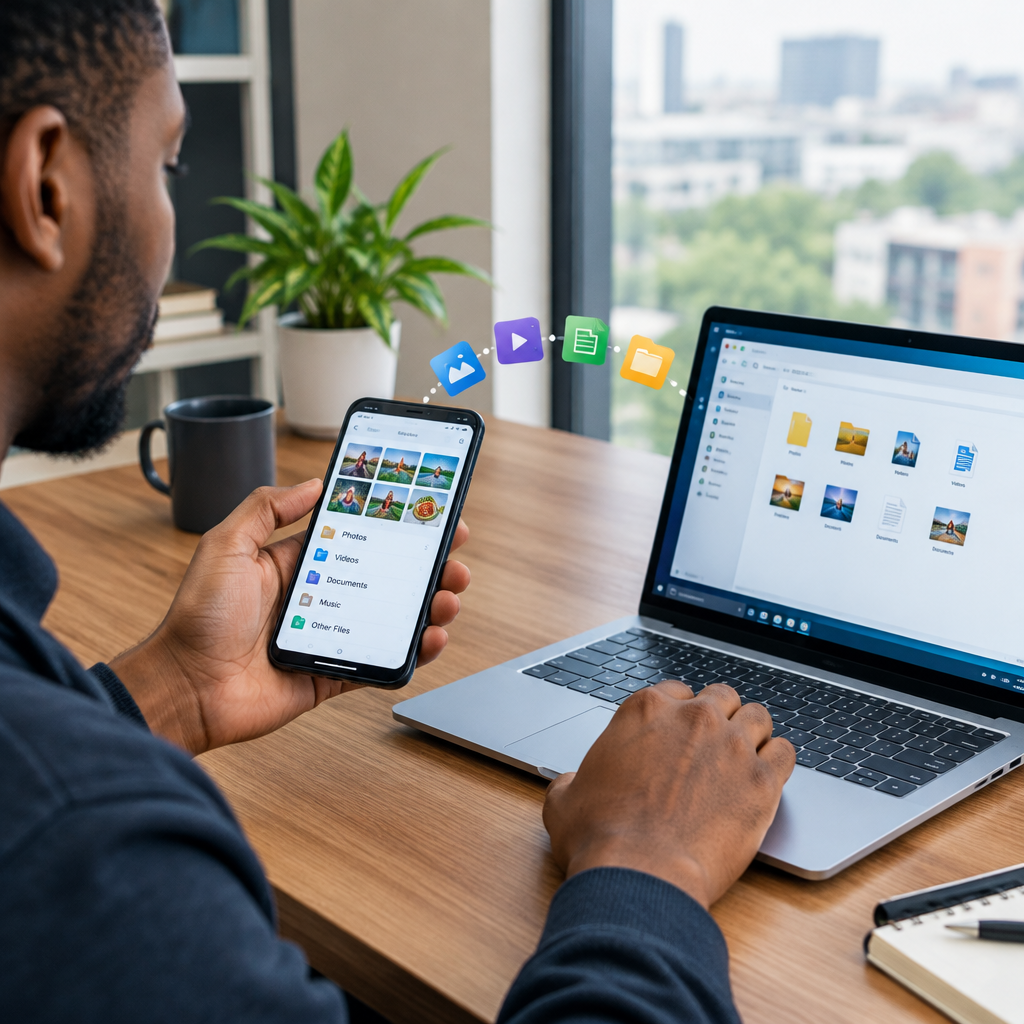
Moving photos, videos, documents and other files between your phone and computer is usually simple. The risk comes from doing it carelessly: using an unknown cable, downloading a fake transfer app, leaving files on a public computer or opening attachments before checking them.
For students, workers, creators and online shoppers, safe file transfer means more than getting a file from one device to another. You also need to protect passwords, identity documents, banking information, personal photos and work files from loss, malware and unauthorised access.
Advertisement
The safest method depends on the type of phone you use, the size of the files, your internet connection and whether the computer belongs to you. This guide explains the main options and how to use them responsibly.
Table of Contents
Choose the right transfer method
| Method | Best for | Main advantage | Important caution |
|---|---|---|---|
| USB cable | Large files, many photos and videos | Fast and does not require internet data | Use a trusted cable and computer |
| Cloud storage | Documents and files you need on several devices | Convenient and accessible anywhere | Protect the account and consider data usage |
| Bluetooth | Small files and nearby devices | Wireless and simple | Usually slower for large videos |
| Local wireless sharing | Quick transfers between compatible devices | Fast without uploading to a public service | Check the recipient and network carefully |
| Email or messaging apps | One or two small documents | Useful when other methods are unavailable | Attachments may be compressed or stored online |
Before transferring anything
Take a few precautions before connecting devices or uploading files.
- Check the destination. Confirm that you are sending the file to your own computer, your intended account or the correct person.
- Update your devices when practical. Security updates can help protect against known vulnerabilities.
- Use a private computer where possible. Avoid transferring sensitive files on a computer in a cybercafé, hotel, school lab or office shared by many people.
- Check storage space. A failed transfer may leave an incomplete file or create confusion about which copy is usable.
- Back up important files first. If the file is irreplaceable, keep a second copy before moving, deleting or editing it.
- Scan unexpected files. Do not open an unfamiliar document or program simply because it arrived from a phone or another device.
Method 1: Transfer files with a USB cable
A USB cable is often the best choice for large videos, folders of photos and documents. It normally uses no mobile data, which can be helpful when internet access is expensive or unreliable.
Android phone to Windows computer
- Unlock the phone.
- Connect it to the computer with a compatible USB cable.
- Open the USB notification on the phone and choose the option for transferring files. The wording may be similar to “File transfer” or “Transfer files”.
- On the computer, open the file manager and select the phone under connected devices.
- Open the relevant folder. Camera photos are commonly stored in a camera or DCIM folder, while downloaded files may be in a Downloads folder. Folder names can differ by phone and app.
- Copy the files to a folder on the computer. Copying is safer than immediately deleting the originals from the phone.
- Open several transferred files to confirm that they work before removing anything from the phone.
If the phone only charges, try unlocking it, reconnecting the cable and selecting file transfer again. Some cables are designed mainly for charging and may not carry data. A different trusted cable or USB port may solve the problem.
iPhone to a computer
Connect the unlocked iPhone with a suitable cable and follow the trust or permission prompt on the phone and computer. On a Windows computer, the phone may appear in the file manager for importing photos and videos. On a Mac, the Photos app or Finder may provide the appropriate import or synchronisation option, depending on the file type and device setup.
For documents stored inside an iPhone app, use that app’s approved sharing or file-management option. Some iPhone apps keep files inside their own storage rather than displaying them as ordinary folders.
Do not tap “Trust” on a computer you do not recognise. If you used a shared computer, disconnect the phone and review whether any files, photos or account information remain on it.
Method 2: Use cloud storage
Cloud storage is useful when you want the same document on your phone and computer, or when the devices are not together. You upload the file from one device and download or open it on the other.
- Install or open the official cloud-storage app on your phone, or use its official website.
- Sign in only through the correct app or website. Be careful with links sent by strangers or unexpected messages.
- Upload the selected file to a clearly named folder.
- On the computer, open the same account through the official app or website.
- Download the file if you need an offline copy.
- Sign out of shared computers and remove downloaded sensitive files when appropriate.
Cloud services can use mobile data, especially for videos. If you have a limited data plan, use Wi-Fi or check the app’s upload settings. Protect the account with a strong, unique password and two-step verification where available. Never share an account password, one-time code or recovery code with someone claiming to help with a transfer.
Method 3: Bluetooth and local wireless sharing
Bluetooth can transfer a small document or image without a cable. Turn on Bluetooth on both devices, pair them, select the file, choose the sharing option and accept the transfer on the correct receiving device. Turn Bluetooth off or make the device undiscoverable when you are finished.
Some phones and computers support faster local sharing features. These may use nearby-device discovery or the same Wi-Fi network. Check the device name carefully before accepting a transfer. Do not approve an unexpected request in a public place, even if the name looks familiar.
Method 4: Email and messaging apps
Email is convenient for sending one or two small files to yourself. Messaging apps can also work, but some compress images and videos, change file quality or limit attachment sizes. If the original quality matters, send the item as a document or use a direct transfer method instead.
Be cautious with identity documents, payslips, financial records and private photos. Uploading them to an email or messaging account creates another copy that may remain in chat history, backups or downloaded files. Delete unnecessary copies and protect the account properly.
How to verify a successful transfer
Do not assume a transfer worked just because a progress bar reached the end. Check the destination folder and compare the file name, size and opening behaviour. For an important video, play part of it. For a document, open it and confirm that the pages and formatting are present.
Keep the original on your phone until you have verified the new copy. When you are satisfied, delete only the copies you no longer need, then empty the recycle bin or recently deleted folder if the information is sensitive.
Extra safety for shared and public computers
Public computers create additional risks. Someone else may be able to access files left in Downloads, Recent Files or the recycle bin. Malware may also be present.
- Avoid transferring passwords, PINs, one-time codes, recovery phrases and full financial records.
- Do not save your login details in the browser.
- Use a cable or storage device you trust, and do not leave it behind.
- Sign out of cloud, email and messaging accounts.
- Remove downloaded files and check the recycle bin if you are permitted to do so.
- Change a password later if you believe you logged in on an unsafe computer.
A simple safe workflow
For routine work, use this sequence: choose the method, connect or sign in, select only the files you need, transfer them, verify the copies, disconnect or sign out, and then remove unnecessary duplicates. This approach works whether you are moving university documents, job-application files, football videos, business materials or content for a creator project.
The best transfer method is not always the fastest one. Use a USB cable for large files on a trusted computer, cloud storage for convenient access across devices, and Bluetooth or local sharing for smaller nearby transfers. Whatever method you choose, verify the destination and protect your accounts before treating the transfer as complete.
Advertisement
