

Advertisement
Advertisement
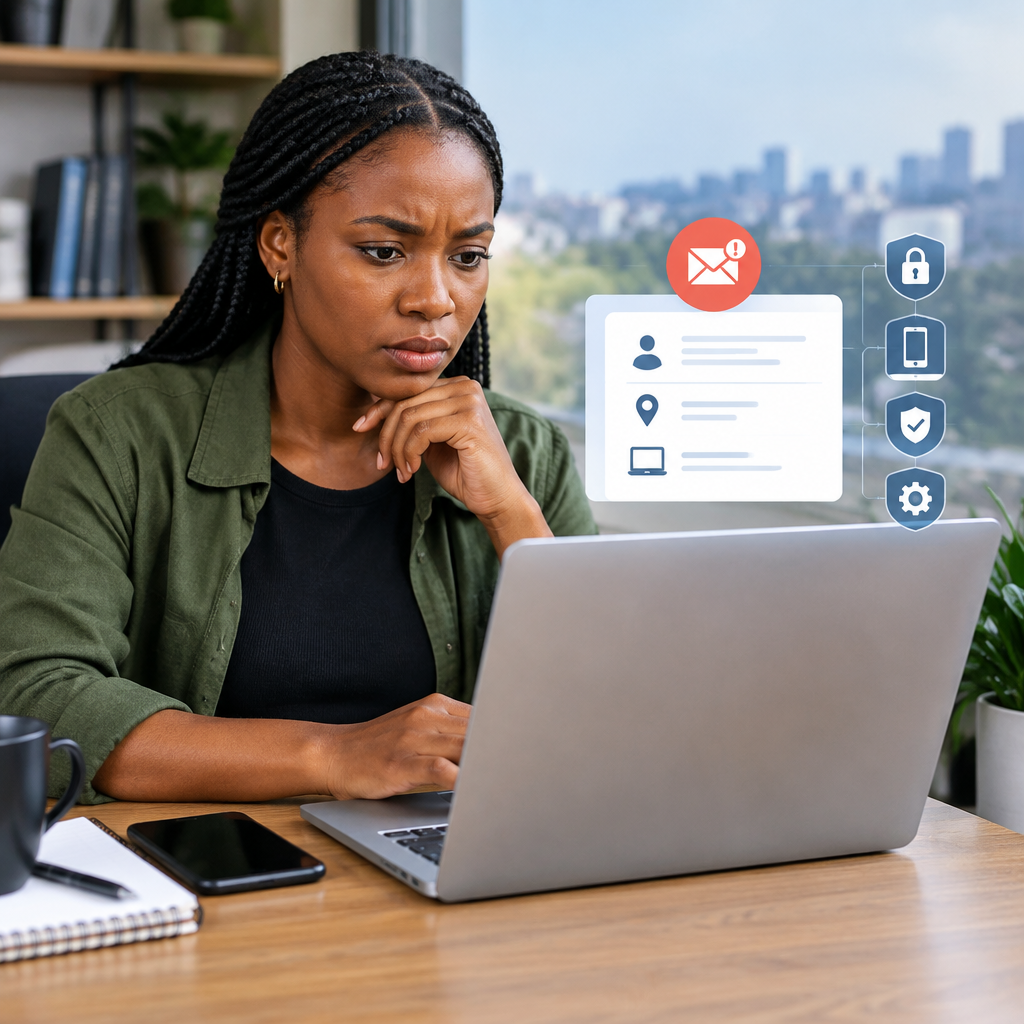
A suspicious login notification does not always mean that someone successfully took over your email account. It could be an unfamiliar device, a new location, a VPN or an automatic security check. However, you should treat the alert seriously until you confirm that the activity was yours.
Your email account may be connected to online banking, social media, shopping accounts, school portals, work platforms and recovery codes. For Nigerians at home and abroad, securing email quickly is especially important because one compromised inbox can expose information used for financial services, job applications, travel documents and other online opportunities.
Advertisement
Table of Contents
First, do not click links in the alert before checking the sender
Some fake security emails are designed to frighten you into entering your password on a fraudulent website. Before taking action, check the sender’s address and avoid clicking buttons in the message if you are unsure.
Instead, open your email provider’s official app or type its website address directly into your browser. Sign in there and check the account’s security or recent activity page. Common providers place this under names such as Security, Recent activity, Devices or Sign-in activity. The wording and menu location can vary between providers and mobile applications.
Look at:
- The date and time of the login
- The device or browser used
- The approximate location
- The IP address, where shown
- Whether the activity was a successful login or a blocked attempt
Locations are not always exact. A mobile network, company network or VPN may make a login appear to come from another city or country. An unfamiliar device, changed recovery information or several unexpected sign-ins is more concerning than location alone.
Change your password immediately
If you do not recognise the login, change your email password from the official app or website. Use a new password that you have never used on another account.
A strong password should be long, difficult to guess and free from information such as your name, birthday, phone number, football club or business name. A password manager can create and store unique passwords. If you do not use one, consider using several unrelated words with numbers and symbols, provided the result is not a common phrase.
Do not reuse the new email password for your bank, social media, shopping account or any other service. Password reuse allows an attacker who obtains one password to try it across many accounts.
If you cannot sign in, use the provider’s official account-recovery page. Do not send your password, one-time password (OTP), recovery code or authentication approval to anyone claiming to be support.
Sign out unknown devices and sessions
Changing a password may not end every active session immediately. Open the security settings and review the list of signed-in devices, browsers and applications.
Remove or sign out devices you do not recognise. If the provider offers an option such as Sign out of all other sessions, use it after changing the password. You may need to sign in again on your own phone, tablet or computer.
Be careful when identifying your own devices. A phone may appear under a model name you do not remember, and a browser session may show a general location rather than your exact one. When in doubt, sign out of the session and sign in again yourself.
Turn on two-step verification
Two-step verification, also called two-factor authentication or 2FA, adds another check after your password. Depending on the provider, this may involve an authenticator app, a security key, an SMS code or an approval notification.
An authenticator app or security key is generally preferable to relying only on SMS, because phone numbers can be targeted through SIM-swap fraud. However, any available second factor is usually better than using a password alone.
When setting up 2FA:
- Use the official security settings of your email provider.
- Save backup codes in a secure place that is not inside the same email account.
- Never share a verification code with another person.
- Do not approve a sign-in notification that you did not initiate.
- Keep your recovery phone number and alternative email address accurate.
If you receive repeated approval requests, someone may know your password and be trying to make you accept a login. Reject the requests, change the password again if necessary and review the account activity.
Check recovery details and account changes
An attacker may change your recovery phone number, alternative email address or security questions. Check every recovery method and remove details that do not belong to you.
Also review your account profile, connected applications and permissions. Remove applications you do not recognise, especially those that can read, send or delete email. Some legitimate services may have broad access, so remove access only when you understand what the application does and are prepared to reconnect it later.
Inspect forwarding rules and automatic replies
One of the most important checks is often hidden in the email settings. An intruder may create a forwarding rule that sends copies of your messages to another address. They may also create filters that hide security alerts or move messages into an unfamiliar folder.
Review:
- Automatic forwarding addresses
- Inbox filters and rules
- Blocked addresses and allowed senders
- Automatic replies
- Email signatures
- Recent sent and deleted messages
Delete rules you did not create. Check the Sent folder for messages you did not write, particularly messages asking contacts for money, codes or urgent help. Warn affected contacts if your account sent suspicious messages.
Protect accounts connected to the email address
Your email should be treated as a master key for many services. Make a list of accounts that use it for login or password recovery, then secure the most sensitive ones first.
- Financial accounts and payment services
- Social media and messaging platforms
- Work, school and recruitment accounts
- Shopping and delivery services
- Cloud storage and document accounts
- Travel, immigration and application portals
Change passwords that were reused with the email account. Turn on 2FA wherever it is available. Check each account for unknown devices, changed phone numbers, new payment details and unfamiliar recovery options.
Email security is particularly important when your inbox contains identity documents, job applications, scholarship correspondence, banking messages or travel information. Avoid leaving sensitive documents in an inbox without additional protection, and delete unnecessary copies where practical.
Scan your devices and update software
If the suspicious login followed a downloaded file, a fake app, a browser extension or a visit to an unfamiliar website, check the devices you use to access email.
- Update your phone, computer, browser and security software.
- Remove applications and browser extensions you do not recognise.
- Run a security scan using a reputable security tool.
- Review recently installed apps and unusual battery or data usage.
- Avoid signing in from a shared or public computer until it has been checked.
Do not install “support” software because someone contacted you unexpectedly and claimed to be from your email provider, bank or a financial service. Genuine providers should not need your password or OTP.
When should you contact the provider?
Use the provider’s official support and recovery channels if you notice that the password, recovery details or 2FA method has been changed; you cannot sign in; messages were deleted; or suspicious activity continues after you secure the account.
If the email was connected to a bank, wallet or payment account, contact the financial institution through its official phone number or app. Review transactions and report anything unauthorised promptly. Do not wait for the email investigation to finish before protecting your money.
A simple response workflow
When time matters, follow this order: open the official email app or website, confirm the alert, change the password, sign out unknown sessions, enable 2FA, check recovery details and forwarding rules, then secure connected accounts. Afterward, scan your devices and monitor the inbox for further alerts.
The main lesson is simple: an unfamiliar login is a warning to investigate, not an invitation to panic. Act through official channels, never share passwords or OTPs, and secure the email account before an intruder can use it to reset everything else.
Advertisement