

Advertisement

Advertisement
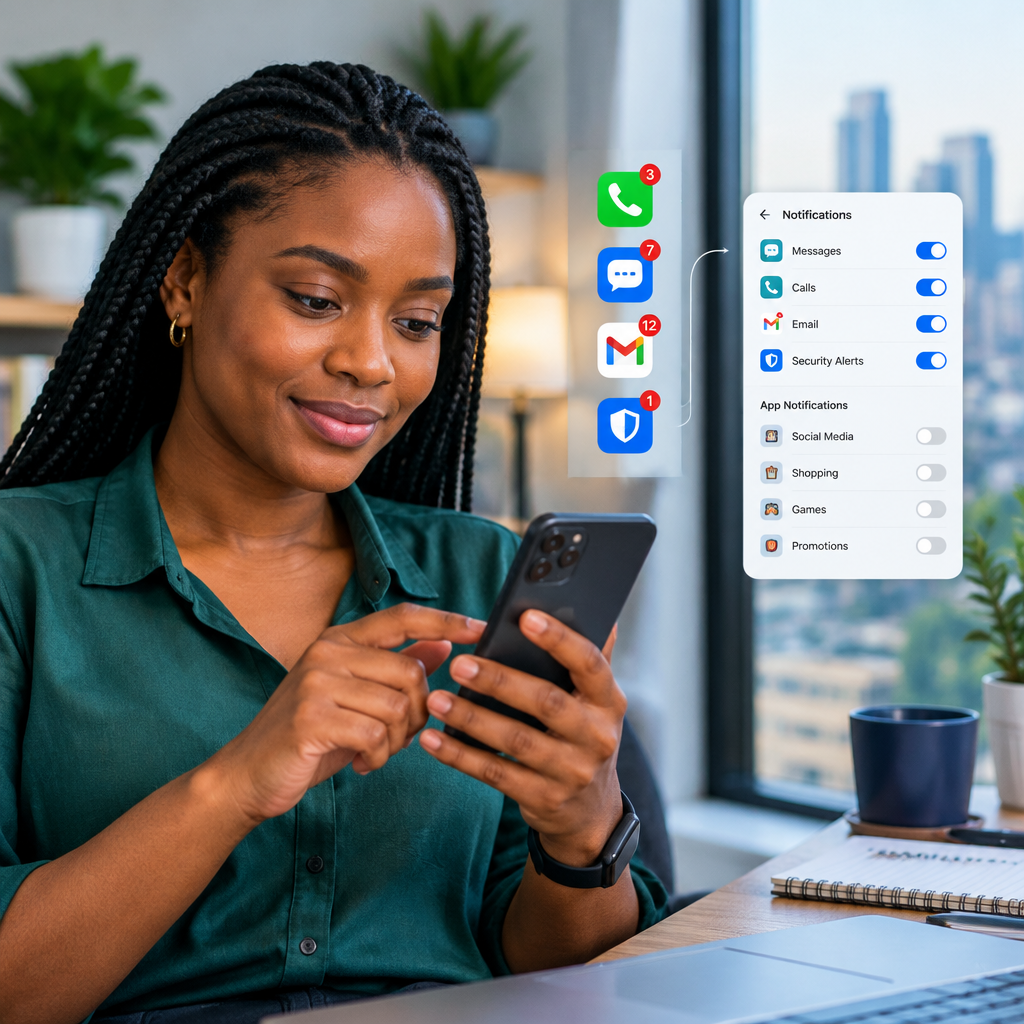
Too many app notifications can make your phone feel impossible to manage. News alerts, football updates, shopping promotions, group messages, email reminders and security warnings may all appear within minutes. When everything looks urgent, genuinely important messages are easier to miss.
The solution is not to switch off every notification. Instead, separate notifications into three groups: alerts you must see quickly, updates you can check later and messages you do not need at all. This approach works well for Nigerians who use their phones for news, livescores, banking, work, school, online shopping and communication with people at home or abroad.
Advertisement
Table of Contents
Start by deciding what is genuinely important
Before changing settings, consider the notifications that would cause a real problem if you missed them. These may include:
- Calls and messages from close family, employers, clients or school contacts.
- Two-factor authentication and account-security alerts.
- Banking or payment notifications that help you identify unauthorised activity.
- Travel, work or appointment reminders.
- Messages from delivery services when you are expecting an order.
- Emergency alerts, where your device and local services support them.
Not every notification needs to arrive immediately. A football score, breaking-news update, creator post or promotional offer may be useful, but you can usually read it later. This distinction makes the rest of the process much easier.
Use three notification levels
A simple system is to assign each app one of three levels.
Level one: immediate alerts
These are notifications you want to hear or see promptly. Examples include calls, direct messages, authentication codes and critical account warnings. Keep sound or vibration on for these where appropriate.
Level two: quiet alerts
These notifications are useful but not urgent. They can appear in your notification centre or status bar without making a sound. News apps, email, football livescores and work platforms often fit this group.
Level three: no alerts
Disable notifications for adverts, repeated promotional messages, games, shopping campaigns and apps you rarely use. You can still open the app manually when you need it.
Do not place every banking notification in the no-alert category simply because it is frequent. Security and transaction alerts may be important. If an app sends too many types of alerts, adjust individual categories rather than disabling the entire app.
How to manage notifications on Android
Android phones use different versions and manufacturer interfaces, so the wording may vary slightly. The general process is usually similar:
- Open Settings.
- Tap Notifications, or search for “notifications” in Settings.
- Open App notifications or a similar option.
- Select the app you want to change.
- Turn notifications on or off, or adjust individual notification categories.
Many Android phones allow you to choose whether a notification is Alerting or Silent. Use the silent option for updates you want to read later without sound or vibration.
You may also be able to control whether notifications appear on the lock screen. For private apps, consider hiding sensitive content while still allowing the notification to appear. This prevents message previews, account details or one-time codes from being visible to someone looking at your locked phone.
How to manage notifications on iPhone
On an iPhone, the usual route is:
- Open Settings.
- Tap Notifications.
- Select an app.
- Choose whether to allow notifications.
- Adjust alerts, sounds, badges, banners and lock-screen display.
You can decide whether an app appears on the Lock Screen, in Notification Centre or as a banner. You can also turn off sounds while keeping visual alerts. This is helpful for email, news and football applications that you want to check without constant interruptions.
iPhone users can also use Focus modes to control interruptions during work, sleep, driving or personal time. A Focus mode can allow calls and messages from selected people while silencing less important apps. Review the allowed people and apps carefully so that you do not block a contact you may need to reach you.
Use notification summaries for non-urgent updates
Some phones can collect less urgent notifications and show them at selected times instead of delivering them immediately. This is useful for newsletters, social-media activity, shopping promotions and general content updates.
Do not place security warnings, direct messages or time-sensitive work communication into a summary if you need to respond quickly. Summaries are best for information that can wait until a scheduled reading period.
Control notifications inside the app
Phone settings are only part of the solution. Many apps have their own notification menus with separate controls for messages, recommendations, live events, promotions and account activity.
Open the app and look for Settings, Notifications or Preferences. Turn off categories that do not help you. For example, a news app may let you keep major-news alerts while disabling entertainment and promotional notifications. A football app may let you receive alerts for one team or competition rather than every match.
For messaging apps, review group conversations individually. A busy group can generate dozens of alerts while a direct message from an important contact remains easy to overlook. Muting a noisy group does not necessarily prevent you from opening it and reading new messages later.
Protect important messages from being buried
Reducing noise is useful, but you should also make important alerts easier to identify.
- Use a distinct sound or vibration for calls and priority contacts, if your phone supports it.
- Pin important conversations in your messaging app.
- Mark essential contacts as favourites or priority contacts.
- Keep badges or unread indicators on apps where they help you remember pending messages.
- Use a separate email folder or label for work, applications, financial services or travel.
- Check Notification Centre or your notification history when you think you may have dismissed something accidentally.
Notification history is available on some Android devices, but not every phone or app provides the same recovery options. On any device, avoid dismissing alerts automatically until you have checked what they are.
Be careful with banking and security notifications
Security notifications deserve special attention. An alert about a new login, password change, device registration or transaction may indicate that you need to act quickly.
However, a notification can also be used by scammers to create panic. Do not tap links in suspicious messages or share your PIN, password, one-time password, card details or recovery phrase with anyone. If an alert looks unusual, open the official banking or service app directly, or type the known website address yourself. Contact the organisation through an official channel rather than replying to the notification.
If you stop receiving expected banking alerts, check whether notifications are enabled, whether the app can run in the background and whether your phone is blocking battery or data access. Also check that your contact details are correct through the official service.
Review your settings regularly
Notification settings change as you install new apps and join new groups. Set aside a few minutes every month to review them. Remove apps you no longer use, turn off newly enabled promotional alerts and confirm that important communication channels still work.
A useful test is to ask someone you trust to send you a normal message while your phone is in your usual work, sleep or Focus mode. Confirm that priority messages arrive as expected. Do not test account-security alerts by creating unnecessary login attempts.
A practical notification setup
For many phone users, a balanced setup might look like this:
| Notification type | Suggested setting |
|---|---|
| Calls and close contacts | Sound and visual alert |
| Banking and security alerts | Enabled; review privacy on the lock screen |
| Work or school messages | Sound during active hours, quiet outside them |
| News and football updates | Quiet alerts or selected alerts only |
| Promotions and recommendations | Disabled or summarised |
| Noisy group chats | Muted, unless you are responsible for monitoring them |
The main takeaway
Good notification management is about prioritising, not disconnecting. Keep immediate alerts for people, services and security events that matter; make useful updates quiet; and remove notifications that add no value. After a short review of your phone and individual app settings, your screen becomes calmer while important messages remain visible when they count.
Advertisement
