

Advertisement

Advertisement
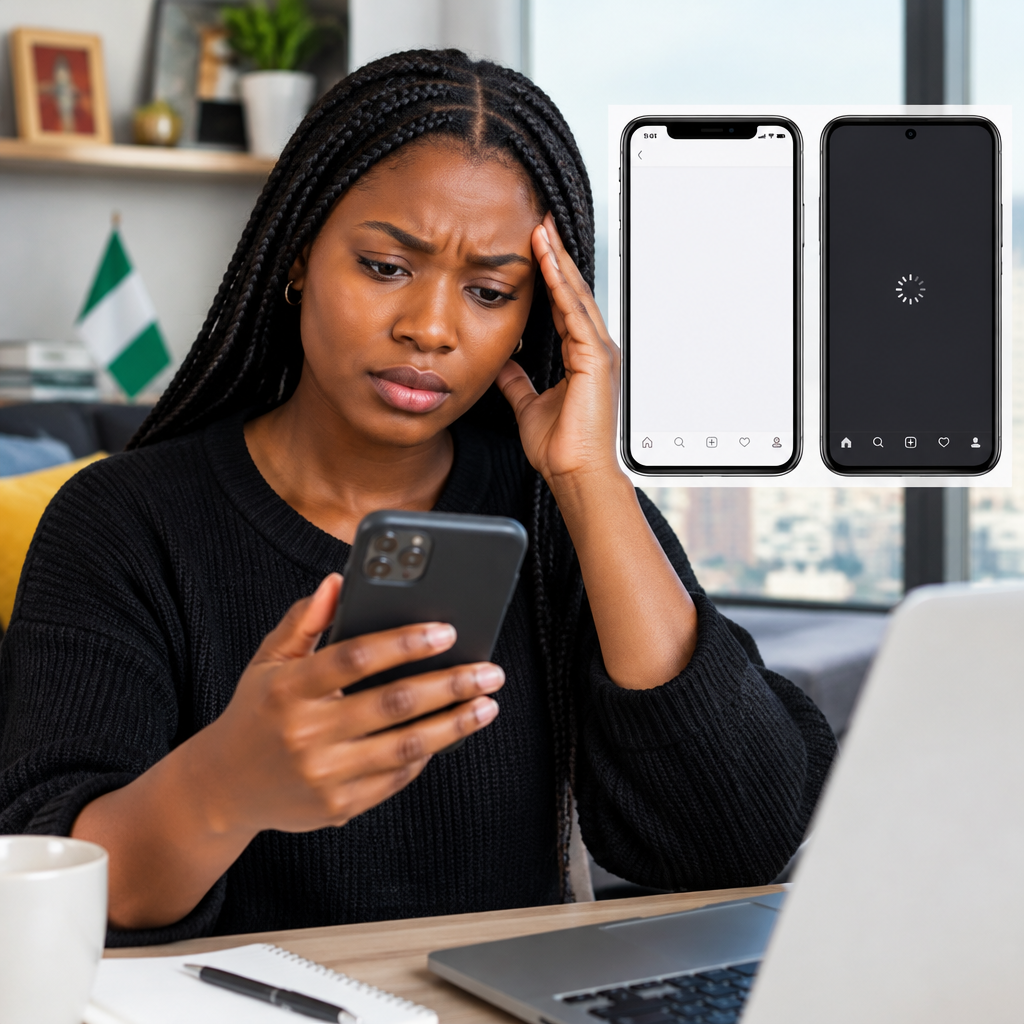
An app that opens but does not load content can be frustrating. You may see a blank screen, a spinning circle, old information, missing images or an error message even though other apps appear to work.
The problem is usually caused by one of five things: a weak internet connection, an app cache problem, an outdated app, a phone setting blocking data, or a temporary problem with the app’s server. Try the steps below in order. After each major step, reopen the app and check whether the content appears.
Advertisement
Table of Contents
1. Check whether your internet connection is working
First, confirm that the problem is not your connection. Open a browser and visit a familiar website, or try another app that needs the internet.
- If you are using mobile data, check that data is switched on and that your bundle has not finished.
- If you are using Wi-Fi, move closer to the router or reconnect to the network.
- Switch from Wi-Fi to mobile data, or from mobile data to Wi-Fi, and test the app again.
- Turn Airplane Mode on for about 10 seconds, then turn it off. This can refresh the phone’s connection to the mobile network.
In Nigeria, a connection may appear active while being too slow or unstable to load videos, images, news feeds or live scores. If websites also load slowly, focus on the network before changing the app.
2. Close and reopen the app
The app may have started incorrectly or become stuck while connecting to its server.
- Open the list of recent apps on your phone.
- Swipe the affected app away to close it fully.
- Wait a few seconds and open it again.
On some Android phones, you can also use the app’s information page to stop it forcefully. Use this only for the affected app, then launch it again.
3. Restart your phone
A simple restart can clear temporary memory problems and refresh network services. Power off the phone, wait briefly, turn it back on and try the app before making more significant changes.
This is especially useful when several apps are slow, the phone has been running for a long time, or the device has recently installed an update.
4. Check whether the service itself is unavailable
Sometimes the app is working correctly, but its servers are experiencing an outage or maintenance. This can affect everyone, even people with strong internet connections.
Look for an official status page or verified social media account belonging to the service. You can also ask someone you trust to test the same app. Do not treat random posts or forwarded messages as confirmation of an outage.
If only one service fails while other apps and websites work normally, wait a little and try again later. Reinstalling the app will not fix a problem on the company’s server.
5. Update the app
An outdated version may stop loading content after the service changes its systems. Open the Google Play Store on Android or the App Store on iPhone, search for the app and check whether an update is available.
Before updating, make sure you are using the genuine app from the correct developer. Avoid downloading installation files from unfamiliar websites, particularly when the app handles money, messages, identity documents or account information.
After the update finishes, open the app again. You may need to sign in, so keep your legitimate login details available. Never share your password, PIN or one-time password with anyone claiming to be helping you.
6. Clear the app cache on Android
A damaged temporary file can prevent an app from displaying fresh content. Clearing the cache removes temporary files but normally keeps your account and personal data.
- Open Settings.
- Choose Apps, Applications or a similar option.
- Select the affected app.
- Open Storage or Storage and cache.
- Tap Clear cache.
Settings names differ between phone brands. Do not tap Clear data unless you understand the result. Clearing data can sign you out and remove locally stored app settings or downloaded content.
7. Check data permissions and battery restrictions
Your phone may be preventing the app from accessing the internet in the background or while mobile data is active.
Android
Open the app’s information page from Settings and look for Mobile data and Wi-Fi, Data usage or a similar menu. Make sure network access is allowed. If Data Saver is enabled, allow the affected app to use unrestricted data, if that option is available.
iPhone
Open Settings, select Mobile Service or Cellular, and check that mobile data is enabled for the app. Also check whether Low Data Mode is affecting the connection. You can review background activity settings under the app’s settings and the General section.
These restrictions can be useful for saving data, but they may stop feeds, notifications or images from loading normally.
8. Check your phone’s date and time
Incorrect date or time settings can interfere with secure connections. Set the phone to use the network-provided date, time and time zone.
- On Android, look under Settings and System or General management.
- On iPhone, go to Settings, General, then Date & Time.
Enable automatic settings where your phone provides them, then restart the app.
9. Temporarily review VPN, DNS and security settings
A VPN, private DNS service, ad blocker or security application may block the connection that the app needs. If you use one, disable it temporarily and test the app.
Only change settings you understand, and avoid installing unknown “connection fixer” apps. If the app works after disabling a security tool, check that tool’s settings or contact its official support rather than leaving your phone unprotected.
10. Reinstall the app as a final step
If the app still opens without loading content, uninstalling and reinstalling it may replace damaged files. Before doing this:
- Confirm that you know the correct account sign-in method.
- Check whether important downloads, drafts or offline files are stored only on the device.
- Back up anything the app allows you to back up.
- Download the app again from the official Play Store or App Store.
Do not reinstall an app if you cannot safely recover the account. For banking, payment, email and social media apps, use the provider’s official recovery process if you are unsure.
When to contact support
Contact the app developer or service provider if the problem continues after testing a different network, updating the app and restarting the phone. Include the phone model, operating system, app version, the exact error message and the time the problem occurred. Do not send your password, PIN, OTP, recovery phrase or full card details.
If the app loads on another device but not yours, the issue is probably related to your phone, app installation or settings. If it fails everywhere, the service may be experiencing a broader technical problem.
A quick way to identify the cause
| What you notice | Likely cause | First action |
|---|---|---|
| Other websites also fail | Internet connection | Change network or restart the router |
| Only one app fails for everyone | Service outage | Check official service updates |
| App works on Wi-Fi but not mobile data | Data permission or bundle issue | Check mobile-data access and balance |
| App shows a blank screen after an update | Cache or installation problem | Clear Android cache or reinstall safely |
| App fails only on one phone | Device setting or compatibility issue | Update the phone and review restrictions |
The safest approach is to start with low-risk checks: test the connection, close the app, restart the phone and look for a service outage. Move to cache clearing, permission checks and reinstallation only when necessary. This saves data, protects your account and helps you identify whether the fault is with your phone, your network or the service itself.
Advertisement
