

Advertisement

Advertisement
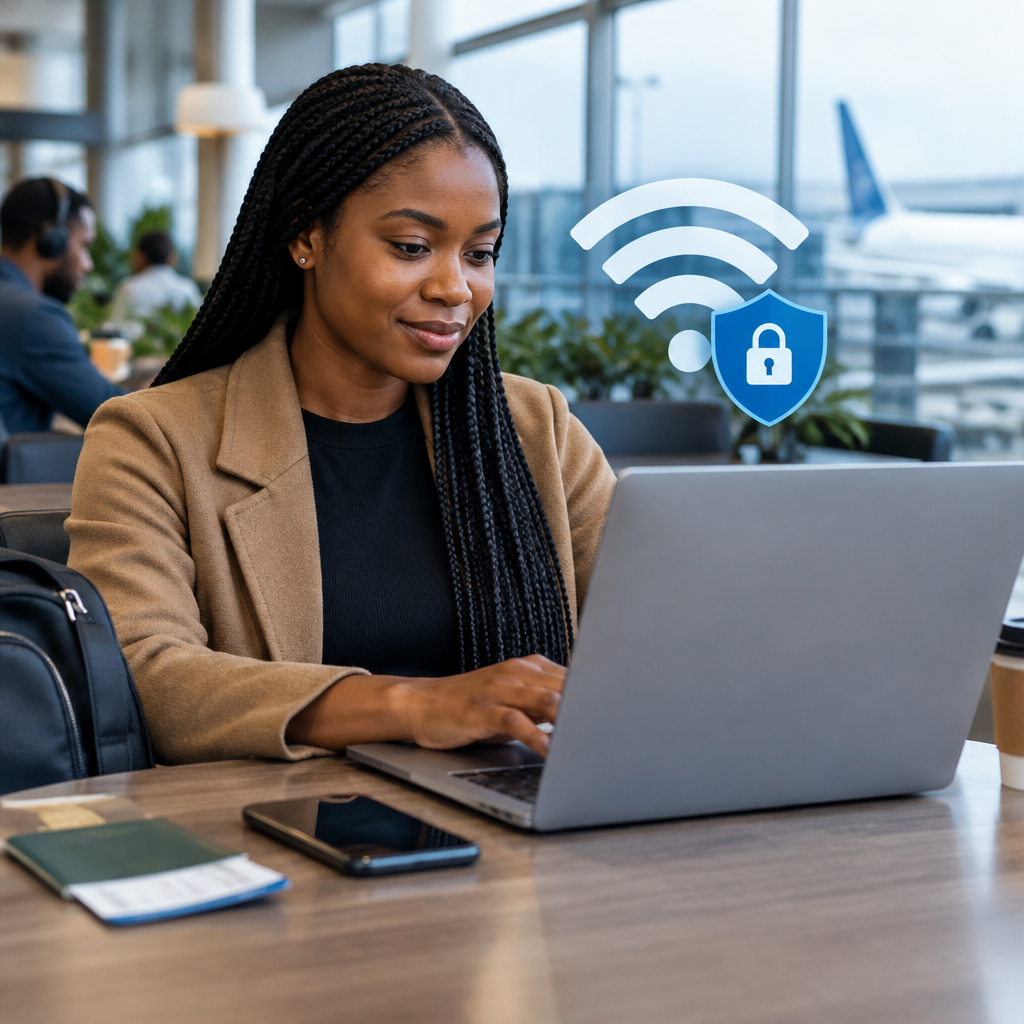
Public Wi-Fi can save mobile data when you are at an airport, hotel, café, university, co-working space or shopping centre. It can also create opportunities for criminals to intercept information, imitate legitimate networks or trick you into revealing your login details.
Using public Wi-Fi is not automatically dangerous, but you should treat it as an untrusted network. Avoid sensitive activities where possible, confirm that the connection is genuine, use account protections such as two-factor authentication and disconnect when you are finished.
Advertisement
Table of Contents
Why public Wi-Fi can be risky
When you connect to a public network, you may not know who operates it, who else is connected or how well it is protected. Some networks are poorly configured. Others may be created by attackers and given names that look similar to the official network.
For example, a genuine café network might be called “Cafe_Guest”, while a criminal could create “Cafe_Free_WiFi” nearby. If you connect to the wrong network, your activity may be monitored or redirected to fake login pages.
Modern websites and apps often encrypt information between your device and their servers. This provides important protection, but it does not make every public network safe. A fake website can still collect your password, and an infected device can still expose information even when the network connection is encrypted.
Before connecting: check the network
Do not connect to the first open network you see. Ask an employee, hotel reception desk, airport information point or event organiser for the exact network name and any password or sign-in instructions.
Be cautious if you are asked to install an unknown application, browser extension or security certificate before gaining access. A public Wi-Fi provider may use a sign-in page, but you should not install unfamiliar software simply to connect.
Also check whether the network requires a browser sign-in. Before entering any information, confirm that the page is genuinely connected to the venue or service. Do not enter your email password, banking password, card details or one-time password into a page merely because it appeared after connecting to Wi-Fi.
Steps for safer public Wi-Fi use
1. Keep your phone and laptop updated
Install operating system, browser and app updates before travelling or working outside your home. Updates often fix security weaknesses. Use a screen lock such as a PIN, password, fingerprint or facial recognition, especially if you carry information relating to work, school, finances or online services.
2. Turn off automatic connection
Disable settings that automatically join open Wi-Fi networks. This reduces the chance that your phone will connect to a malicious network without you noticing.
On many devices, you can also turn off Wi-Fi when you are not using it. After leaving a café, hotel or airport, select the network in your Wi-Fi settings and choose the option to forget it if you do not plan to return.
3. Use mobile data for sensitive tasks
Your mobile network is usually a better choice for activities that involve valuable or private information. Consider using mobile data or your phone’s personal hotspot for:
- Online banking and transfers
- Changing passwords or recovery details
- Accessing cryptocurrency accounts or wallets
- Submitting identity documents
- Opening important email or work accounts
- Shopping or entering card information
- Handling BVN, NIN, passport or immigration documents
If you must perform one of these tasks, use the official app or type the website address yourself instead of following an unexpected link. Check the address carefully and confirm that the site uses HTTPS. HTTPS is useful, but it does not prove that a website is genuine, so look for the correct domain name as well.
4. Use a trusted VPN when appropriate
A reputable virtual private network, or VPN, can create an encrypted connection between your device and the VPN provider. This can reduce the risk of someone on the same Wi-Fi network viewing your network traffic.
A VPN is not a complete security solution. The VPN provider may be able to see some information about your connection, and a VPN cannot protect you from fake websites, phishing messages, malware or weak passwords. Avoid unknown free VPN applications that request excessive permissions or make unrealistic promises. Research the provider before installing its app and download it from the official app store or website.
5. Use two-factor authentication
Two-factor authentication adds another verification step after your password. Depending on the service, this may involve an authenticator app, security key, text message or another method.
It is particularly useful for email, social media, financial services, shopping accounts and creator platforms. If someone obtains your password, the additional step can make it harder for them to enter the account. However, never share a verification code with someone who calls or messages you unexpectedly. Legitimate support staff should not need your one-time password.
6. Avoid saving passwords on shared devices
If you use a computer in a business centre, library, hotel or school, do not save your password in the browser. Use a private browsing window where appropriate, but remember that private browsing does not make you anonymous and does not protect you from fake websites.
Always sign out of accounts before leaving. Close browser windows, remove downloaded documents and check whether the computer stored files in its downloads folder. For sensitive accounts, using your own phone or laptop is safer than using a public computer.
How to recognise a suspicious sign-in page
Stop before entering a password if:
- The page address has unusual spelling or a strange domain.
- You reached it through an unexpected pop-up or redirect.
- It asks for more information than the service normally requires.
- It demands your email password to provide basic Wi-Fi access.
- The page creates urgency, threatens account closure or offers an unusually large reward.
- Your browser warns that the connection or certificate is unsafe.
Close the page and access the service through its official app or by typing the known website address manually. Messages claiming to be from a bank, cryptocurrency platform, job provider or government service deserve extra caution. Public Wi-Fi is often used in places where people are already travelling, applying for opportunities or trying to complete urgent tasks, which can make rushed decisions more likely.
What to do if you entered a password on suspicious Wi-Fi
Act quickly, preferably from mobile data or another trusted connection.
- Change the exposed password through the official website or app.
- Change it anywhere else you reused the same password.
- Sign out other sessions and review recent login activity.
- Enable or strengthen two-factor authentication.
- Contact your bank or financial provider through its official channel if payment information was exposed.
- Check your device for unfamiliar applications, browser extensions or configuration profiles.
Do not give your PIN, password, card number, recovery phrase or one-time password to anyone offering to “help” after the incident. Scammers may use a suspected security problem to impersonate customer support.
A simple public Wi-Fi decision rule
| Activity | Safer choice |
|---|---|
| Reading news, checking public information or watching general videos | Public Wi-Fi is usually reasonable if the network is verified and your device is updated. |
| Downloading a routine file from a trusted website | Use public Wi-Fi cautiously and scan files before opening them. |
| Online banking, payments or identity-document uploads | Use mobile data or a trusted personal network instead. |
| Changing passwords or recovering an account | Use a trusted connection and the official service. |
| Using a shared computer | Avoid sensitive accounts; never save passwords and always sign out. |
The safest habit
Public Wi-Fi should be treated as a convenience, not as a private home network. Verify the network name, keep your device updated, avoid sensitive transactions, use strong unique passwords and turn on two-factor authentication. When a task involves money, identity documents or account recovery, switch to mobile data or another connection you trust.
That small pause before connecting can prevent a much bigger problem later.
Advertisement
