

Advertisement

Advertisement
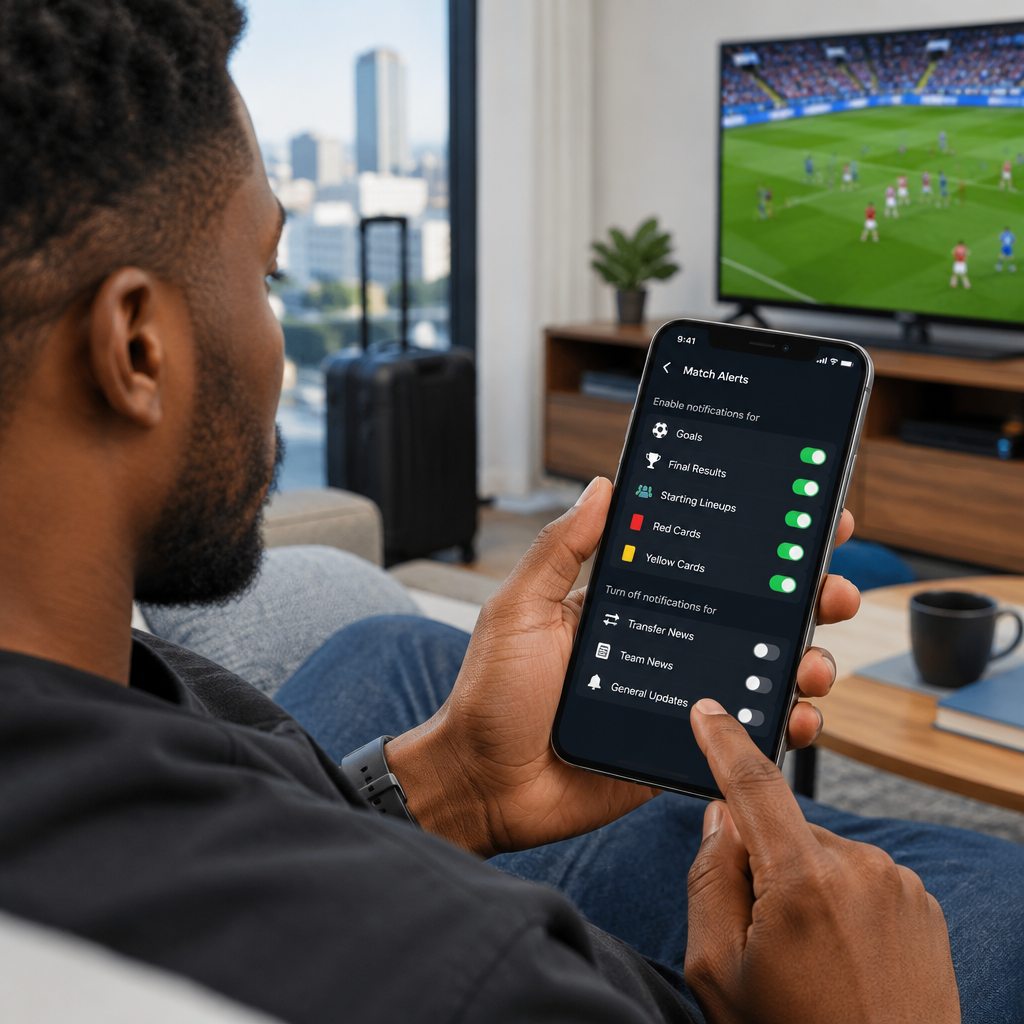
Football alerts are useful when you want to know about kick-off, goals, half-time and the final result without watching your phone all day. The problem is that an app can send too many notifications, refresh scores constantly or keep working in the background, causing unnecessary battery use.
The solution is not to disable every alert. Instead, keep the notifications that matter most and reduce background activity, location access and unnecessary updates. This guide works for most football news, livescore and sports apps, although the exact menu names may differ.
Advertisement
Table of Contents
Which match alerts use the least battery?
Push notifications are usually the most practical option for match alerts. The app’s server sends a notification when an important event happens, rather than your phone repeatedly checking for updates. This can be more efficient than opening an app frequently or using a live tracker that refreshes continuously.
Battery use can increase when you combine several services, such as a livescore app, a sports news app, a messaging channel and a browser website all sending alerts for the same match. Choose one main service for live updates and use another only for important news or analysis.
Alerts that are normally worth keeping include:
- Match starting soon or kick-off reminders.
- Goals and major score changes.
- Half-time and full-time results.
- Red cards or other major incidents, if you need them.
- Breaking team news for clubs or competitions you closely follow.
Alerts you can usually disable include every attack, possession change, corner, substitution, statistical update and promotional message. These create notification noise and may encourage you to open the app repeatedly.
Start with a small alert plan
Before changing your phone settings, decide what you actually need. A student checking a match between classes may want only kick-off, goals and the final result. Someone following several teams may need competition alerts but not every event from every fixture.
A simple plan is to select:
- One main team or competition: avoid following every club by default.
- Three or four alert types: for example, kick-off, goals, red cards and full-time.
- One notification style: use normal push alerts instead of SMS, email and push notifications for the same event.
- A quiet period: silence non-urgent alerts overnight or during work, school or travel.
This approach helps with both battery life and attention. It also makes important updates easier to notice.
How to configure alerts inside a football app
Most football and livescore apps have a similar process:
- Open the app and sign in if required.
- Find the team, league, competition or match you want to follow.
- Tap a bell, star, heart or Follow button.
- Open the match or team notification settings.
- Turn off detailed events that you do not need.
- Keep only the key alerts, such as kick-off, goals and full-time.
- Review general app settings and disable marketing or recommended-content notifications if they are not useful.
Some apps separate alerts into match notifications and news notifications. Check both sections. You may disable general football news while keeping alerts for a particular match.
If you follow a match only occasionally, remove it from your followed list after the game. Old followed fixtures and teams can continue generating alerts long after you stop paying attention.
Android settings that can reduce unnecessary battery use
Android phones use different menus depending on the manufacturer and software version, but the controls are usually found in Settings, followed by Apps, Battery or Notifications.
Review the app’s battery activity
Open the phone’s battery settings and check which apps have used the most power. If a football app is using an unusually large share compared with how often you use it, open its battery options and select a balanced or optimised setting where available.
Aggressive background restrictions may delay alerts. If timely goals are important, test the setting during a match. If notifications arrive late, allow the app to run in the background while disabling unnecessary features inside the app itself.
Reduce notification interruptions
Open the app’s notification settings and turn off categories such as promotions, videos, transfer rumours or general recommendations if they are not needed. On many Android phones, notification categories can be controlled separately, so you do not have to block every alert.
Be careful with data-saving modes
Data Saver and battery-saving modes can restrict background activity. This may reduce power and mobile-data use, but it can also delay push alerts. If live notifications matter, add the selected app to an allowed list when your phone provides that option. Do not make every app an exception.
iPhone settings that can help
On an iPhone, open Settings > Notifications, choose the football app and review how it can alert you. You can allow notifications while removing sounds, banners or lock-screen alerts that you do not need.
For a less distracting setup, keep banners or lock-screen alerts for goals and full-time, but disable sounds. You can also use a Focus mode to silence non-urgent notifications during work, study or sleep. If the app supports notification summaries, less urgent updates can be grouped instead of appearing immediately.
Check Settings > General > Background App Refresh if the app is using more power than expected. Turning off background refresh can reduce background activity, but it may affect how quickly some apps update. Keep push notifications enabled if you still want important alerts, then test whether the alerts arrive on time.
Do not confuse notifications with live tracking
A normal goal notification is different from an open live match tracker. A live tracker may refresh frequently while it is open, especially when it displays commentary, statistics, animations or video. This can use more battery and mobile data.
When you only need the score, close the live tracker after checking it and rely on selected push alerts. If you are watching a video stream, expect higher battery use because video, screen brightness, speakers and mobile data all increase the phone’s workload.
A battery-friendly setup for Nigerian football fans
Mobile data and charging access may not always be convenient, especially when you are travelling, commuting or dealing with an unreliable power supply. A practical setup is to choose one trusted livescore service, follow only the teams or competitions you care about and enable goals plus full-time results.
Before leaving home, charge the phone and reduce screen brightness when practical. Avoid keeping several football apps open in the background. If you are using mobile data, disable automatic video previews and image-heavy features where the app allows it. These steps can help more than repeatedly opening the score page to check whether anything has happened.
When alerts arrive late or stop working
Battery saving is useful only if important alerts still arrive. If notifications are delayed, check the following:
- Notifications are enabled both inside the app and in your phone settings.
- The phone is not in Airplane mode, Do Not Disturb or a restrictive Focus mode.
- The app can use background data where necessary.
- Battery optimisation has not placed the app into a restricted state.
- You are signed in and following the correct team or match.
- Your internet connection is working.
- The app is not outdated or stuck after a failed update.
Restarting the app or phone can fix a temporary notification problem. If the issue affects only one service, check the app’s own help page before changing wider phone settings.
The best balance: fewer, smarter alerts
You do not need every football update to stay informed. Select one main alert service, follow only relevant teams, keep goals and final results, and disable promotional or minor-event notifications. Then use your Android or iPhone battery settings to limit unnecessary background activity without blocking the alerts you value.
The best setup is one you can test during a match. If the phone stays quiet until an important event occurs and the final result still reaches you reliably, you have reduced battery drain without missing the moments that matter.
Advertisement
