

Advertisement

Advertisement
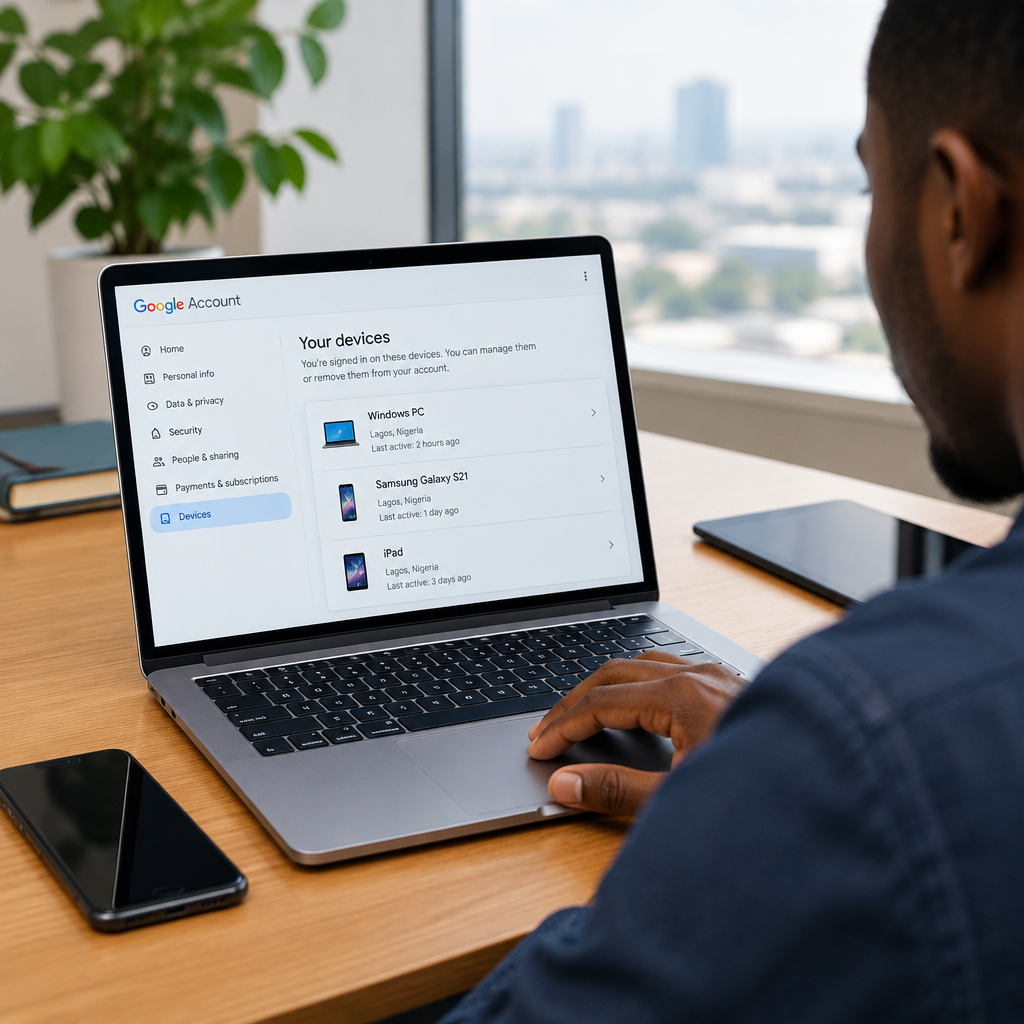
If you sold your phone, lost a laptop or signed into Google on someone else’s device, you should remove that device from your Google Account as soon as possible. This helps prevent another person from opening Gmail, Google Drive, Photos, YouTube or other services connected to your account.
You can usually do this from any phone or computer with an internet connection. The exact buttons may look slightly different depending on whether you use Android, iPhone or a web browser, but the account settings are broadly the same.
Advertisement
Table of Contents
What happens when you remove a device?
Removing a device normally signs your Google Account out of that device. It does not delete your Google Account, Google Photos library, Gmail messages or files stored in Google Drive.
It also does not erase the phone or computer itself. If you gave the device to another person, you should separately perform a factory reset or erase your personal data. If the device was stolen or lost, use Google’s device-finding tools where available and change your password.
A device may continue to appear in your account for some time after you sign out. Google can show devices that were recently active, so an old entry does not always mean that somebody is still using your account.
Remove a device from your Google Account on the web
- Open myaccount.google.com in a browser.
- Sign in to the Google Account you want to protect.
- Select Security from the menu.
- Scroll to the section called Your devices.
- Select Manage all devices.
- Choose the phone, tablet or computer you want to remove.
- Select Sign out, then confirm your choice.
If Google displays more than one session for the same device, review each entry carefully. A phone may have separate sessions associated with different browsers, apps or recent activity. Signing out of every unfamiliar or unwanted session provides better protection.
Remove a device using an Android phone
On many Android phones, you can reach the same controls through the Google settings:
- Open the Settings app.
- Tap Google, then select your Google Account or Manage your Google Account.
- Open the Security tab.
- Find Your devices and tap Manage all devices.
- Select the device or session you no longer want connected.
- Tap Sign out and confirm.
Android menus differ between manufacturers such as Samsung, Tecno, Infinix, Xiaomi and Google Pixel. If you cannot find the option in the Settings app, open a browser and use the web steps instead.
Remove a device when using an iPhone or iPad
If you use Google services on an iPhone or iPad, you can manage the account from a browser or the Gmail app.
In a browser, visit myaccount.google.com, sign in, select Security, open Manage all devices and sign out of the device or session you want to remove.
In the Gmail app, tap your profile picture, select Manage your Google Account, open Security, and then go to Your devices. From there, choose the relevant device and sign out.
Signing out of the Google Account does not necessarily remove every saved account from the iPhone. If the phone is still in your possession, also check the Gmail, Google Drive, Google Photos and Chrome apps and remove your account from any app you no longer use.
If the device is lost, stolen or with another person
Do not wait to recover the device before protecting your account. Use a trusted phone or computer and take these steps:
- Open your Google Account’s Security page.
- Under Your devices, select the missing device and sign out.
- Review recent security activity for unfamiliar logins or changes.
- Change your Google Account password, especially if the device was unlocked or its screen lock may be known.
- Check your recovery phone number and recovery email address.
- Turn on two-step verification if it is not already active.
For an Android phone, Google’s device-finding service may also allow you to locate, lock or erase the device, depending on the phone’s settings and connectivity. Remote erasing is a serious step because it removes data from the phone and may not be reversible. Use it when protecting your personal information is more important than recovering the device.
How to identify an unfamiliar device
Google may list a device name, location, browser, operating system or recent activity. These details are useful, but they may not always be exact. A mobile network, VPN or shared internet connection can make the displayed location different from your actual location.
Before removing a device you recognise, compare:
- the device type, such as Android phone, Windows computer or iPhone;
- the last activity time;
- the browser or app used to sign in;
- whether you recently used a public, work or borrowed computer.
If you still do not recognise the activity, sign out rather than ignoring it. Then change your password and review your security settings.
Removing an account from a device you still have
If the phone or computer is in your possession, you can also remove the account directly from the device.
On Android
Open Settings, go to Passwords and accounts, Users and accounts or a similarly named section, select the Google Account and tap Remove account. The wording varies by phone manufacturer. This removes the account from that phone, not from Google’s servers.
On a browser
Sign out of Google in the browser. If the browser saved your account profile, remove the profile or delete saved sign-in information after confirming that you do not need it. Do not save passwords on a public or shared computer.
Common mistakes to avoid
- Only deleting the Gmail app: Removing an app does not necessarily sign your Google Account out of the device.
- Assuming removal erases personal files: Sign-out and factory reset are different actions.
- Ignoring other active sessions: Review every unfamiliar entry in the device list.
- Sharing security codes: Never give anyone your Google password, verification code, recovery code or phone unlock code.
- Using a suspicious support number: Google does not require you to pay an online stranger to recover or secure a normal account.
After removing the device: a quick security check
Removing a device is only one part of account protection. Visit the Google Account Security Checkup and review:
- recent security events;
- recovery phone and email details;
- two-step verification methods;
- apps and services with access to your account;
- saved passwords and passkeys;
- devices and browser sessions that remain active.
Use a unique password that you do not reuse on banking, social media or other websites. For readers managing several services from Nigeria or abroad, this is especially important because one exposed password can affect email, online shopping, work accounts and financial platforms connected to that email address.
What to do if you cannot sign in
If you cannot access your Google Account, use Google’s official account recovery page rather than a third-party “recovery agent”. Try recovery from a device and location you commonly use, provide information accurately and avoid repeatedly entering guesses.
Once access is restored, remove unfamiliar devices, change the password and confirm that your recovery details have not been replaced. If you believe your Gmail was used to contact other people, warn important contacts about possible scam messages.
The key takeaway: sign out of unwanted devices through your Google Account’s Security settings, then check recovery details and two-step verification. If the device is being given away, lost or stolen, remember that signing out protects the account but does not by itself erase the device’s local data.
Advertisement
