

Advertisement

Advertisement
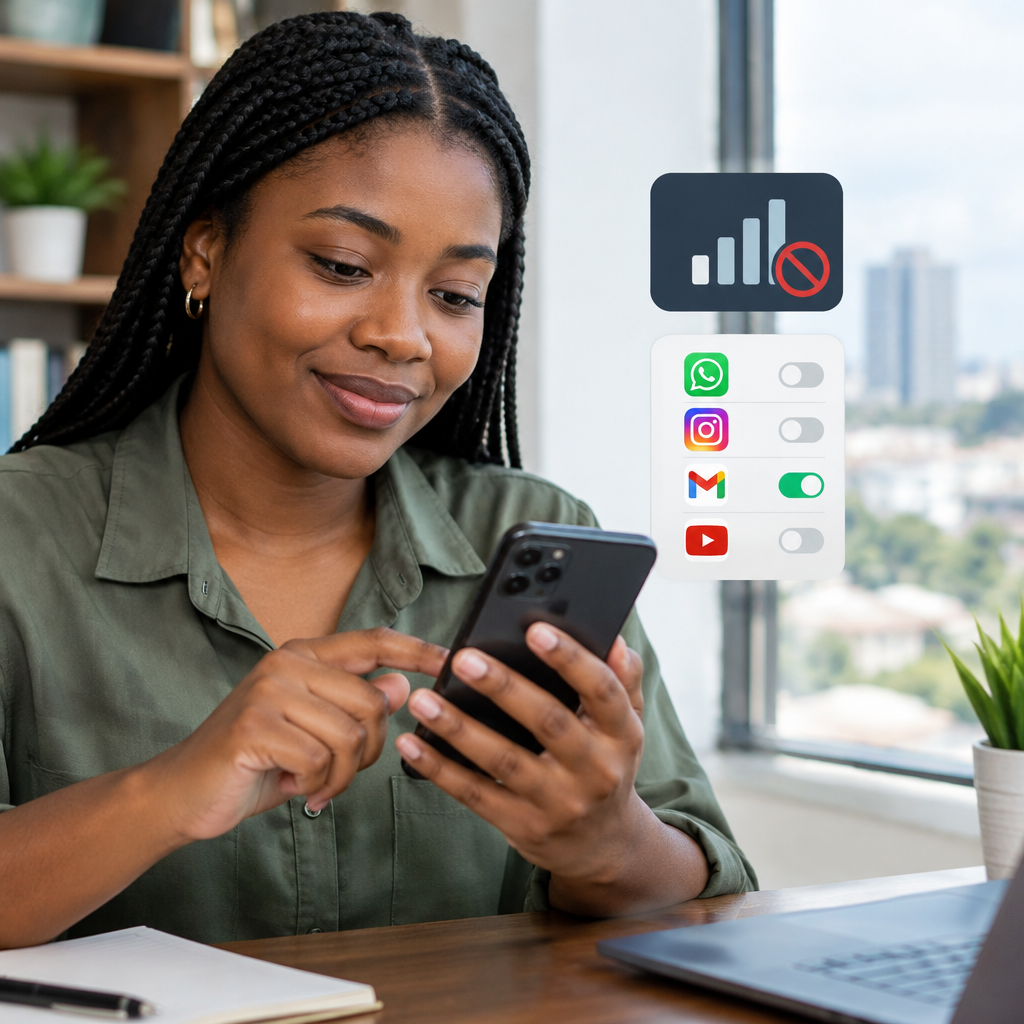
If your mobile data finishes faster than expected, apps running in the background may be part of the problem. Social media, cloud storage, video apps, app stores and messaging services can use mobile data even when you are not actively opening them.
This matters especially when you depend on a limited data bundle for news, football updates, online banking, school applications, work or communication. Android includes several controls that can help you reduce background data without disconnecting your phone completely.
Advertisement
Table of Contents
First, find the apps using the most data
Before changing settings, check which apps are responsible. Android menu names differ slightly between phone brands, but the process is usually similar.
- Open Settings.
- Tap Network & internet, Connections or a similar option.
- Select Data usage or Mobile data usage.
- Review the list of apps and the amount of data each has used.
On some phones, you can select a billing cycle or date range. Set it to match the period covered by your network provider’s bundle if the option is available. This makes the figures easier to compare with your remaining data.
Look for apps that use a large amount of data despite being rarely opened. Video platforms, social media, cloud backup services, app stores and browsers are common examples, but the actual result depends on how you use your phone.
Restrict background data for individual apps
Restricting background data stops an app from using mobile data freely when you are not using it. The app may still work when opened, but notifications, automatic refreshes or uploads could be delayed.
- Open Settings.
- Go to Apps or App management.
- Choose the app you want to control.
- Tap Mobile data & Wi-Fi, Data usage or a similar option.
- Turn off Background data or Allow background data usage.
You can also reach this setting from the mobile-data usage list by tapping an app. Avoid restricting every app immediately. Some services need background access for timely messages, security alerts, two-factor authentication prompts or work-related notifications.
Use Android’s Data Saver mode
Data Saver is a broader control that reduces background mobile-data activity for many apps. It is useful when you want a quick way to protect a small data bundle.
- Open Settings.
- Tap Network & internet, Connections or SIM manager.
- Select Data Saver.
- Turn it on.
Some apps may not update normally while Data Saver is active. Android usually lets you create an exception called Unrestricted data or Apps that can use data while Data Saver is on. Use this only for services that genuinely need access, rather than allowing every app.
Control automatic updates and downloads
Large updates can consume a significant part of a mobile bundle. Configure your main download services to use Wi-Fi where possible.
Google Play app updates
Open the Play Store, tap your profile picture and look for Settings and Network preferences. Choose an update option that uses Wi-Fi only, or turn off automatic updates if you prefer to update manually.
Manual updates require discipline. Check for updates when connected to trusted Wi-Fi, because delaying security updates indefinitely can leave apps exposed to known problems.
Photos and cloud backups
Open the settings for your photo-backup or cloud-storage app and check whether mobile data is allowed for backups. Select Wi-Fi-only uploads if that option is available. You can also disable mobile-data use for videos, which are usually much larger than photos.
Messaging and social-media downloads
Many messaging and social-media apps can automatically download photos, videos, documents and status updates. Change media-download settings so large files download only when you tap them, or only when connected to Wi-Fi.
Reduce data use inside video and social apps
Video is one of the easiest ways to use a large amount of data quickly. In each video or social-media app, look for settings such as Data Saver, Media quality, Video quality or Autoplay.
- Choose a lower video quality when using mobile data.
- Turn off autoplay for videos and GIFs.
- Download videos, music or podcasts only over Wi-Fi.
- Use offline downloads when the app provides them legitimately.
- Disable automatic story, status or media preloading if available.
These changes are particularly useful if you follow frequent football updates, livestreams or news videos. A lower-quality setting may use less data while still being clear enough on a phone screen.
Set a mobile-data warning and limit
Android can warn you when usage reaches a level you choose. It may also stop mobile data after a selected limit, although the exact behaviour depends on the phone.
- Open Settings and go to Data usage.
- Choose Billing cycle, Data warning & limit or a similar option.
- Set the date on which your data cycle begins.
- Set a warning below your full bundle allowance.
- If needed, set a limit that turns mobile data off after the selected amount.
Leave some space between Android’s limit and your provider’s advertised allowance. Usage measurements may not match perfectly, and some network activity may be recorded differently.
Check hotspot and tethering use
When you share your phone’s connection with a laptop, tablet or another phone, that device may download updates, videos and large files automatically. This can consume data much faster than using your phone alone.
Turn off Mobile Hotspot when you finish using it. Use a strong hotspot password and check the list of connected devices. Do not share the password publicly, especially in places where unknown users could connect.
If your phone offers a hotspot data limit or timeout, enable it. When using a laptop through a phone connection, mark the connection as metered where supported. This can reduce automatic updates and background downloads.
What you should not restrict carelessly
Some restrictions can create problems rather than savings. Be careful with:
- Messaging apps you rely on for urgent communication.
- Banking or security apps that send account alerts.
- Authenticator, device-finding and security services.
- Email apps used for work, school or application deadlines.
- Services that upload important documents or backups.
If notifications stop arriving, open the affected app, restore background access and check whether Android’s battery-saving settings are also limiting it. Data settings and battery settings can both affect background activity.
A practical low-data setup
For a simple starting point, use this combination:
- Check mobile-data usage and identify the top three apps.
- Enable Data Saver.
- Restrict background data for video, shopping and entertainment apps that do not need instant updates.
- Set app updates and cloud backups to Wi-Fi only.
- Turn off video autoplay and automatic media downloads.
- Set a warning below your full monthly or bundle allowance.
- Review your usage again after several days.
This approach is better than deleting random apps or turning off mobile data completely. It protects your bundle while keeping essential communication and security services available.
If data use still seems unusually high
Restart the phone and review the usage list again. Check whether a system update, cloud backup, hotspot connection or newly installed app explains the increase. Remove apps you no longer use, especially apps installed from outside the official app store.
Never install an app that claims it can recover lost data by requesting your banking PIN, one-time password or account password. Data-saving tools should not need those details. If your provider’s usage records differ significantly from Android’s figures, contact the provider through an official channel.
The most effective solution is regular review: identify the apps consuming data, restrict background access where it is safe, move large downloads to Wi-Fi and keep an eye on hotspot connections. You do not need to disable every notification to reduce Android data use; targeted changes usually provide the best balance between savings and convenience.
Advertisement
