

Advertisement

Advertisement
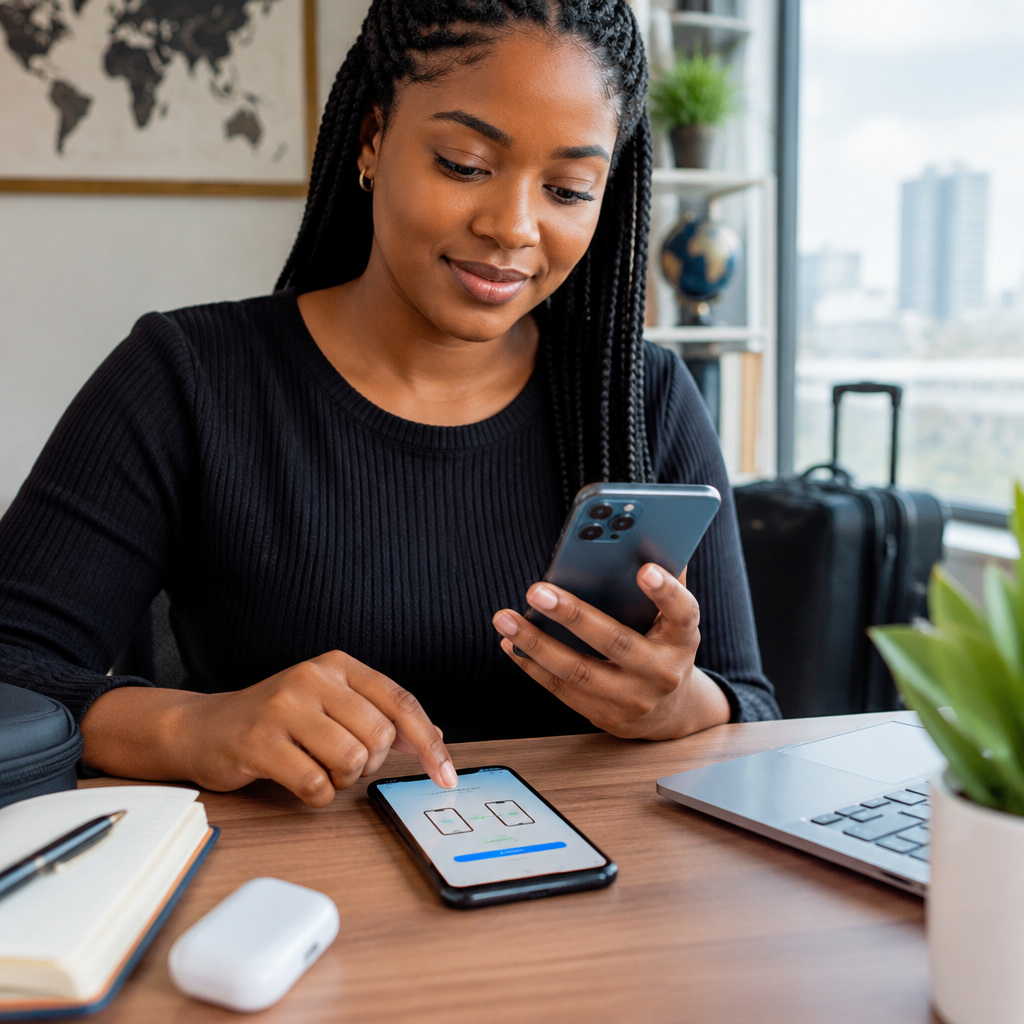
A new phone can expose your accounts if you rush through setup, share verification codes or leave your old device connected. Before transferring photos, banking apps and messages, create a simple security plan.
This guide explains how to move to a new Android phone or iPhone while reducing the risk of account theft. It is useful whether you bought the phone in Nigeria, received it from someone abroad or are replacing a lost, damaged or stolen device.
Advertisement
Table of Contents
Before turning on the new phone
Do not begin by installing every app you used on your old phone. First, confirm that you can securely access the accounts that control your digital life.
- Know the correct password for your main email account.
- Confirm that your recovery phone number and backup email are still available.
- Keep your SIM card, authenticator device or other sign-in method nearby.
- Charge both phones and connect them to a trusted Wi-Fi network.
- Make sure the new phone came from a trustworthy source and has not been modified or rooted.
Your main email account is especially important. It can often be used to reset passwords for social media, shopping, work and financial-service accounts. If an attacker gains access to that email, changing passwords on individual apps may not be enough.
Protect your old phone before transferring data
If the old phone still works, update its operating system and important apps before beginning the transfer. Updates can fix security weaknesses and may improve compatibility with the new device.
Then create a recent backup using the official backup service for your device. Android phones commonly use a Google account for backups, while iPhones use an Apple account and iCloud. The exact options depend on the phone model and operating-system version.
Check that the backup contains the information you actually need:
- Contacts and calendar entries
- Photos and videos
- Messages, where supported
- Important documents
- Notes and application data
Some applications, particularly banking and authenticator apps, do not transfer like ordinary photos or contacts. They may require fresh registration, identity checks or a new security setup. Do not assume that a copied app automatically carries over its secure login.
Use the official transfer method
During setup, use the transfer tool supplied by the phone manufacturer or operating system. This may involve a cable, local wireless connection or a cloud backup. Avoid unknown “phone cloning” applications that ask for broad permissions or request your account passwords.
Review what you are transferring instead of selecting everything automatically. If the old phone contains sensitive files, private screenshots, saved documents or unused applications, this is a good time to remove them.
For messaging apps, follow the app’s own backup and restore instructions. Some conversations are protected by end-to-end encryption and may require a specific transfer process. Never give a stranger remote access to either phone because they claim they can help move your messages.
Secure the new phone immediately
Set a strong screen lock before adding sensitive accounts. A long PIN is usually safer than a short, predictable number. Avoid birthdays, repeated digits and numbers connected to your phone number. If the phone supports fingerprint or face recognition, you can enable it for convenience, but keep a strong backup passcode.
Also enable the phone’s built-in location and recovery features. These can help you find, lock or erase the device if it is lost. Learn where the feature is located and test that your account recognises the new phone without exposing private information.
Review privacy permissions when installing applications. A torch, wallpaper or calculator app normally should not need access to your contacts, microphone, messages or location. Deny permissions that are not necessary, and remove applications you do not trust.
Sign in in the right order
Use a deliberate order rather than entering passwords everywhere at once.
- Start with your primary email account. Confirm the account name, recovery options and security alerts.
- Set up two-step verification. Use an authenticator app, security key or another reliable method where available. Keep backup codes in a secure place that is not simply a screenshot in your gallery.
- Install system and security updates. Download applications from the official app store and check the developer name before installing.
- Install essential communication apps. Verify your phone number only inside the genuine application.
- Add financial and work accounts last. Check that you are using the official app or website before entering credentials.
Do not type passwords into links received by SMS, email or social media messages. Instead, open the official app or type the organisation’s known website address yourself.
Pay special attention to banking and payment apps
Banking, mobile-money and payment applications deserve extra care. Never share your PIN, password, one-time password, card details or recovery phrase with anyone claiming to be support staff. Genuine support should not need your secret authentication codes.
After installing a financial app, confirm that its name and developer are correct. Use the contact details listed on the bank or service provider’s official website if you need help. Do not rely only on a phone number sent to you in a message.
Check transaction alerts and account notifications after the move. If you see a transaction, login alert or device-registration message you do not recognise, contact the provider through an official channel immediately. Do not wait for the new phone setup to finish.
Remove access from the old phone
Once you have confirmed that your data and essential accounts work on the new phone, review your account sessions. Many email, social-media and messaging services show a list of signed-in devices. Sign out the old phone if you are selling it, giving it away or sending it for repair.
Before disposing of the old device:
- Remove the SIM card and any memory card.
- Back up anything you still need.
- Sign out of the main email, Apple or Google account.
- Remove saved payment cards where appropriate.
- Turn off device-lock features linked to your account.
- Perform a factory reset only after confirming that your data is safely available elsewhere.
A factory reset removes most local data, but it does not automatically protect accounts that remain signed in elsewhere. Account-session review is therefore an important separate step.
Common mistakes that expose accounts
Giving someone your verification code
A verification code is a temporary key to your account. If a caller or online contact asks you to read it out, stop the conversation. This is one of the most common ways people lose access to email, messaging and social accounts.
Using the same password everywhere
If one service is breached, reused passwords can expose several other accounts. Use unique passwords, preferably stored in a reputable password manager. Secure the password manager itself with a strong master password and two-step verification.
Installing applications from random websites
Files shared through social media, messaging groups or unofficial websites may contain malware. Use the official app store whenever possible, and be cautious with applications that request unusual permissions.
Transferring old security problems
A new phone does not remove malware, suspicious account access or unsafe passwords. Review your accounts rather than assuming the new device has solved every problem.
A simple final security check
Before considering the setup complete, ask yourself:
- Can I access my main email without asking anyone for a code?
- Is the new phone protected by a strong screen lock?
- Are two-step verification and recovery details working?
- Did I install apps only from trusted sources?
- Have I removed the old phone from important account sessions?
- Did I erase the old phone before giving it to someone else?
The safest phone transfer is not the fastest one. Take time to verify each account, reject suspicious requests and keep private codes private. A careful setup protects more than your photos: it helps protect your money, identity, messages and access to the digital services you use every day.
Advertisement
