

Advertisement
Advertisement
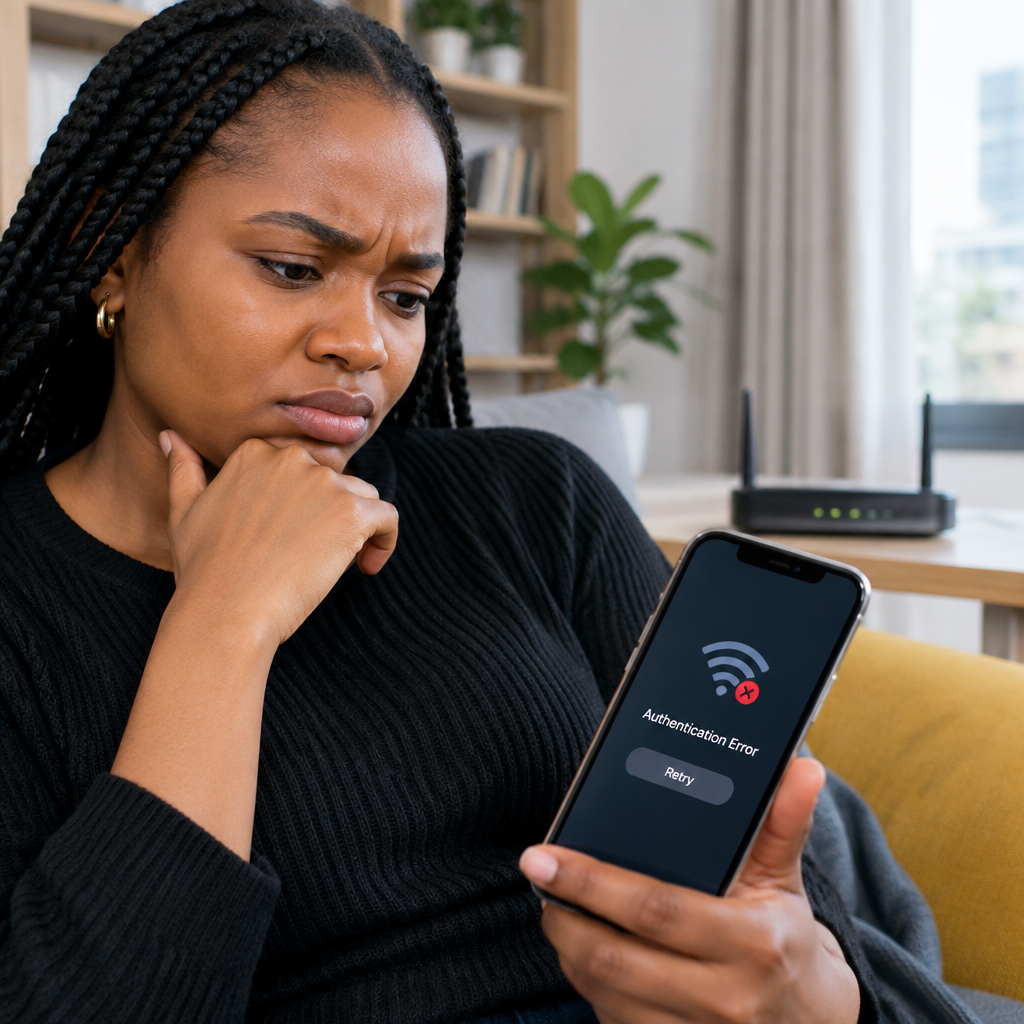
A Wi-Fi authentication error means your phone and the router could not agree on the network credentials or connection settings. The most common cause is an incorrect password, but the problem can also come from a saved network profile, a temporary router fault, weak signal or incompatible settings.
Before changing advanced settings, try the quick fixes below. They work for many common phone and home-router problems, whether you are using Wi-Fi at home, work, school, a hotel or a public location.
Advertisement
Table of Contents
Start with these quick checks
- Confirm that you selected the correct network. Nearby homes, offices and mobile hotspots may have similar names.
- Re-enter the Wi-Fi password carefully. Check capital letters, numbers, spaces and special characters. Wi-Fi passwords are case-sensitive.
- Move closer to the router. A weak signal can interrupt authentication, especially through thick walls or over a long distance.
- Turn Wi-Fi off and on. Wait a few seconds before switching it back on.
- Restart the phone. This can clear a temporary wireless or network-service error.
If other devices connect to the same Wi-Fi network but your phone does not, the issue is probably on the phone or with its saved network information. If no device can connect, focus on the router or internet service.
Forget the network and connect again
Your phone may have saved an old password or an incorrect connection profile. Forgetting the network removes that saved information so you can create a fresh connection.
Android phones
- Open Settings and select Network & internet, Connections or a similar option.
- Tap Wi-Fi.
- Select the network that is showing the authentication error.
- Choose Forget or Forget network.
- Select the network again and enter the password carefully.
The exact names can vary between Android phones, including Samsung, Tecno, Infinix, itel, Xiaomi and other brands. If you cannot find the option, use the Settings search box and search for “forget network”.
iPhone
- Open Settings and tap Wi-Fi.
- Tap the information button beside the affected network.
- Choose Forget This Network, then confirm.
- Return to the Wi-Fi list, select the network and enter the password again.
Forgetting a network does not delete your internet account. It only removes the connection details stored on that phone.
Check whether the password has changed
If the router password was recently changed, your phone may continue trying to use the old one. This often produces an authentication error rather than a clear message saying that the password is outdated.
Ask the person who manages the network for the current password. If it is your router, check the router label, setup information or management app, depending on how the network was configured. Do not guess passwords repeatedly, because some networks temporarily block repeated attempts.
When copying a password from a message, check for an accidental space at the beginning or end. Also distinguish between characters that look alike, such as the number “0” and the letter “O”, or the number “1” and a lowercase “l”.
Restart the router and modem
A router can temporarily stop accepting new connections even when the password is correct. To restart it safely:
- Turn off the router. If you have a separate modem or internet box, turn that off too.
- Wait for about 30 seconds.
- Turn the modem or internet box back on first, if you have one.
- Wait for its connection lights to settle.
- Turn on the router and wait for the Wi-Fi network to appear.
- Try connecting your phone again.
A restart is different from a factory reset. Do not press and hold the reset button unless you know how to set up the router again. A factory reset may erase the network name, password and other settings.
Check date, time and phone updates
An incorrect date or time can interfere with some secure network connections. Open your phone’s date and time settings and enable automatic date and time where available.
Also install pending phone software updates if your device has enough battery and storage. Updates can resolve wireless bugs, although you should use a trusted Wi-Fi connection or mobile data and avoid interrupting the installation.
Try changing the connection band
Many modern routers provide both 2.4 GHz and 5 GHz Wi-Fi networks. The 2.4 GHz band usually travels farther and can work better through walls. The 5 GHz band may offer higher speeds at shorter distances but may be less reliable when you are far from the router.
If both networks appear separately, try the other one. If only one network name appears, the router may be combining the bands automatically. In that case, restart the router and test again, or ask the network administrator to check its wireless settings.
Reset network settings as a last phone-side step
If the error continues after forgetting the network, resetting network settings can remove a deeper configuration problem.
- On many Android phones, look under Settings > System > Reset options, then choose Reset Wi-Fi, mobile & Bluetooth or a similar option.
- On iPhone, go to Settings > General > Transfer or Reset iPhone > Reset > Reset Network Settings.
This does not normally delete photos or apps, but it removes saved Wi-Fi networks and passwords. It can also remove Bluetooth pairings and some mobile-network settings. Make sure you know your important Wi-Fi passwords before using it.
When the network itself may be the problem
Contact the person or organisation managing the Wi-Fi if:
- Several devices receive authentication errors.
- The network requires a username, account login or special sign-in page.
- You are connecting at a school, office, hotel or public location and the access rules may have changed.
- The router has reached its device limit.
- The network uses a security mode that your older phone does not support properly.
For public Wi-Fi, open a browser after connecting to check whether a sign-in page is waiting. Avoid entering banking passwords, card details or other sensitive information on an unfamiliar network. Never share your phone PIN, banking PIN, one-time password or account recovery code with someone claiming to be fixing the connection.
A simple way to identify the cause
| What you observe | Most likely area to check |
|---|---|
| Only your phone cannot connect | Saved password, phone settings or phone software |
| No device can connect | Router, modem or internet provider |
| The phone connects, then disconnects | Weak signal, interference or router instability |
| The network asks for a browser login | Public or managed Wi-Fi sign-in process |
| The problem began after changing the password | Forget the network and enter the new password |
Useful takeaway
Most Wi-Fi authentication errors can be fixed by checking the correct network, re-entering the password, forgetting the saved connection and restarting the router. If those steps fail, compare your phone with another device, reset network settings carefully and ask the network administrator to check the router. Work through the simple checks first so you do not erase settings unnecessarily.
Advertisement