

Advertisement
Advertisement
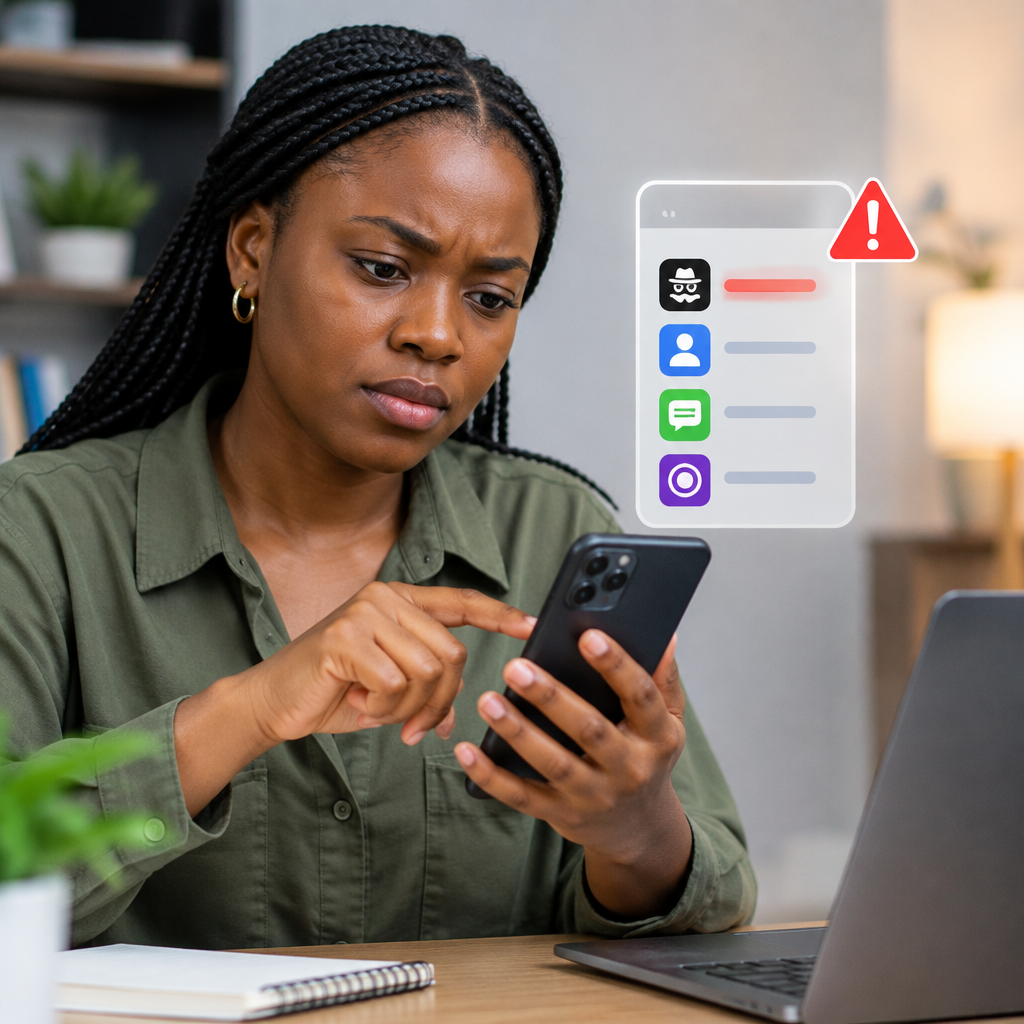
A suspicious app can do more than slow down your phone. It may display aggressive adverts, collect personal information, monitor activity, send unwanted messages or trick you into entering banking and social media details.
This is especially important if you use your phone for mobile banking, online shopping, work, school applications, digital payments or social media. The good news is that you can often identify and remove a dangerous app without technical experience. Start by looking for unusual behaviour, then uninstall the app and secure any accounts that may have been exposed.
Advertisement
Table of Contents
Signs that an app may be unsafe
One warning sign does not always prove that an app is malicious. Some legitimate apps use more battery or data than others. However, several signs appearing together deserve immediate attention.
- Unexpected adverts: adverts appear on your home screen, lock screen or over other apps, even when you are not browsing.
- Battery draining quickly: your battery becomes unusually weak after installing an app, particularly when the app is not being used.
- Unexplained data usage: the app consumes mobile data in the background without an obvious reason.
- Phone overheating: the device becomes hot while idle or during simple tasks.
- Unwanted redirects: websites open by themselves or your browser repeatedly takes you to strange pages.
- Unknown messages or calls: contacts receive messages from your number that you did not send.
- New apps or settings: unfamiliar applications, browser extensions or settings appear without your permission.
- Pressure to grant powerful access: an ordinary app asks to read notifications, control the screen, access accessibility features or act as a device administrator.
- Account warnings: your email, social media or financial-service account reports an unfamiliar sign-in or activity.
Be particularly careful with apps installed from links in messages, unofficial websites, modified-app pages or files sent through social media. A familiar name or logo is not proof that an app is genuine.
Check where the app came from
Before deleting an app, think about when and how it appeared. Did you install it from the official app store, or did you download an installation file after clicking a link? Did somebody ask you to install it to receive a job opportunity, loan, investment offer, football stream or giveaway?
Scammers often use urgent promises to persuade people to install apps. A message may claim that your account will be blocked, that you have won money or that you must install a special app to complete a payment. Do not treat urgency as evidence of legitimacy.
Check the app’s name, developer, icon, permissions, reviews and download information in the official store. These checks are useful but not perfect: fake apps can copy the name and appearance of real services, while reviews can be misleading. If you need a banking, payment or government service, begin from the organisation’s official website or verified communication channel instead of searching randomly.
How to remove a suspicious app on Android
- Disconnect temporarily if necessary. If the phone is showing serious suspicious activity, turn off mobile data and Wi-Fi. This can reduce the app’s ability to communicate while you investigate.
- Open your app list. Go to Settings, then look for Apps, Applications or App management. The wording differs between phone brands and Android versions.
- Find the unfamiliar app. Sort through recently installed apps if that option is available. Check the app’s permissions, battery use, mobile-data use and notification settings.
- Remove special access. If the uninstall button is unavailable, check whether the app has been given device-administrator access, accessibility access, permission to appear over other apps or permission to install unknown apps. Remove those permissions first. These options are usually found under Security, Privacy or Special app access.
- Uninstall it. Return to the app’s information page and select Uninstall. You can sometimes press and hold the app icon and choose the uninstall option.
- Run the phone’s security scan. Use the security or app-scanning feature built into your phone. Keep the operating system and apps updated through official channels.
- Restart the phone. After removal, restart the device and watch for continued adverts, redirects, battery drain or other unusual behaviour.
Do not delete an unfamiliar system app simply because its name looks technical. Some built-in services are necessary for the phone to work. Search the exact name using a trusted source or ask the phone manufacturer before removing it.
How to remove a suspicious app on iPhone
- Locate the app. Find it on the Home Screen or in the App Library.
- Delete the app. Touch and hold its icon, choose Remove App, then select Delete App. Removing an icon from the Home Screen is not always the same as deleting the app, so confirm the deletion option.
- Review permissions. Open Settings and review privacy sections such as location, camera, microphone, contacts, photos and tracking. Turn off access that the app does not need.
- Check profiles and device management. If you installed a configuration profile, workplace profile or management setting at the app’s request, review it under the device’s general or management settings. Do not remove a legitimate work or school profile without understanding its purpose, but investigate any profile you do not recognise.
- Check subscriptions. Some deceptive apps use free trials or subscriptions. Review your Apple account subscriptions and cancel anything you did not knowingly start.
- Update iOS. Install available system updates through the phone’s normal settings and restart the device.
What to do if the app cannot be uninstalled
An app that refuses to uninstall may have been granted administrator or other special privileges. On Android, review device-administrator and accessibility settings before trying again. If the phone is managed by an employer or school, the administrator may control removal.
If the app keeps returning, the phone remains unstable or you cannot identify what is controlling it, back up important personal files carefully and consider a factory reset. A reset erases the phone, so confirm that photos, contacts and important documents are backed up before proceeding. After the reset, install apps only from trusted official stores and restore data selectively rather than restoring every unknown app.
Protect your accounts and money after removal
Deleting the app may not undo information that was already collected. If the app had access to your email, social media, payment account or banking information, use a different trusted device to take protective steps.
- Change affected passwords, beginning with your email account.
- Use unique passwords and enable two-step verification where available.
- Sign out unfamiliar sessions from your important accounts.
- Review bank, wallet and payment notifications for transactions you do not recognise.
- Contact your bank or financial-service provider through its official channel if you see suspicious activity.
- Never share your PIN, password, one-time password, card details or recovery phrase with someone claiming to help.
- Tell contacts if your account may have sent malicious links or messages.
If you entered a password into a page opened by the app, change it immediately. Do not use a phone number or link supplied by the suspicious app to contact support. Find the organisation’s official website or use a known service number.
How to avoid suspicious apps in future
Use official app stores where possible, keep your phone updated and remove apps you no longer need. Before installing an app, ask whether its requested permissions match its purpose. A calculator does not normally need access to your contacts and messages; a shopping app may not need accessibility control.
Do not install an app simply because a message promises guaranteed earnings, an urgent account fix, a prize or exclusive access. This warning matters when handling job adverts, loan offers, investment platforms, online shopping deals and applications connected to travel or education. Verify the organisation through its official website before downloading anything.
Also review permissions regularly. A legitimate app can become a privacy concern if it retains access that it no longer needs. Keep backups, but avoid automatically restoring suspicious apps after a reset.
The practical takeaway
When your phone starts behaving strangely, identify recently installed apps, review their permissions and remove anything you cannot verify. Then secure exposed accounts and monitor financial activity. Acting quickly, using official support channels and refusing to share sensitive credentials can turn a worrying app problem into a manageable one.
Advertisement