

Advertisement
Advertisement
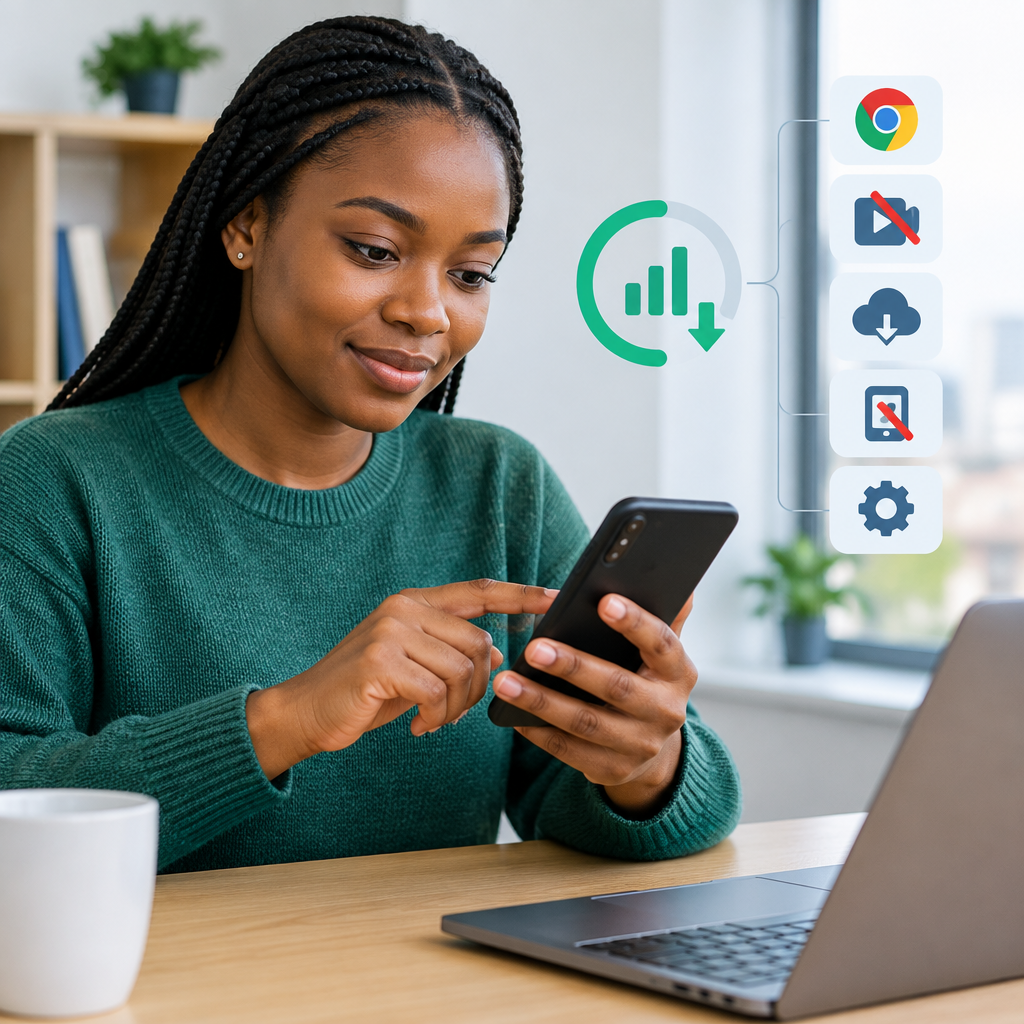
Mobile data can disappear quickly when Chrome pages load large images, apps refresh in the background, videos autoplay or football updates and news feeds download more content than you expect. If you use a limited data bundle in Nigeria, a few changes can make your data last much longer without stopping you from browsing, chatting or following important updates.
The most effective approach is to control three things: what apps download automatically, when they use mobile data, and the quality of videos and images they display. Settings may have different names on Android and iPhone, but the principles are similar.
Advertisement
Table of Contents
Start by finding the biggest data users
Before changing settings, check which apps are consuming your data. This prevents you from focusing on a small problem while a video or social-media app uses most of your bundle.
On Android
- Open Settings.
- Tap Network & internet, Connections or a similar option.
- Choose Data usage or Mobile data usage.
- Review the apps listed and check their usage for the current period.
On iPhone
- Open Settings.
- Tap Mobile Service or Cellular.
- Scroll down to view data usage by app.
- Turn off mobile-data access for apps that do not need it outside Wi-Fi.
Your phone’s data period may not match the renewal date of your network bundle. If necessary, reset the usage statistics when you buy a new bundle so the figures are easier to understand.
Reduce data use in Chrome
Chrome itself is usually not the only reason data usage is high. The websites you visit matter more. News pages, online shopping sites, image-heavy pages and video websites can download substantial files, especially when you open several tabs.
Use Chrome’s basic browsing controls
Keep fewer tabs open and close pages that you no longer need. Multiple open tabs may reload when you return to them, particularly when your phone has limited memory. Avoid repeatedly refreshing pages to check for news, scores or livescores. Instead, use a trusted app or page that provides the update you need, and refresh only when necessary.
When a website offers a simple or reader-style view, use it for text-based articles. This can reduce the number of images, advertisements and page elements loaded. You can also avoid opening several versions of the same story from different websites when one reliable source answers your question.
Block unnecessary pop-ups and redirects
Chrome’s pop-up and redirect controls can stop some unwanted pages from opening automatically. In Chrome, open the menu, go to Settings, then look under Site settings for options related to pop-ups and redirects. The exact wording can differ by device and app version.
This will not block every advert or prevent every large file from loading, but it can reduce accidental page openings. Be careful with websites that ask you to install an unknown application or enable suspicious notifications.
Be careful with video pages
Video uses much more data than ordinary text. Do not play a video simply because it starts automatically. Pause it, lower the quality where the player allows it, or wait until you have Wi-Fi. If you only need the written explanation, read the article instead of watching the video.
Stop apps from using data in the background
Many apps refresh feeds, synchronise files, check for messages or download updates even when you are not actively using them. Restricting background data is one of the most useful changes for people on limited bundles.
Android settings
Open Settings, select Apps, choose an app and look for Mobile data & Wi-Fi or Data usage. Depending on the phone, you may be able to turn off Background data. You can also enable Data Saver under your phone’s network or data-usage settings.
Data Saver may limit how apps update when you are not using them. Important notifications can arrive later, so allow unrestricted data for apps that must work immediately, such as a service used for urgent communication or security alerts.
iPhone settings
On an iPhone, go to Settings > General > Background App Refresh. You can turn the feature off completely or allow it only for selected apps. You can also open Settings > Mobile Service and disable mobile data for apps that should work only over Wi-Fi.
Do not turn off data access for an app without considering what you need from it. For example, an app may stop updating until you open it on Wi-Fi or turn mobile data back on.
Control automatic downloads and updates
Automatic downloads are convenient, but they can consume a bundle at the wrong time. Review settings for:
- App updates from the Google Play Store or App Store.
- Automatic photo and video backups.
- Music, podcasts and video downloads.
- Messaging-app media downloads.
- Cloud storage synchronisation.
- Operating-system updates.
Set large downloads to use Wi-Fi only where the option is available. In messaging apps, change automatic media download settings so that photos, videos and documents download only when you tap them. This is particularly useful in busy group chats where people share many videos and images.
Review your camera-backup settings as well. A phone that uploads every photo and video immediately can use a large amount of data, especially when recording high-resolution video. Choose Wi-Fi-only backup or upload selected files manually.
Lower video and image quality
Video quality has a direct effect on data use. When watching on mobile data, choose a lower quality such as standard definition if the app provides that choice. Avoid high-resolution streaming unless you have a large bundle or Wi-Fi.
For social-media apps, look for options such as Data Saver, Use less mobile data or Media quality. These may reduce video quality, stop preloading and limit high-resolution images. The setting does not remove all data use, but it can reduce unnecessary downloads as you scroll.
If you follow football updates, consider whether you need live video or only text updates, fixtures and livescores. Streaming a match consumes far more data than reading a score. Downloading match highlights over Wi-Fi and watching them later can also help.
Use Wi-Fi wisely
Wi-Fi can reduce mobile-data use, but public or shared networks are not automatically safe. Avoid entering banking passwords, card details, one-time passwords or other sensitive information on an untrusted network. Do not install an application because a public Wi-Fi login page tells you to.
At home or work, use Wi-Fi for system updates, app updates, cloud backups, large documents and video downloads. If the connection is slow or unreliable, start the download manually and confirm that it has finished before switching back to mobile data.
Set a data limit and warning
Android phones commonly allow you to set a warning and a limit for mobile data. The phone can alert you as you approach the amount you choose and, on some devices, switch off mobile data after reaching the limit. This limit may not perfectly match your network provider’s calculation, so treat it as a safety reminder rather than an exact billing record.
On iPhone, app-by-app mobile-data controls and usage statistics can help you monitor consumption. You can also check your network provider’s app or official service channel for the most accurate bundle balance.
A simple low-data routine
- Check your biggest data users after buying a bundle.
- Turn off autoplay or reduce video quality in frequently used apps.
- Restrict background data for apps that do not need constant updates.
- Set app updates, backups and large downloads to Wi-Fi only.
- Review messaging groups and stop automatic video downloads.
- Use text updates instead of streaming when video is not necessary.
- Check your usage again after a few days and adjust the settings.
Do not install an unknown “data-saving” app that asks for excessive permissions or promises free data. Your phone’s built-in controls are usually safer and enough for most users.
The best result comes from combining several small changes rather than relying on one setting. Stop automatic downloads, reduce video use, restrict background activity and monitor the apps that consume the most. You can still read news, follow football, use online services and access practical technology guides while making each data bundle go further.
Advertisement