

Advertisement
Advertisement
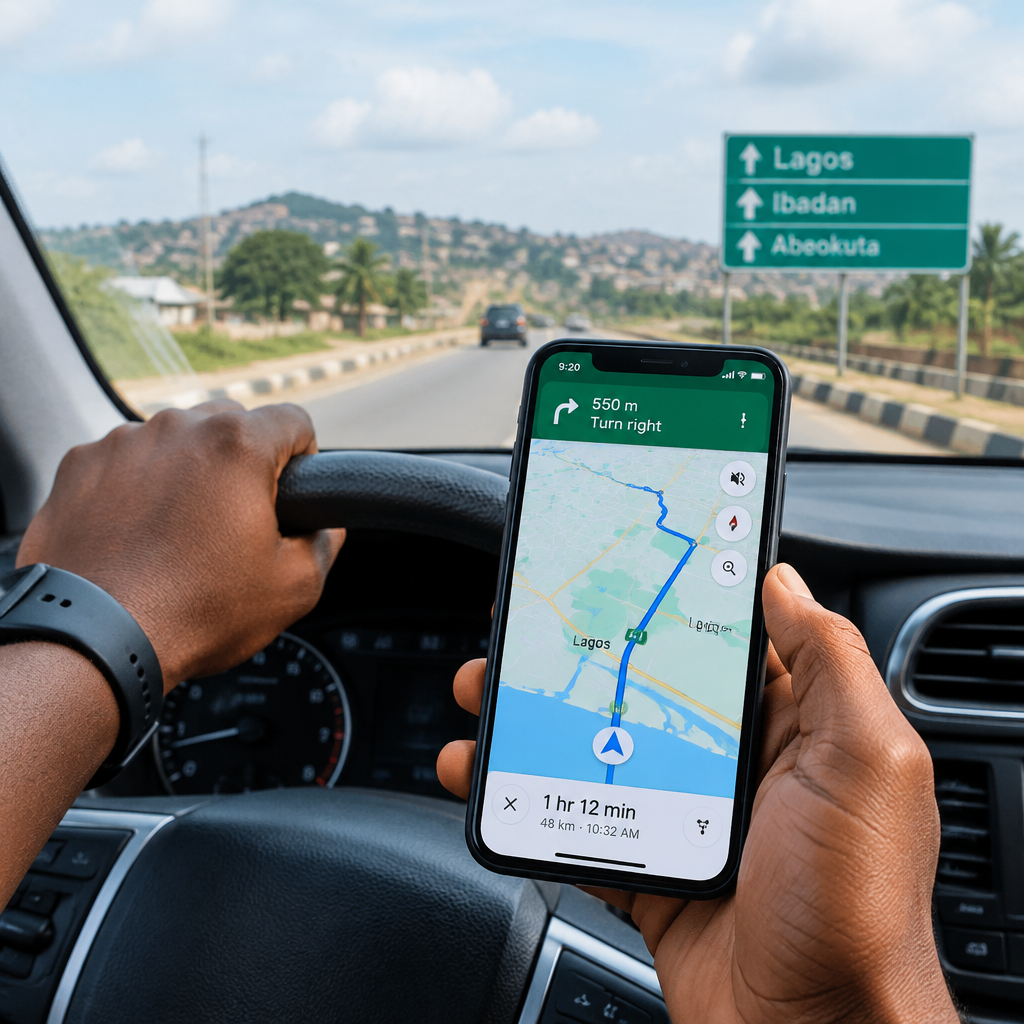
Travelling in Nigeria can involve long distances, unfamiliar roads and places where mobile internet becomes slow or unavailable. If you depend entirely on live Google Maps, you may lose access to directions at the moment you need them most.
The solution is to download an offline map before leaving. Google Maps can then use the downloaded area to provide driving directions without an active internet connection. However, offline maps have important limits: they do not provide live traffic updates, and some transport options and map information may not be available offline.
Advertisement
This guide explains how to prepare Google Maps for road trips, intercity travel and movement around unfamiliar Nigerian cities.
Table of Contents
What Google Maps offline mode can do
When you download a map area, Google Maps stores map information on your phone. This allows you to view roads and use driving navigation within the downloaded area even when your data connection is weak or unavailable.
Offline maps are useful for:
- Driving between cities or towns
- Navigating around an unfamiliar city
- Finding your way after losing mobile network coverage
- Reducing mobile data use during a long journey
- Keeping a backup route when travelling through areas with unreliable connectivity
Offline navigation is not a complete replacement for live Google Maps. You should not expect real-time traffic information, live road closures, updated business details or automatic alternative routes based on current traffic. Offline maps are mainly designed to support driving routes.
Before downloading a map
Prepare your phone before you leave home, your hotel or another place with reliable Wi-Fi. Downloading a large area can consume significant mobile data and storage space.
Check these items first:
- Internet connection: Use stable Wi-Fi where possible.
- Phone storage: Make sure there is enough free space for the selected area.
- Battery: Charge your phone and consider carrying a power bank.
- Google account: Sign in to the Google Maps app if the app requests it.
- App version: Update Google Maps if the download option is missing or the menus look different.
It is also wise to save important addresses separately. For example, write down your accommodation address, a meeting point, an airport or bus terminal, and the phone number of a trusted contact. Digital navigation should support your travel plan, not be your only plan.
How to download an area in Google Maps
The wording and position of buttons can vary slightly between Android phones and iPhones, but the general process is similar.
- Open the Google Maps app while you are connected to the internet.
- Search for the city, town or area you plan to visit. You can search for a specific place such as Abuja, Lagos, Ibadan, Enugu or a destination outside a major city.
- Tap the name or address shown at the bottom of the screen to open the place details.
- Look for the More option, usually represented by three dots, and select Download offline map. In some versions, you may see the offline-download option directly in the place information panel.
- Adjust the highlighted rectangle so it covers the roads and destinations you need.
- Tap Download and wait for the process to finish.
You can also open your profile picture in Google Maps, select Offline maps, then choose Select your own map. Move and zoom the selection until it includes your planned route, and then confirm the download.
Do not select an unnecessarily large area. A map covering a whole region may take more storage and longer to download. It is usually better to download the travel corridor and nearby destinations you actually expect to use.
Download the route, not just the destination
A common mistake is downloading only the city where you will stay. If you are travelling by road from one city to another, make sure the downloaded area covers the route between them.
For example, if you are travelling to a meeting, event or family visit in another state, include:
- Your starting city or neighbourhood
- The main road journey
- Stops where you may buy fuel, rest or change transport
- The destination and nearby streets
- A reasonable area around your accommodation
Google Maps selects a rectangular area rather than a narrow line following your route. Zoom out far enough to include the journey, but avoid downloading more land than necessary.
How to use offline driving directions
After downloading the map, test it before travelling. You can temporarily switch off mobile data or use airplane mode, then open Google Maps and search for a destination inside the downloaded area.
To navigate:
- Open Google Maps.
- Search for the destination or select it on the map.
- Tap Directions.
- Choose the driving option.
- Review the route and start navigation.
If the route is covered by your offline map, the app should be able to guide you using the stored map data. Test this while you are still somewhere safe and connected so you can fix any problem before departure.
Offline navigation cannot know about a new traffic jam, a temporary diversion, flooding, construction or a road that has recently become difficult to use. In Nigeria, conditions can change quickly, especially during heavy rain or on busy urban routes. Pay attention to road signs and local, reliable advice instead of following the phone blindly.
Important limitations to remember
Offline Google Maps is most useful for driving, but it is not identical to online access.
- No live traffic: You will not receive current congestion information or traffic-based route changes.
- Limited transport options: Public transport, cycling and walking directions may not work fully offline.
- Limited place information: Business hours, reviews, new listings and other details may be outdated or unavailable.
- Coverage matters: You cannot navigate to a destination outside the downloaded map area without downloading more data or reconnecting.
- Maps can expire: Downloaded areas may need to be updated periodically. Open the offline maps section before a trip and check for an update.
- Phone settings matter: Location services must be enabled, and aggressive battery-saving settings may affect navigation.
Save key places before your journey
Saving important places makes them easier to find when you are under pressure. Search for a location, open its details and use the save option to add it to a list. You might create lists for accommodation, work appointments, hospitals, transport terminals or places you plan to visit.
For addresses that are difficult to locate, save a screenshot showing the destination and nearby landmarks. This is particularly helpful if a driver, friend or local contact needs to guide you by phone.
A practical travel preparation workflow
Use this simple routine before a Nigerian road trip:
- Plan the journey: Confirm the exact destination, route and accommodation address.
- Download the map: Include the starting point, route and surrounding destination area.
- Save important locations: Add accommodation, meeting points and transport terminals.
- Test offline access: Disable mobile data briefly and confirm that driving directions open.
- Prepare a backup: Keep written addresses, contact numbers and travel instructions.
- Check conditions before departure: Reconnect to the internet for the latest route information, then follow local safety guidance during the journey.
Common problems and quick fixes
The download option is missing
Update Google Maps, sign in if necessary, search for a recognised place and open its full information panel. You can also access the feature through your profile picture and Offline maps.
The map will not download
Check your connection, free storage and battery level. Try Wi-Fi instead of mobile data, reduce the selected area and restart the app if the download remains stuck.
Directions do not work offline
Confirm that the starting point and destination are inside the downloaded area and that you selected driving directions. If the route extends beyond the saved map, reconnect and download a larger area.
The location dot is inaccurate
Move outdoors or to a place with a clearer view of the sky, enable location services and remove battery restrictions for Google Maps if your phone is limiting background activity. GPS may work without mobile data, but tall buildings, enclosed spaces and environmental conditions can reduce accuracy.
Travel smarter, but keep human judgment
Offline Google Maps is a valuable backup for Nigerian travellers, students, workers, entrepreneurs and visitors moving between unfamiliar locations. It can help you continue a driving journey when data service disappears, but it cannot replace route planning, local awareness or current information.
The safest approach is to download the correct area, test it before leaving, carry essential addresses offline and reconnect whenever possible to check for changing conditions. Treat the map as one useful tool in your travel plan—not the only source of directions.
Advertisement