

Advertisement

Advertisement
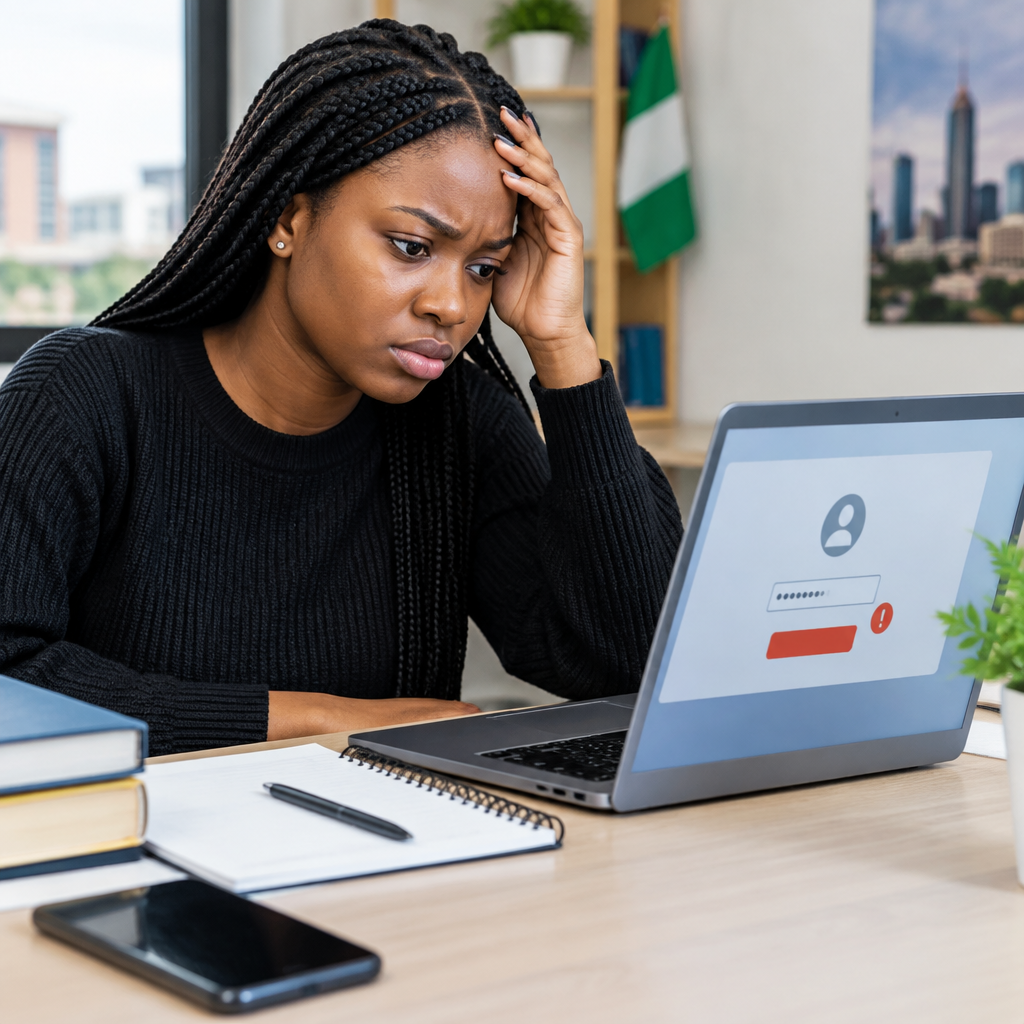
A student portal login problem can prevent you from checking admission updates, registering courses, paying fees, viewing results or downloading important documents. The problem may be a wrong password, an expired account, a browser issue or a temporary outage—not necessarily a serious account fault.
Before contacting your school’s support team, work through the steps below. They are suitable for university, polytechnic, college and other education portals, including portals used by Nigerian students at home or abroad.
Advertisement
Table of Contents
First, identify what is actually failing
Look carefully at the message on the screen. Different errors usually require different solutions.
- “Invalid username or password”: Your login details may be wrong, or the portal may require a different username format.
- “Account not found”: Your admission, registration or account activation may not be complete.
- “Account locked”: Too many failed attempts may have triggered a security lock.
- “OTP not received”: There may be a network, phone-number or email-delivery problem.
- A blank page or loading error: The browser, internet connection or portal server may be responsible.
- “Session expired”: The portal may have timed out while you were inactive.
Take a screenshot of the exact error if possible, but remove private information before sharing it with anyone.
Check the basics before trying again
Confirm the correct portal address
Schools may have separate portals for applications, admissions, student registration, online payments, results and learning management. A password that works on one platform may not work on another.
Open the portal through your school’s official website or an official admission or registration message. Avoid links sent through random social media accounts, group chats or unofficial agents. Fake portals can be designed to collect passwords, card details or one-time passwords.
Check your username format
Your username may be your application number, matriculation number, student ID, registered email address or phone number. Check whether the portal requires capital letters, a prefix, a slash or leading zeroes.
Do not assume that your email address is the username simply because the school has your email on record. Read the portal’s login instructions carefully.
Enter the password manually
When copying a password, an extra space at the beginning or end can cause a failed login. Password managers and phone keyboards can also insert an old password or automatically change the first letter to uppercase.
Type the details manually once. Check that Caps Lock is off and that you are using the correct keyboard layout. Do not keep guessing repeatedly, because several failed attempts may lock the account.
Reset your password safely
If you are confident that the username is correct but the password is not working, use the portal’s official Forgot Password, Reset Password or similar option.
- Open the login page from the official school website.
- Select the password-reset option.
- Enter the requested username, email, application number or student ID.
- Check your email inbox, SMS messages and spam or junk folder.
- Follow the reset link or enter the verification code.
- Create a new password that is difficult to guess and different from passwords used elsewhere.
- Return to the portal and sign in again.
Never give your password, OTP, card PIN or email verification code to someone claiming to be a school representative. Legitimate support staff should not need your secret login credentials.
When the reset email or OTP does not arrive
Wait a few minutes and request the code only once more. Repeated requests can make older codes invalid or trigger a temporary restriction.
Then check the following:
- Whether the registered phone number has network coverage.
- Whether your phone can receive other SMS messages.
- Whether the email address was entered correctly.
- Whether the message went to your spam, junk or promotions folder.
- Whether your inbox or SMS storage is full.
- Whether you recently changed your phone number or email address.
If you no longer have access to the registered phone number or email address, do not try to bypass the verification process. Contact the school through its official support channel and be prepared to provide identification or student records through the approved process.
Test your internet connection
A portal may fail to load even when other applications appear to work. Switch between mobile data and Wi-Fi to determine whether the problem is with your connection. If you are using mobile data, move to an area with a stronger signal or restart your phone’s mobile connection.
Try opening another reliable website. If other websites are also slow, the issue is probably your connection. If only the student portal fails, the school’s server or website may be experiencing a problem.
Try a different browser or device
Some portals work better on a current version of Chrome, Safari, Firefox or Edge. If the page does not work in your usual browser, try another trusted browser or use a computer instead of a phone.
You can also try a private or incognito window. This helps test whether an old login session, cookie or browser extension is interfering with the page.
If the portal works in private browsing, clear the site’s cookies and cached files in your normal browser, then sign in again. Clearing browser data may sign you out of other websites, so make sure you know those passwords first.
Check your phone’s date and time
Incorrect date or time settings can interfere with secure connections and time-sensitive verification codes. Set your device to automatic date and time, then restart the browser or phone.
This is particularly useful when an OTP appears to expire immediately or when a security warning is displayed even though the portal address is correct.
Look for maintenance or an access deadline
Student portals can become slow or unavailable during admission periods, course registration, fee-payment deadlines and result releases. Check the school’s official website or verified social media account for a maintenance notice.
Do not assume that a failed login means your admission or registration has been cancelled. A temporary server problem can produce confusing error messages. If an important deadline is approaching, save screenshots showing the error, including the date and time, and keep payment or registration evidence.
Confirm that your account should already be active
New students may need to complete admission acceptance, fee payment, identity verification or account activation before portal access is enabled. Returning students may also lose access if their session, registration status or account details have not been updated.
If you recently changed departments, deferred a session, transferred to another programme or completed a payment, the portal may take time to reflect the change. Use the official school instructions rather than creating multiple accounts.
Know when to contact support
Contact support after you have tried the relevant steps, especially if:
- The reset option says your account does not exist.
- Your account is locked and no unlock option is available.
- You no longer control the registered email address or phone number.
- The portal shows an incorrect name, programme, payment status or registration record.
- You paid an approved fee but the transaction is not reflected.
- The portal remains unavailable while a deadline is close.
- You suspect that someone accessed your account.
Use the support email address, phone number or help desk listed on the institution’s official website. Include your full name, student or application number, the portal address, the exact error message, the device and browser used, and the steps you have already tried. Do not include your password, OTP, PIN or complete card details.
A simple example of an effective support request
Hello, I cannot access the student registration portal. My student ID is [your ID]. The portal displays “account locked” after I attempted to log in, and the password-reset option is not unlocking the account. I tried Chrome on mobile data and another browser on a computer. The problem occurred on [date and time]. Please advise on the approved recovery process.
Replace the bracketed information with your details, but send it only through an official support channel.
Protect your account after you regain access
Change your password if you entered it on a shared computer or suspect that it was exposed. Sign out of public devices, avoid saving passwords on computers used by other people and enable an available security feature such as two-step verification.
Students often search online for quick fixes to admission, scholarship and portal problems. That search can attract scammers who promise immediate activation or correction in exchange for money or login details. Treat unexpected messages with caution and confirm information through your institution’s official channels.
The best approach is to diagnose the specific error, verify the official portal, test the connection and browser, use the legitimate recovery process, and document the problem before escalating it. These steps can resolve ordinary login faults quickly while keeping your student account and personal information safer.
Advertisement
