

Advertisement
Advertisement
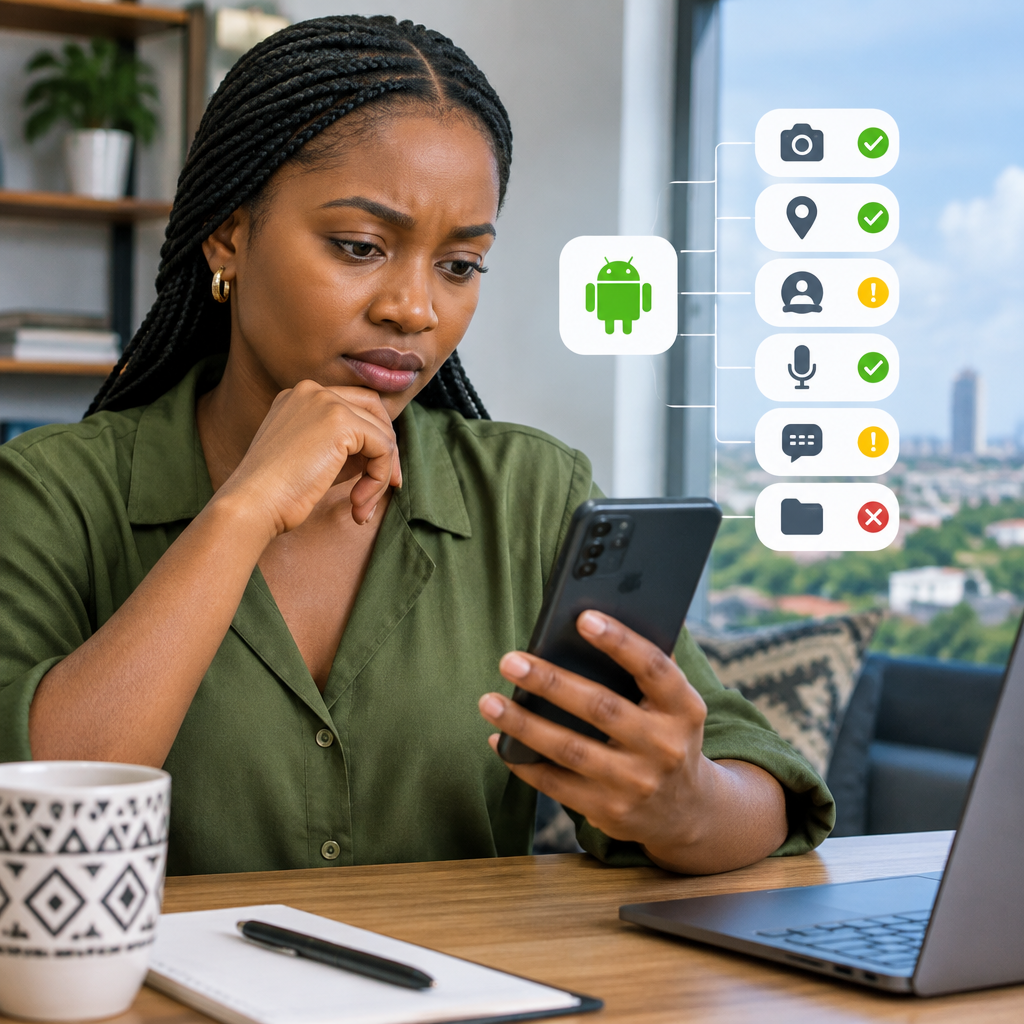
When an Android app asks for access to your camera, contacts, location or files, the safest answer is not always “Allow” or “Deny”. The right choice depends on what the app does and whether the requested access is necessary for that feature.
For example, a mapping app normally needs location access, while a calculator should not need your contacts. A messaging app may need access to contacts if you want to find friends, but it should not require your microphone when you are not making voice calls.
Advertisement
This guide explains common Android permissions in simple terms, including what they allow, when they make sense and how to review them. The steps are useful for anyone using Android apps, including banking, shopping, social media, football, news and productivity applications.
Table of Contents
What is an Android permission?
A permission is approval for an app to use a particular phone feature or type of information. Android restricts sensitive access so that an app cannot automatically use your camera, microphone, location or personal data without asking.
Some permissions are relatively harmless, such as access to the internet. Others can reveal sensitive information or allow an app to record, track or contact people. Android may ask for permission when you first use a feature rather than immediately after installing the app.
Permission names and menu locations can vary slightly between Android phones. Samsung, Tecno, Infinix, itel, Google Pixel and other manufacturers may use different wording, but the main ideas are similar.
Common Android permissions and when they make sense
Location
Location access can help an app determine where your phone is. It may use GPS, Wi-Fi networks or mobile networks to estimate your position.
Location access is reasonable for:
- Navigation and transport apps.
- Weather apps that show local conditions.
- Ride-hailing and delivery services.
- Maps and location-sharing features.
Be more careful when an app asks to access your location all the time. If the feature works while you are using the app, choose an option such as “While using the app” where available. Some Android versions also let you provide approximate rather than precise location.
A torch app, simple calculator or basic notes app normally has no obvious reason to know where you are.
Camera
Camera permission allows an app to take photographs or record video. It is expected for camera, video meeting, scanning and social media applications when you use those features.
An online shopping app may need camera access if you want to scan a barcode. A banking app may need it for identity-document capture or a QR-code payment feature. You can deny access if you are not using that function and grant it later when needed.
Do not give camera access simply because an unfamiliar app insists on it without explaining why. If you only need to upload an existing image, your phone may offer a photo picker or file-selection option that does not require continuous camera access.
Microphone
Microphone access allows an app to record sound. Voice calls, video meetings, voice messages, audio recording and some speech-to-text tools may need it.
Consider denying microphone access to apps that have no clear audio feature. If an app unexpectedly asks for microphone access, pause and check its description and developer information before continuing.
On supported Android phones, a microphone indicator may appear when an app is actively using the microphone. If you notice unexpected use, close the app and review its permissions.
Contacts
Contacts access allows an app to read names and phone numbers saved on your device. Messaging and calling apps may request it to help you find people you know.
However, allowing access can expose information about other people, not just you. You may be able to use the app without syncing your entire address book. Deny the request if contact discovery is not important to you.
Be especially cautious with an app that has no clear communication feature but wants your contacts. Never share your contacts merely to unlock an unrelated reward or suspicious promotion.
Photos, videos and files
Storage-related permissions allow an app to view, add or manage files on your phone. The exact wording depends on your Android version and the type of access requested.
Photo-editing, social media, document-scanning and cloud-storage apps may need access when you select files to upload or edit. Prefer selecting only the photos or documents needed when Android offers that option.
Think carefully before granting broad access to all files. A simple game, calculator or news reader normally does not need to inspect your documents and photographs.
SMS and phone access
SMS access can allow an app to read or send text messages. Phone permissions may allow it to make calls, read call information or identify the number associated with the device.
Some apps use SMS to detect a verification code during account setup. Even then, consider whether the app is trustworthy and whether you can enter the code manually instead.
Never give SMS or phone access to an unknown app just because it claims you need it to receive a prize, loan or account benefit. These permissions can expose verification messages and may create serious account-security risks.
Notifications
Notification access allows an app to display alerts. News, messaging, banking and delivery apps may need notifications to tell you about messages or transactions.
Notifications can also reveal private information on your lock screen. If you use a financial app, review your phone’s lock-screen notification settings so that sensitive transaction details are not displayed where other people can read them.
Calendar, nearby devices and other access
Calendar access may be useful for scheduling apps, while nearby-device access can support Bluetooth accessories, printers or device-to-device connections. These requests can be legitimate, but the app should explain the purpose.
Some powerful settings are not ordinary permissions. Examples include accessibility access, installing unknown apps, displaying over other apps and unrestricted battery use. Treat these requests with extra caution because they may give an app broad control or visibility over phone activity.
A simple decision test before tapping “Allow”
Ask these four questions:
- What feature am I trying to use? Identify the action that triggered the request.
- Does this permission match that feature? A map needs location; a calculator usually does not.
- Does the app need access now or all the time? Choose limited or one-time access when it is enough.
- Do I trust the app and its developer? Check that you installed the genuine app from a reputable source and not an imitation.
If the answer is unclear, tap “Deny” or close the request and investigate. A legitimate app will often continue working, although a particular feature may remain unavailable until you grant access.
How to review and remove permissions
You can usually review an individual app by opening Settings, selecting Apps or App management, choosing the app and opening Permissions. From there, you can change allowed access.
Another route on many Android phones is the Permission manager in the Privacy or Security section of Settings. This groups apps by permission, such as location, camera or microphone, making it easier to see which applications have access.
When reviewing the list:
- Remove access that an app does not need.
- Use “Only this time” or “While using the app” when available.
- Uninstall apps you no longer use, especially unfamiliar ones.
- Keep Android and apps updated through trusted sources.
- Pay attention to permission changes after an app update.
Removing a permission may stop a feature from working, but it usually does not damage the phone. You can restore the permission later if you decide the feature is useful and the app is trustworthy.
Warning signs that a permission request is risky
Be cautious when an app:
- Requests several sensitive permissions before you have used any feature.
- Asks for access unrelated to its main purpose.
- Uses threats or urgency to pressure you into approving access.
- Comes from an unofficial download link or unknown source.
- Requests accessibility, SMS or notification access without a clear explanation.
- Promises money, airtime, loans or prizes in exchange for broad phone access.
These warnings matter when installing apps for banking, payments, shopping or account management. Do not give an app your password, PIN, one-time password or recovery code because it requested a phone permission. Android permissions and account credentials are different things, and a genuine support representative should not need your secret login details.
The practical rule
Allow the smallest amount of access needed for the feature you want, for only as long as necessary. Location, camera, microphone, contacts, files and messages can all be useful, but usefulness does not make unrestricted access automatically safe.
For Nigerian Android users managing news apps, football services, financial tools, online shopping and everyday communication, a short permission review can prevent unnecessary exposure of personal information. If an app’s request does not make sense, deny it first and investigate rather than approving it out of habit.
Advertisement