

Advertisement

Advertisement
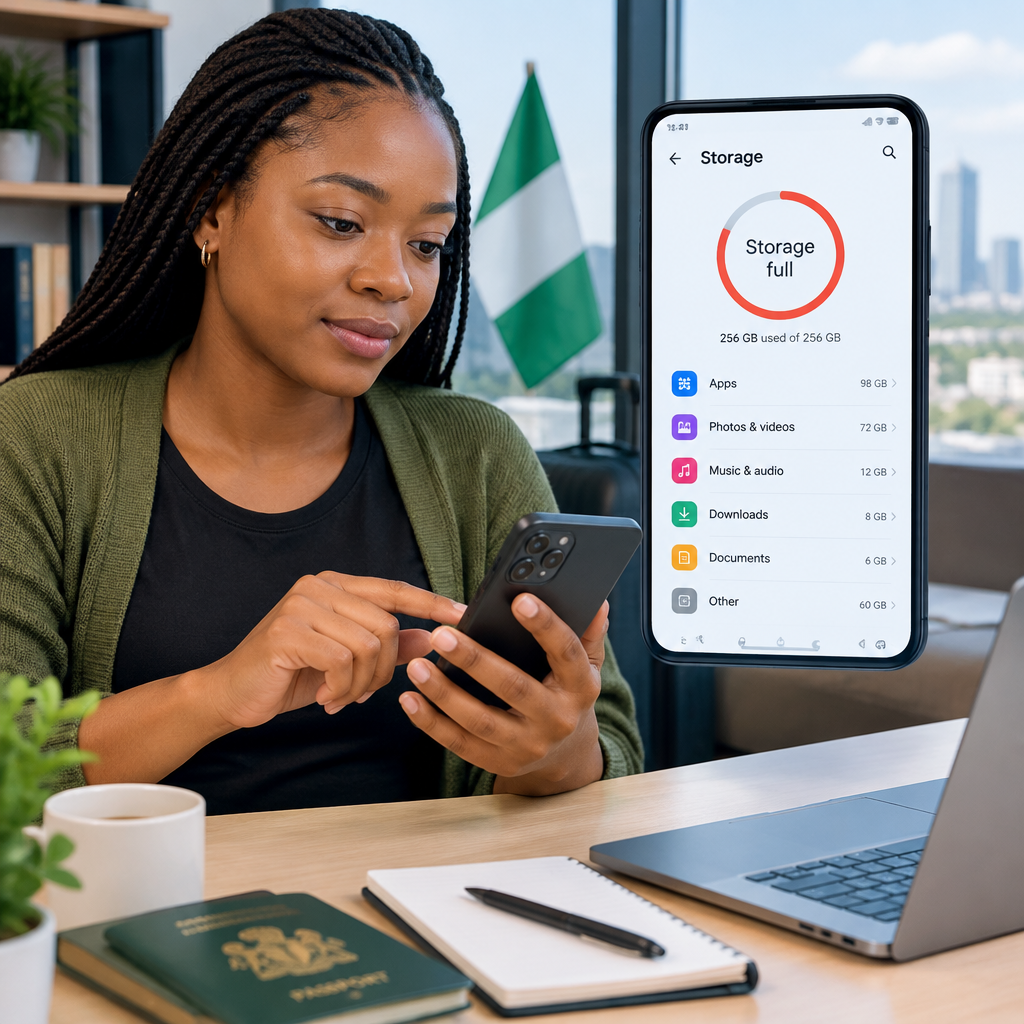
When your Android phone says “Storage space running out”, apps may stop updating, the camera may fail to save photos and the phone can become noticeably slower. The safest solution is not to delete files randomly. First identify what is using the space, then remove unnecessary copies, downloads and media while protecting important documents and memories.
Menu names can differ between Samsung, Tecno, Infinix, Xiaomi, Google Pixel and other Android phones. Look for options with similar names such as Storage, Device care, Files, My Files or Phone Manager.
Advertisement
Table of Contents
Check what is filling your phone
Start by opening Settings and searching for Storage. On many phones, the path is Settings > Storage. Samsung phones may also show storage tools under Device care.
The storage screen normally groups files into categories such as apps, images, videos, audio, documents, downloads and system files. This tells you where to focus. For example, if videos occupy most of the space, clearing browser cache will make little difference. If apps and app data are large, review unused apps and media-heavy applications.
Try to keep some free space available rather than filling the phone completely. Android needs working room for temporary files, updates and normal operation.
Use your phone’s built-in cleaning tool
Many Android phones include a storage manager or cleaner. It may recommend removing junk files, duplicate items, old screenshots, large files or unused applications.
Review each recommendation before confirming. A cleaner’s suggestions can be useful, but you should still check file names and locations. Do not automatically delete every item simply because it is labelled “large” or “old”. A large school document, immigration file, business video or travel scan may still be important.
If your phone uses Google’s Files app, open it and review categories such as Junk files, Downloaded files, Large files and Unused apps. Select only items you recognise and no longer need.
Remove downloads you have already used
Downloads are a common source of hidden storage use. PDFs, videos, APK files, images and documents downloaded from websites or messaging apps may remain on the phone long after you finish using them.
- Open your phone’s Files, My Files or file manager app.
- Open the Downloads folder.
- Sort by size or date if that option is available.
- Delete files you have checked and no longer need.
Be especially careful with files containing application forms, certificates, identity documents, tickets or payment records. If a document matters, move it to secure cloud storage or another trusted device before deleting the phone copy.
Control WhatsApp and other messaging media
WhatsApp groups and personal chats can quietly consume many gigabytes through forwarded videos, voice notes, photos and documents. You may have several copies of the same media in your gallery and WhatsApp folders.
In WhatsApp, open Settings > Storage and data > Manage storage, where available. Review large files and chats using the most space. Delete unwanted videos and repeated files rather than removing an entire conversation by mistake.
You can also reduce future storage use by reviewing automatic media download settings under Storage and data. For example, you may choose to download fewer types of media automatically when using mobile data. This is useful if you regularly join busy community, football or work groups.
Before deleting WhatsApp media, check whether you need it for work, school, evidence, business records or personal memories. If you use WhatsApp backups, remember that deleting media from the phone may affect what remains available in a later restore, depending on your backup settings.
Review photos and videos safely
Videos usually take much more space than ordinary photos. Start with screen recordings, duplicate clips, blurry images, memes, old status downloads and videos received in groups.
- Delete obvious duplicates and failed recordings.
- Empty the gallery’s Recently deleted or Trash folder if you are certain you do not need the items.
- Back up important photos before removing local copies.
- Check whether your camera or messaging apps are saving multiple copies.
If you use a cloud photo service, confirm that important files have finished backing up before choosing an option such as Free up space. Cloud backup is not the same as having unlimited access in every situation, so retain copies of essential documents in a location you trust.
Uninstall apps you no longer use
Open Settings > Apps or the Play Store’s app-management area and review installed applications. Remove games, shopping apps, video editors, social apps and trial applications that you no longer use.
Do not uninstall an app only because its size looks large. Some apps contain valuable offline downloads or locally stored work. Check whether you can export or sync anything important first. You may also be able to remove downloaded content inside the app without uninstalling it.
Be cautious with unfamiliar “cleaner”, “booster” or file-recovery apps. They may request broad permissions, show aggressive adverts or create additional security and privacy risks. Your phone’s built-in tools are usually the safer starting point.
Clear cache, but do not clear app data by mistake
Android apps store cache files to load content more quickly. Clearing cache can sometimes recover space without removing your account or personal files, although the app may temporarily load more slowly afterwards.
To review it, open Settings > Apps, select an app, then open Storage. If shown, choose Clear cache.
Do not confuse this with Clear storage, Clear data or a similarly named option. Clearing app data can sign you out, remove offline downloads, reset settings and delete locally stored information. Never use it casually on banking, finance, authentication, notes or work apps. Make sure you know your login and have access to required recovery methods before resetting any application.
Move files to an SD card or another location
If your phone supports a removable memory card, you can move suitable photos, videos, music and documents to it. Use the file manager’s Move or Copy option and confirm that the files open from the new location before deleting the originals.
An SD card should not be your only copy of important documents. Cards can fail, become corrupted or be lost. Keep a second copy of essential school, employment, travel, business and identity documents in secure storage.
What not to delete
Avoid manually deleting folders whose purpose you do not understand, especially Android system folders, app folders and files with unfamiliar extensions. Do not remove system applications or disable security tools just to gain a small amount of space.
Never delete a file simply because it has a technical name. If you are unsure, search the file’s location and check which app created it. When the item is important or your phone is used for work, make a backup before making changes.
A simple safe-cleaning workflow
- Check the Storage screen and identify the largest category.
- Back up important photos, documents and recordings.
- Remove unwanted videos, duplicates and old downloads.
- Review WhatsApp and other messaging media.
- Uninstall apps you genuinely no longer use.
- Clear cache only for selected apps, not app data.
- Restart the phone and check storage again.
If storage becomes full again quickly, monitor which app is growing. A messaging app, offline video service, podcast app, browser download folder or camera backup may be creating new files continuously. Keeping automatic downloads under control is usually more effective than repeatedly deleting files after the problem returns.
The safest rule is simple: understand what a file is, keep a backup of anything important and remove the largest unnecessary items first. That approach can restore useful space without risking the documents, conversations and memories you rely on every day.
Advertisement
