

Advertisement
Advertisement
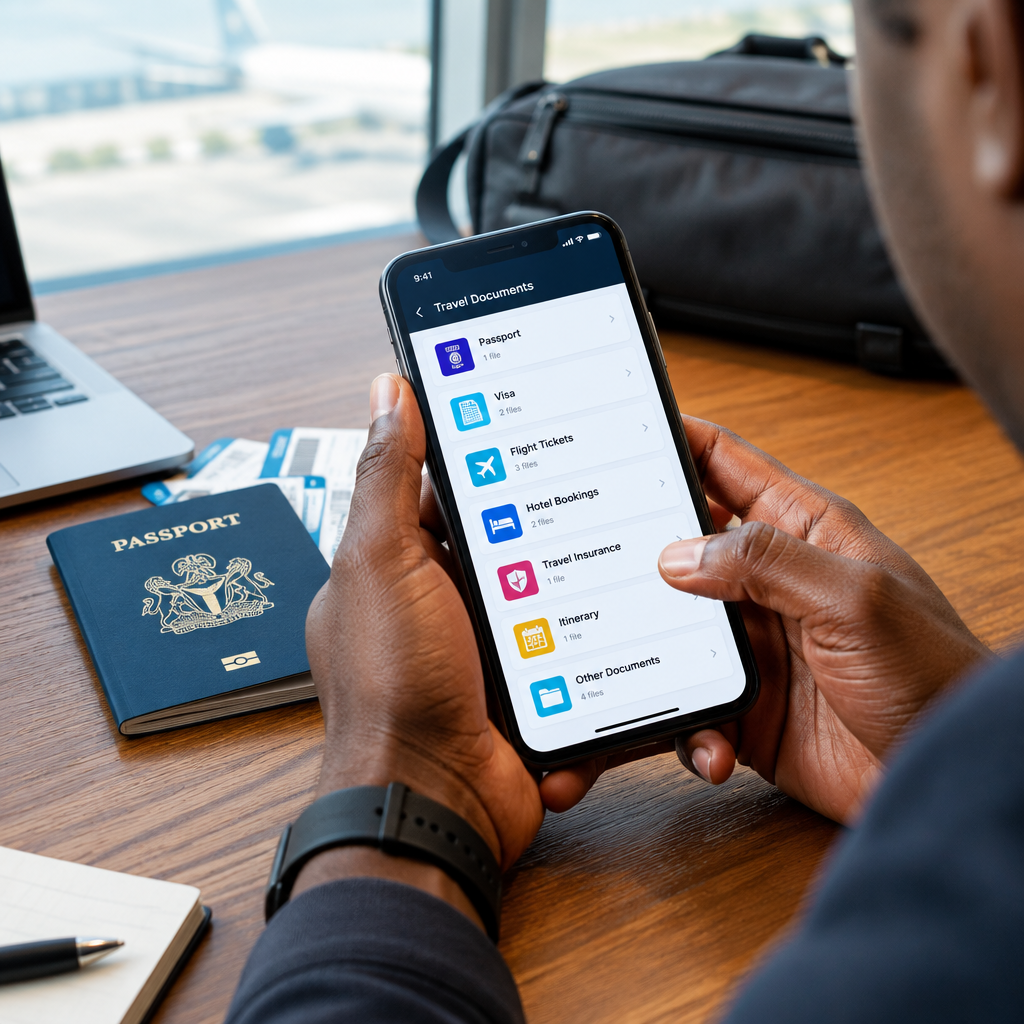
Travel documents are easy to misplace when they are spread across WhatsApp chats, email attachments, screenshots and different folders on your phone. A better approach is to create one clearly labelled travel document folder before you leave.
This folder can help you find your passport details, visa documents, flight tickets, accommodation bookings and emergency contacts quickly. It is especially useful when travelling from Nigeria, where you may need to move between airline, immigration, embassy, hotel and transport information during one trip.
Advertisement
A digital folder should support your original documents, not replace them. Keep your physical passport and any document that authorities require in its original form. Also remember that some organisations may require a printed copy or may not accept a screenshot.
Table of Contents
What to include in your travel folder
Start by collecting only the documents you may genuinely need. Too many unrelated files can make the folder difficult to use.
- Passport: Save a clear scan or photograph of the information page. Do not treat this as a replacement for your passport.
- Visa or travel authorisation: Include the approval letter, e-visa, appointment confirmation or other relevant document.
- Flight information: Save your booking confirmation, ticket, booking reference and any important airline instructions.
- Accommodation details: Keep your hotel, hostel or host address, booking confirmation and contact number.
- Travel insurance: Save the policy certificate and emergency claims contact if you have insurance.
- Transport bookings: Add train, bus, car hire or airport transfer information where applicable.
- Important addresses: Include the address where you will stay and the address of a school, employer, conference or other destination if relevant.
- Emergency contacts: Add trusted contacts at home and the contact details of your airline, accommodation provider and relevant embassy or consulate.
- Health information: Store necessary prescriptions, vaccination records or medical information only if required and appropriate.
For study, work or immigration-related travel, you may also need admission letters, employment letters, proof of funds or appointment records. Include the documents relevant to your specific journey, but check the official requirements for your destination rather than relying on a general checklist.
Choose where to keep the folder
On most phones, you can create a folder in the Files app, file manager or document storage application.
On an Android phone
- Open the Files, Files by Google or another file manager app.
- Choose Internal storage or a suitable document location.
- Tap the menu button, usually shown as three dots or a plus sign.
- Select New folder or Create folder.
- Name it something clear, such as Travel Documents – London Trip or Travel Documents – July.
On an iPhone
- Open the Files app.
- Choose On My iPhone for a local copy, or a trusted cloud location if you need access on more than one device.
- Tap the folder icon or the three-dot menu.
- Select New Folder.
- Give the folder a specific name based on the destination or trip.
The exact buttons may differ depending on your phone model and operating system version. If you cannot find a file manager, use the phone’s search function for “Files” or “File Manager”.
Use subfolders to keep documents easy to find
One large folder is better than scattered files, but smaller subfolders can make it even more practical. You could create:
- 01 – Identity and visa
- 02 – Flights and transport
- 03 – Accommodation
- 04 – Insurance and health
- 05 – Contacts and addresses
Numbering the folders keeps them in a predictable order. Use file names that explain what each document is. For example, instead of saving a file as IMG_4821.pdf, rename it Passport information page.pdf or Hotel booking – Manchester.pdf.
A useful file name normally includes the document type and, where necessary, the organisation or date. Avoid putting sensitive information such as your full password or card PIN in a file name.
Scan documents clearly
You do not need an expensive scanner for most personal records. A phone camera or scanning feature can create a readable copy.
- Place the document on a flat, well-lit surface.
- Clean the camera lens.
- Keep the entire page inside the frame.
- Avoid glare, shadows and fingers covering important text.
- Check the image by zooming in before saving it.
- Use PDF for multi-page documents where possible.
Do not edit an official document in a way that changes its contents. Cropping empty edges is usually helpful, but do not remove stamps, signatures, dates or other information.
Make the folder available offline
Cloud storage is useful, but it may not work when you have no data connection, your roaming is unavailable or airport Wi-Fi is unreliable. Open each important file while connected to the internet and confirm that it has been downloaded to your phone.
If you use Google Drive, iCloud Drive, OneDrive or another cloud service, look for an option such as Available offline. The wording differs between apps. You can also keep a local copy in the phone’s Files app.
After downloading the documents, switch off mobile data or Wi-Fi briefly and try opening them. This simple test can show whether you saved a real offline copy or only a shortcut to an online file.
Protect sensitive travel information
Travel documents contain personal information. A passport scan may include your name, date of birth, passport number and other details that criminals could misuse.
- Protect your phone with a strong passcode, fingerprint or other available security feature.
- Do not upload passport scans to public groups or send them to unknown contacts.
- Check the recipient carefully before sharing any document through WhatsApp or email.
- Do not store card PINs, banking passwords, email passwords or one-time passwords in the travel folder.
- Be careful with public charging stations and unfamiliar apps that request access to your files.
- Remove unnecessary copies from messaging apps, downloads and photo galleries after the trip.
If a hotel, agent, airline or other organisation requests a document, ask why it is needed and how it will be stored. A legitimate request does not mean every person who asks for your passport image should receive it.
Keep a backup, but do not create unnecessary risk
Keep at least one backup in a secure location. This might be an encrypted cloud account or a password-protected computer used by someone you trust. Avoid sending all your documents to several people or leaving them in an open public email account.
You can also prepare a small emergency information note containing your name, travel destination, accommodation address and trusted contact. Do not include passwords, banking details or recovery phrases. If your phone is lost, use another device to contact your network provider, secure your accounts and access your backup.
Check the folder before departure
Do a final review one or two days before travelling:
- Confirm that your passport is valid for your journey and that the name matches your bookings.
- Check that the visa or authorisation belongs to the correct passport and destination.
- Open your flight and accommodation files offline.
- Confirm addresses, dates and booking references.
- Check that emergency contact numbers are saved in a place you can reach.
- Print documents that an airline, embassy, school, employer or immigration authority specifically requires in paper form.
- Keep the original passport and other essential physical documents secure during the journey.
After each change to a booking, replace the old file rather than leaving several confusing versions in the folder. You can add “updated” and the date to a file name when you need to distinguish a new copy.
Use the folder as a travel tool, not a complete safety plan
A phone folder can save time at check-in, during hotel arrival or when you need to find an address quickly. It cannot guarantee entry into another country, replace official immigration requirements or protect you if every copy is stored only on a lost phone.
The most reliable setup combines your original documents, secure offline phone copies, a carefully controlled backup and a short list of important contacts. Prepare it before the pressure of travel begins, then review it whenever your itinerary changes.
Advertisement