

Advertisement
Advertisement
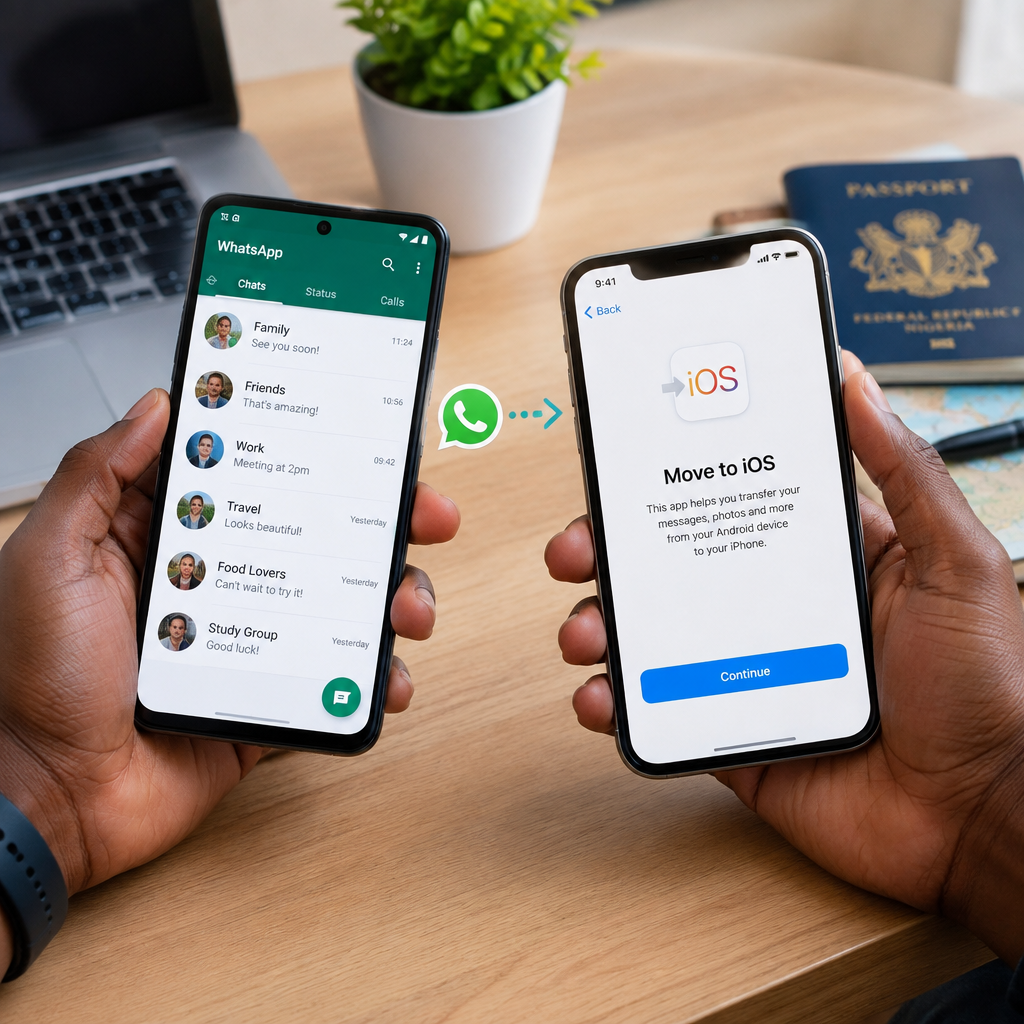
Moving from an Android phone to an iPhone does not automatically bring your WhatsApp conversations with you. If you want to keep your messages, group chats, photos and videos, you need to transfer them during the iPhone setup process.
The official method is Apple’s Move to iOS app, used together with WhatsApp’s transfer option. It is safer than relying on unofficial transfer tools, which may expose your messages or account details.
Advertisement
Table of Contents
What you need before starting
Check these requirements before you begin:
- Your Android phone and iPhone should have enough battery, or be connected to power.
- The iPhone must be new or reset to its factory settings. The official transfer process normally runs during initial iPhone setup.
- Install the Move to iOS app on the Android phone from Google Play.
- Install WhatsApp on the Android phone and update it if an update is available.
- Use the same phone number on the iPhone that you used for WhatsApp on Android.
- Make sure the iPhone has enough storage for your WhatsApp messages and media.
- Keep both phones close to each other and connected to power where possible.
Android and iPhone software requirements can change as WhatsApp and Apple update their apps. If a transfer option is missing, first update WhatsApp, Move to iOS and the phone operating systems before trying again.
What can be transferred?
The official transfer generally supports important WhatsApp information such as personal messages, group chats, account information, profile photo and media files. However, not every type of WhatsApp data is guaranteed to move.
For example, some call history and certain payment-related information may not transfer. Your WhatsApp backup on Google Drive also cannot simply be restored directly on an iPhone because Android and iPhone use different backup systems. The transfer must be completed through Move to iOS.
Step 1: Prepare your Android phone
- Open the Google Play Store and install or update Move to iOS.
- Update WhatsApp on the Android phone.
- Open WhatsApp and confirm that your important conversations and media are present.
- Check the phone number linked to WhatsApp by opening WhatsApp settings and viewing your account details.
- Delete unnecessary files from the iPhone if you know it has limited storage. WhatsApp videos and photos can use a large amount of space.
Do not uninstall WhatsApp from the Android phone before the transfer is complete. You may need it to restart the process or confirm that your data is available.
Step 2: Start setting up the iPhone
Turn on the iPhone and follow the setup instructions until you reach the screen for transferring apps and data. Select the option to move data from an Android device.
The iPhone will display a code. Keep the setup screen open because you will enter this code into the Move to iOS app on your Android phone.
If you have already completed the iPhone setup, the transfer option may no longer appear. In that situation, you may need to erase the iPhone and start setup again. Before erasing it, save anything important already stored on the iPhone. To reset it, open the iPhone settings and look for the option to transfer or reset the device.
Step 3: Connect both phones with Move to iOS
- Open Move to iOS on the Android phone.
- Read the terms and continue.
- Allow the requested permissions so the app can find and transfer data.
- Enter the code shown on the iPhone.
- Wait while the phones connect. Do not switch repeatedly between apps or move far away from the iPhone.
The phones may create a temporary wireless connection. Even if the Android phone appears not to have normal internet access during this stage, do not disconnect it from the transfer.
Step 4: Select WhatsApp data
When Move to iOS shows the types of data that can be transferred, select WhatsApp if it is listed. On the Android phone, WhatsApp may open and prepare the data for export.
Follow the instructions shown by WhatsApp, then return to Move to iOS and continue the transfer. The length of the process depends on the amount of data. A WhatsApp account containing many videos may take considerably longer than one containing mostly text messages.
Keep both phones connected, unlocked where required and close together until the progress bar on the iPhone finishes. Do not answer calls, turn off Wi-Fi or restart either phone during the transfer.
Step 5: Install and activate WhatsApp on the iPhone
Complete the rest of the iPhone setup. Then open the App Store, download WhatsApp and sign in using the same phone number used on the Android phone.
WhatsApp should recognise the transferred data and give you an option to import or restore it. Accept the option and allow the process to finish. Afterward, open several individual and group chats to confirm that your messages, photos and videos are available.
Some media may take additional time to appear or download. Keep the iPhone connected to a reliable Wi-Fi network and power if the transferred account contains a large amount of media.
If the WhatsApp transfer fails
Try these practical fixes:
- Restart both phones: A temporary connection problem can interrupt Move to iOS.
- Check storage: Free space on the iPhone must be sufficient for the WhatsApp data being transferred.
- Update the apps: Install the latest available versions of WhatsApp and Move to iOS.
- Keep the connection stable: Avoid opening other apps, moving away from the phones or changing network settings during the transfer.
- Disable settings that interrupt Wi-Fi: Some Android phones automatically switch networks when a connection seems weak. Temporarily disabling such network-assistance features may help.
- Try again from the beginning: If the iPhone setup was interrupted, a fresh transfer may work better than continuing with a partially completed process.
If your Android phone contains essential business, school or family records, do not erase it until you have checked the iPhone carefully. Keep the old phone and its WhatsApp data available until the transfer is confirmed.
Important safety warnings
Never give your WhatsApp verification code, password, email password or two-step verification PIN to another person or a “transfer agent”. WhatsApp support will not need you to publish these details online.
Be cautious with third-party applications that promise to transfer WhatsApp chats without resetting the iPhone. Some may require broad access to private messages, ask for payment, or fail to transfer the data correctly. Use the official Move to iOS route first and download apps only from the legitimate Google Play Store or Apple App Store.
A simple transfer plan
For the smoothest move, use this order:
- Check the phone number and available storage.
- Update WhatsApp and install Move to iOS.
- Back up or preserve anything important on the Android phone.
- Start the iPhone setup and choose Android data transfer.
- Select WhatsApp and wait without interrupting the connection.
- Install WhatsApp on the iPhone and verify the same number.
- Check important conversations before wiping or selling the Android phone.
The key point is timing: WhatsApp chat migration is normally completed while setting up the iPhone, not after the phone has already been configured. Prepare both phones first, use the official tools and keep the Android phone untouched until you have confirmed that your conversations are safely available on the iPhone.
Advertisement