

Advertisement
Advertisement
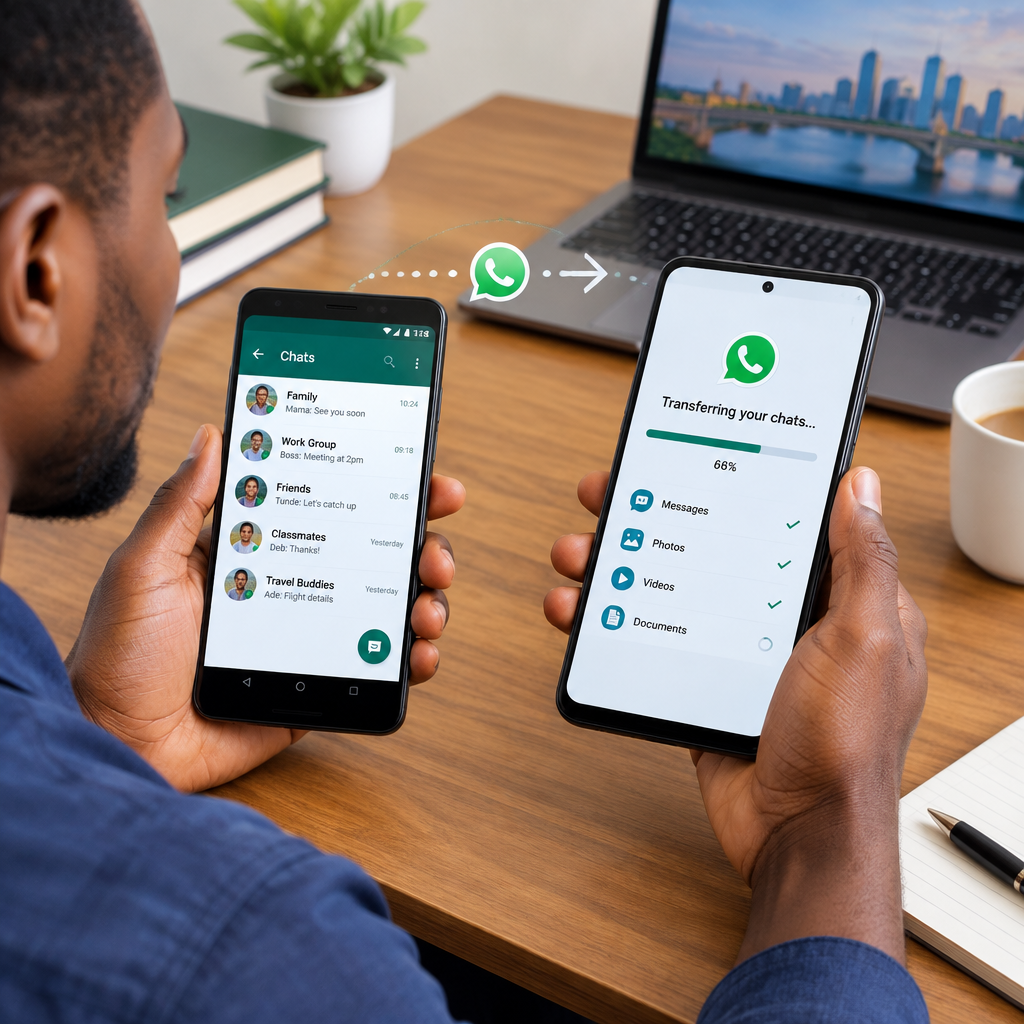
Moving to a new Android phone does not have to mean losing your WhatsApp conversations, photos, videos or documents. The safest approach is to prepare the old phone, create a recent backup or use WhatsApp’s direct transfer option, then restore the data on the new phone.
Before you begin, make sure you can use the same phone number linked to your WhatsApp account. You should also have access to the same Google Account if you plan to restore from Google Drive.
Advertisement
Table of Contents
What you need before transferring WhatsApp
- Your old Android phone with WhatsApp still installed and your chats available.
- Your new Android phone with enough free storage.
- The same phone number used on the old WhatsApp account.
- The same Google Account on both phones if using Google Drive backup.
- A reliable Wi-Fi connection, especially if your backup contains many videos.
- Charged phones or access to a power source.
Do not erase or reset the old phone until you have opened WhatsApp on the new phone and confirmed that important chats and media are present.
Option 1: Transfer chats directly from one Android phone to another
WhatsApp may allow you to move chat history directly between Android phones. This can be convenient because it does not require uploading the entire backup to Google Drive. The exact wording and location of the option may vary slightly according to your WhatsApp version and phone model.
On the old phone
- Open WhatsApp.
- Tap the three-dot menu, then select Settings.
- Open Chats and look for an option such as Transfer chats or Chat transfer.
- Read the information shown and begin the transfer.
On the new phone
- Install WhatsApp from the official Google Play Store.
- Open WhatsApp and verify the same phone number used on the old phone.
- When WhatsApp displays the transfer prompt, continue.
- A QR code may appear on the new phone.
- Use the old phone to scan the QR code and approve the connection.
- Keep both phones nearby, unlocked and connected to the same Wi-Fi network while the transfer runs.
Do not close WhatsApp, switch off either phone or move the devices far apart during the process. When it finishes, check several recent conversations, group chats and media files.
Option 2: Use a Google Drive backup
A Google Drive backup is useful when direct transfer is unavailable or when you want an additional copy of your chats. WhatsApp backups can include messages and media, but videos may be excluded unless you choose to include them. Including videos can make the backup considerably larger and slower.
Create a fresh backup on the old phone
- Open WhatsApp on the old Android phone.
- Tap the three-dot menu and open Settings.
- Select Chats, then Chat backup.
- Confirm that the displayed Google Account is the one you will use on the new phone.
- Choose whether to include videos.
- Tap Back up and wait for the process to complete.
Check the date and time of the latest backup before leaving this screen. If the backup appears stuck, connect to stable Wi-Fi, make sure the Google Account has available storage and confirm that the phone has enough internal space to prepare the backup.
Restore the backup on the new phone
- Add the same Google Account to the new Android phone.
- Install WhatsApp from the Google Play Store.
- Open WhatsApp and verify the same phone number.
- When WhatsApp finds the backup, check that its date is recent.
- Tap Restore and allow the process to finish.
- Tap Next or continue with setup when prompted.
Messages may appear first while photos, videos and documents continue restoring in the background. Keep the new phone connected to Wi-Fi and avoid deleting WhatsApp until the media has finished returning.
What if you are changing your phone number?
Changing both your phone and your number requires extra care. WhatsApp’s Change number feature is designed to move your account information, individual chats and group memberships from the old number to the new one.
On the old phone, open Settings, select Account, then Change number. Follow the instructions to enter the old and new numbers. The new number must be able to receive SMS messages or calls for verification.
Complete this process on the old phone before setting up WhatsApp with the new number on the new device. Create a fresh backup afterwards if you intend to restore through Google Drive.
Common problems and practical fixes
The backup is not showing
Confirm that the new phone uses the same Google Account and that you verified the same phone number. Also check whether the backup actually completed on the old phone. A backup from a different account or number may not be offered during setup.
There is not enough storage
Free space on both the Google Account and the new phone may be needed. Remove unnecessary downloads or large files, but do not delete WhatsApp data from the old phone before checking that the transfer is complete.
Some photos or videos are missing
Media may still be downloading. Give the restoration time to complete on Wi-Fi. If videos were excluded from the backup, they may not return through that backup. Direct transfer may preserve more content, provided the original files are still available on the old phone.
The phone number cannot be verified
Make sure the SIM or mobile line can receive the verification message or call. Enter the country code correctly and avoid repeatedly requesting codes, as this can delay further verification attempts.
The transfer stopped halfway
Charge both phones, update WhatsApp where possible and restart the process using a stable Wi-Fi connection. Keep the screens active if your phone’s battery settings are aggressively closing background apps. If direct transfer repeatedly fails, create a Google Drive backup and use the restore method instead.
Protect your chats during the move
- Use only the official WhatsApp application from the Google Play Store.
- Never give anyone your WhatsApp verification code, PIN or Google Account password.
- Do not use unofficial “WhatsApp transfer” apps that request excessive permissions or payment before showing how they work.
- Turn on two-step verification in WhatsApp after the move if it is not already enabled.
- Review Linked devices and log out of devices you do not recognise.
- Keep the old phone untouched until you have confirmed that your important information is available.
Which transfer method should you choose?
| Method | Best for | Important consideration |
|---|---|---|
| Direct phone-to-phone transfer | People with both phones available | Keep the phones nearby and connected during the process. |
| Google Drive backup | People who want cloud-based restoration or cannot use direct transfer | The same Google Account and phone number are normally required. |
The key rule is simple: make a recent backup or complete a direct transfer before wiping the old phone. Once WhatsApp is working on the new Android phone, open several conversations, check important attachments and review your security settings. That short final check can prevent a small phone upgrade from becoming a major data-loss problem.
Advertisement