

Advertisement
Advertisement
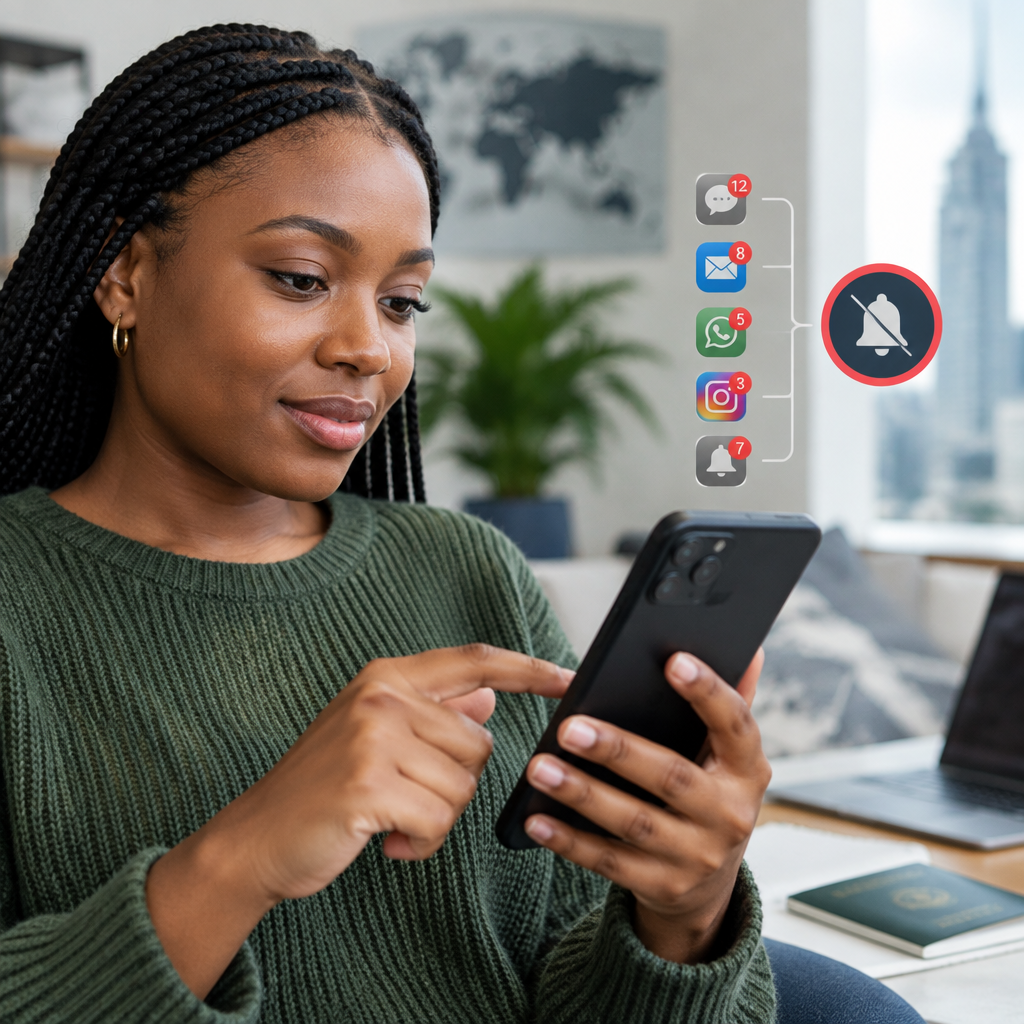
Constant notifications can make your phone feel noisy and distracting. News alerts, promotional messages, social-media updates, game reminders and website notifications may appear throughout the day, even when you do not need them.
You do not have to disable every notification. The better approach is to keep alerts that matter—such as calls, messages, banking warnings or important work updates—and stop or silence the rest. The steps are slightly different on Android and iPhone, and menu names may vary depending on your phone brand and software version.
Advertisement
Table of Contents
Before you begin: identify the notifications you want to stop
When an unwanted alert appears, do not dismiss it immediately. First check which app sent it. This helps you change the correct setting instead of turning off useful phone alerts.
Ask yourself:
- Is the notification from an app, a website or your mobile network?
- Do you want to block it completely or only silence it?
- Should it still appear when the phone is locked?
- Do you need alerts at a particular time, such as during work or sleep?
For example, you may want to stop promotional shopping alerts but continue receiving delivery updates. You may also want football score notifications during matches but not receive every general news alert. Managing notifications by category gives you more control.
How to stop notifications on Android
Block all notifications from an app
- Open the Settings app.
- Tap Notifications or Apps and notifications.
- Choose App notifications, See all or a similar option.
- Select the app that is sending unwanted alerts.
- Turn off All notifications.
On some Android phones, you can reach the same setting by pressing and holding the unwanted notification. Tap Turn off notifications, Settings or a similar option, then disable the alert.
Android menus differ between manufacturers. Samsung Galaxy, Google Pixel, Tecno, Infinix, Xiaomi and other phones may use different labels, but the settings usually remain under Notifications or the individual app’s settings.
Turn off only certain types of Android notifications
Many Android apps divide notifications into categories or channels. This allows you to keep important alerts while blocking less useful ones.
- Go to Settings and open Notifications.
- Tap App notifications and select the app.
- Look for notification categories, such as messages, promotions, reminders, recommendations or live updates.
- Turn off the categories you do not want.
For instance, a shopping app may still notify you about an order while promotional offers are disabled. A news app may allow breaking-news alerts but stop general recommendations.
Silence an Android notification instead of blocking it
If an alert is useful but too noisy, change it from Alerting to Silent, where that option is available. A silent notification may remain in the notification panel without making a sound or vibrating.
You can also reduce interruptions by turning off notification sounds, vibration or pop-ups for a particular app. This is useful for social-media applications that you want to check manually rather than respond to immediately.
How to stop notifications on an iPhone
Turn off all notifications from an iPhone app
- Open Settings.
- Tap Notifications.
- Scroll down and select the app.
- Turn off Allow Notifications.
The app will no longer send notifications to your iPhone. You can return to the same screen later and turn the setting back on.
Control where iPhone notifications appear
You do not always need to block an app completely. On the app’s notification settings page, you can usually control whether alerts appear on the:
- Lock Screen
- Notification Centre
- Banners
You can also control sounds, badges and banner behaviour. For example, you could remove lock-screen previews while keeping a small badge on the app icon. This reduces interruptions and protects private information if someone can see your locked phone.
Hide the content of notifications on iPhone
If you want to receive alerts without showing private details, open Settings, tap Notifications, then Show Previews. Choose an option such as When Unlocked or Never.
This can prevent message text, account information or other sensitive content from appearing on the lock screen. It is especially sensible for banking, email, messaging and financial-service apps.
How to stop notifications from websites
Some unwanted alerts come from websites rather than installed apps. A website may have been given permission to send notifications through your browser.
On Android, open your browser’s settings and look for Site settings or Notifications. Find the website and block or remove its permission. The exact route depends on the browser you use.
On an iPhone, website notifications may be controlled through the browser or, in some cases, through settings for websites added to the Home Screen. If you do not recognise the sender, remove its permission rather than tapping suspicious links in the alert.
Be careful with notifications that claim you have won money, need to pay an urgent fee or must verify an account immediately. Close the alert and open the relevant service through its official app or website instead.
Use Do Not Disturb or Focus when you need quiet
Blocking individual apps is useful for permanent changes. For temporary quiet periods, use Do Not Disturb on Android or Focus on iPhone.
These features can silence most alerts while allowing selected people or apps to contact you. You can use them during sleep, meetings, study, driving or prayer. Many phones also allow schedules, so the setting turns on and off automatically.
Before relying on a Focus or Do Not Disturb mode, review its exceptions. Important calls, alarms or selected contacts may still be allowed through. This is helpful when you need peace without missing an urgent call.
What to do if notifications keep returning
If alerts continue after you change the settings, try these checks:
- Check the correct app: similar services may have more than one installed app.
- Review notification categories: you may have disabled one type but left another active.
- Check browser permissions: a website notification may not come from the app you suspect.
- Look for multiple accounts: email and social-media apps can send alerts from several accounts.
- Update the app: outdated software may display settings differently or behave incorrectly.
- Restart the phone: this can clear a temporary notification problem.
- Remove suspicious apps: uninstall apps you do not recognise or no longer need.
Avoid installing random “notification cleaner” or phone-booster apps to solve the problem. They may request broad permissions and create additional privacy or security risks.
A simple notification setup for everyday phone use
A practical setup is to divide apps into three groups:
- Must-alert: calls, trusted messaging apps, security warnings, banking activity and essential work tools.
- Useful but limited: news, football updates, email, shopping deliveries and educational apps. Keep only the categories you need.
- Not needed: promotions, games, recommendations and apps you rarely use. Block their notifications.
Review this arrangement once in a while, especially after installing new apps. During installation, do not automatically allow every permission. If an app does not need to interrupt you, leave its notifications off until there is a clear reason to enable them.
The main takeaway
You can regain control of your phone without missing important information. Start by identifying the app behind each alert, then block unnecessary notifications, silence useful but distracting ones and use Do Not Disturb or Focus for quiet periods. Also hide sensitive previews and remove permissions from suspicious websites or apps.
A calmer phone is usually achieved through a few small settings changes—not by downloading another app. Keep alerts for information that helps you act, and switch off the rest.
Advertisement