

Advertisement
Advertisement
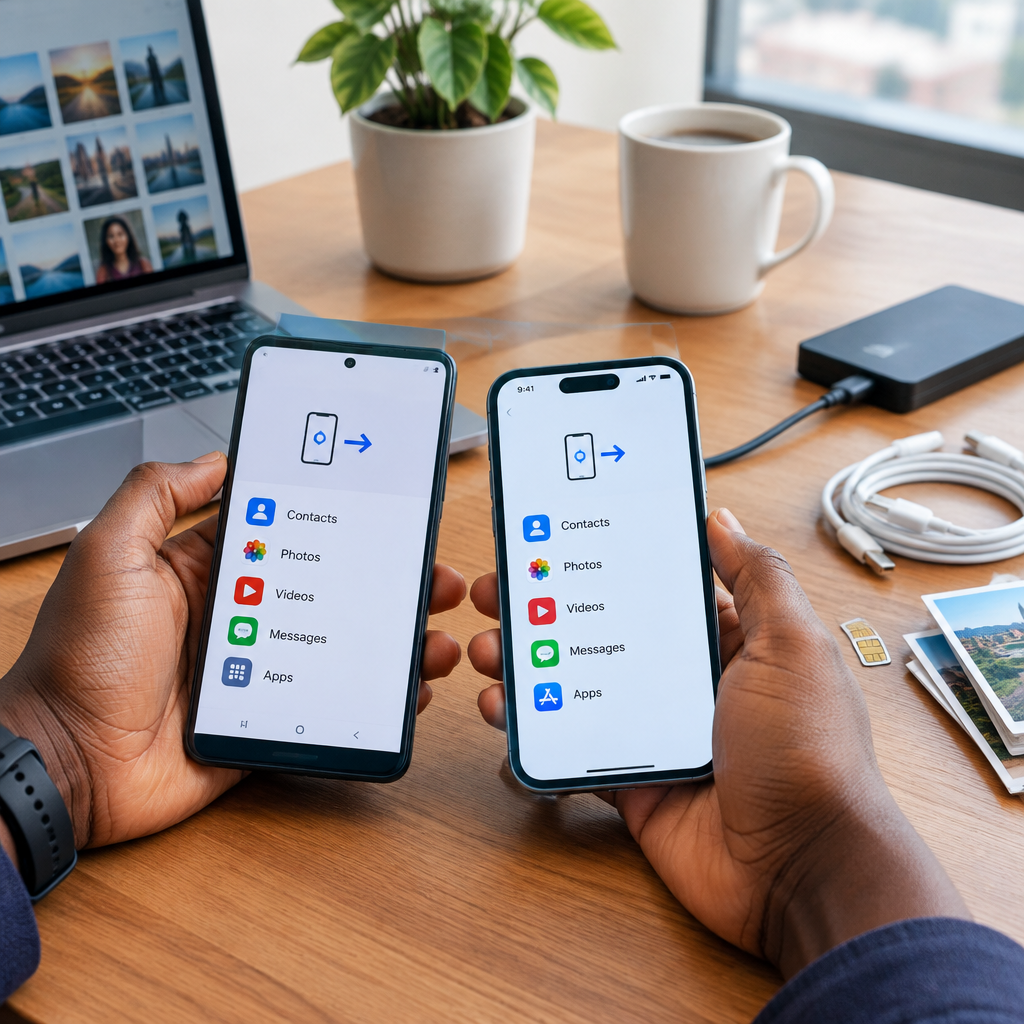
Getting a new phone is exciting until you realise that your contacts, family pictures, WhatsApp media and other important files are still on the old device. The safest approach is to transfer your information before resetting, selling or handing over the old phone.
This guide explains practical ways to move contacts and photos between Android phones, iPhones and devices that use different operating systems. You can use a direct cable, a cloud account, a SIM card or a computer. If your internet connection is limited or expensive, a cable or computer may be more suitable than uploading everything online.
Advertisement
Table of Contents
Before you start
Keep both phones charged, preferably above 50 percent, and connect them to a reliable Wi-Fi network when using cloud services. You should also have the following ready:
- The old phone and the new phone
- The correct charging or data cable, and an adapter if needed
- Your Google Account or Apple Account login details
- Enough storage space on the new phone or its cloud account
- Your screen lock PIN or password for the old phone
Do not erase the old phone until you have checked the contacts, photos and other files you need on the new one. A transfer can appear successful while some files remain behind because of limited storage, a poor connection or an incomplete backup.
Method 1: Transfer directly with a cable
A cable is usually the quickest option when moving a large photo library. It does not require you to upload every picture to the internet.
Android to Android
- Switch on the new Android phone and begin the setup process.
- Choose the option to copy or transfer data from another device.
- Connect the phones with a compatible USB cable. Some phones may require a USB adapter.
- Unlock the old phone and approve any prompt asking whether you trust or allow the connection.
- Select contacts, photos and any other data you want to copy.
- Keep both phones connected until the transfer is complete.
The exact wording differs between manufacturers, but the setup process commonly offers a direct data-copy option. If the phones fail to connect, try another cable. Some cables charge a phone but cannot transfer data.
iPhone to iPhone
Apple’s setup process can transfer information directly from an old iPhone to a new one. Place the phones close together, turn on the new iPhone and follow the instructions that appear. Keep Bluetooth enabled and leave both phones connected to power if the transfer is large.
The transfer may include contacts and photos, but the process can take time. Do not move the phones too far apart or switch off the old iPhone while it is working.
Android to iPhone or iPhone to Android
Moving between Android and iPhone requires more care because the two systems use different accounts and backup methods. During setup, the new phone may provide a migration option for copying contacts, photos, messages and other supported information from the old device.
Read each screen carefully and select only the categories you need. If a direct migration tool does not transfer everything, use Google Photos, iCloud, a computer or a manual export as described below.
Method 2: Use your Google Account
This method is useful when your old and new phones are Android devices, or when your contacts and photos already synchronise with Google services.
Back up contacts
- On the old phone, open the account or backup settings.
- Confirm that contact synchronisation is enabled for the Google Account you plan to use.
- Allow the phone to complete its sync while connected to Wi-Fi or mobile data.
- On the new phone, sign in with the same Google Account.
- Give the phone time to synchronise your contacts.
Some contacts may be saved only on the phone or SIM card rather than in your Google Account. Open the contacts app and look for an import, export or move option. You may be able to copy device contacts or SIM contacts into your Google Account before changing phones.
Back up photos
If you use Google Photos, open the app on the old phone and check that backup has finished. Do not assume that every picture has been uploaded. Screenshots, images received through messaging apps and photos stored in separate folders may not all be included automatically.
After signing in to the same Google Account on the new phone, open Google Photos and confirm that your library is visible. Remember that seeing a photo in the cloud does not always mean that it has been downloaded to the phone for offline use.
Method 3: Use iCloud on an iPhone
iPhone contacts and photos can be restored through an iCloud backup or synchronised from the same Apple Account.
- On the old iPhone, open the Apple Account and iCloud settings.
- Check that Contacts and Photos are included in iCloud or that a recent device backup exists.
- Start setting up the new iPhone and choose the option to restore from an iCloud backup when offered.
- Sign in with the same Apple Account.
- Leave the new phone connected to Wi-Fi and power while the content downloads.
Cloud restoration may take longer than the initial setup, especially if you have many high-resolution photos. Keep the old phone until you have opened the Photos and Contacts apps on the new one.
Method 4: Copy photos through a computer
A computer is a useful fallback when direct transfer or cloud backup is not working. It can also help readers with limited data, an unstable connection or a very large photo collection.
- Connect the old phone to the computer with a data cable.
- Unlock the phone and select file transfer, photo transfer or trust the computer if prompted.
- Copy the DCIM folder and any other folders containing important images to a clearly named folder on the computer.
- Disconnect the old phone safely.
- Connect the new phone and copy the photos into its picture or DCIM folder, where supported.
For iPhones, the computer may require the phone to be trusted before photos can be imported. If you use a Mac or Windows computer, follow the import tools available on that system rather than deleting files from the phone during the first transfer.
What about contacts saved on a SIM card?
A SIM card may contain contacts, but it normally does not store your photo library. It is also possible for contacts to be divided between the SIM, the old phone and an online account.
To use SIM contacts on the new phone, insert the SIM if the phone uses the same SIM size and network arrangement. Then open the contacts app and look for an option to import contacts from the SIM. After importing them, consider saving them to your Google Account or Apple Account so they are easier to recover next time.
Do not throw away the old SIM or reset the old phone until you have confirmed that important numbers are available. If you are changing your Nigerian mobile network or number, remember that transferring a phone’s data does not automatically transfer access to banking apps, WhatsApp or other accounts.
Check these items before wiping the old phone
- Call several important contacts to confirm the numbers are correct.
- Open recent, favourite and emergency contacts.
- Scroll through older photos, videos and screenshots.
- Check WhatsApp or other messaging apps separately if their media is important.
- Confirm that you can sign in to your Google Account or Apple Account.
- Check that your email, banking and authentication apps still work on the new phone.
- Move your SIM or activate the new SIM only after you understand how your network handles the change.
Protect your information during the transfer
Never share your Google or Apple password, phone PIN, banking PIN, OTP or recovery codes with someone helping you transfer data. A phone technician may need to guide you, but you should enter private credentials yourself.
Use a trusted cable and avoid transferring sensitive files on a public computer. If you sell or give away the old phone, first back up your information, remove your accounts, sign out of major apps, remove the SIM and memory card, and perform a factory reset. Do this only after confirming that the new phone contains what you need.
The safest transfer plan
For most people, the best workflow is to create a backup first, use a direct cable transfer where possible, and then use a Google Account, Apple Account or computer to fill any gaps. Check contacts and photos manually before wiping the old phone.
The key rule is simple: backup, transfer, verify and only then reset. Taking a few extra minutes to compare your old and new phone can prevent the permanent loss of family memories, work contacts and access to important online accounts.
Advertisement