

Advertisement
Advertisement
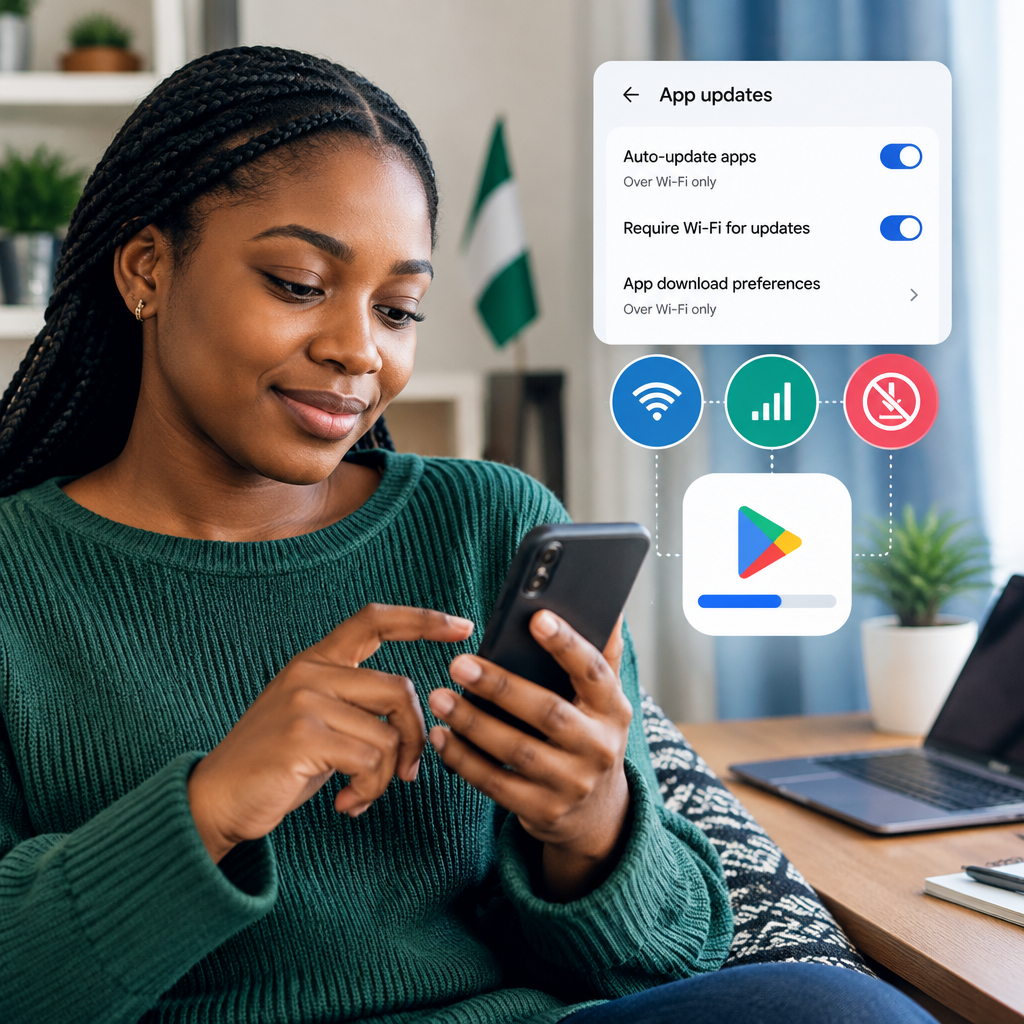
Android app updates can improve security, fix problems and add useful features, but downloading many updates over mobile data can quickly reduce your data balance. This is a common concern for phone users in Nigeria, especially when data is limited or expensive.
The safest approach is to set Google Play Store to update apps over Wi-Fi only, then update selected apps manually when you have a reliable connection. The exact wording may differ slightly depending on your Android version, phone manufacturer and Play Store version, but the main settings are similar.
Advertisement
Table of Contents
Set Google Play Store to use Wi-Fi only
Start by changing the automatic-update setting. This prevents Google Play from downloading app updates through mobile data without your permission.
- Open the Google Play Store.
- Tap your profile picture or account icon in the top-right corner.
- Tap Settings.
- Open Network preferences.
- Tap Auto-update apps.
- Select Update over Wi-Fi only.
- Tap Done, if that option appears.
On some devices, you may see an option that allows updates over Wi-Fi or mobile data. Avoid selecting it if you want to protect your mobile-data balance.
If you do not want apps to update automatically at all, select Don’t auto-update apps. You will then need to check for updates yourself. This gives you more control, but it also means you may delay important security fixes if you forget to check.
Update only the apps you need
You do not always need to update every app at the same time. If you are connected to Wi-Fi but the connection is slow or has a usage limit, update the most important apps first.
- Open the Play Store.
- Tap your profile picture.
- Select Manage apps & device.
- Under available updates, tap See details.
- Review the list of apps waiting for updates.
- Tap Update beside a particular app, or choose Update all when you have enough Wi-Fi data.
Prioritise apps that handle payments, email, messaging, passwords or other sensitive information. Updating an app does not guarantee that every security problem is solved, but leaving important apps outdated can expose you to known bugs or compatibility problems.
Use a trusted Wi-Fi connection carefully
Wi-Fi can reduce your mobile-data usage, but not every Wi-Fi connection is equally suitable. A home broadband connection, workplace network or trusted public network may be appropriate. Be cautious with unknown networks that require suspicious logins or redirect you to unusual pages.
Do not assume that a phone connected to a hotspot is using free data. If you connect to another phone’s hotspot, the update will normally consume the hotspot provider’s mobile-data allowance. This can use data just as quickly as updating directly over your own SIM connection.
Before starting a large update, check that:
- The Wi-Fi signal is stable.
- The phone has enough battery, or is connected to a charger.
- The Wi-Fi owner has not given you a small or paid data allowance.
- You are not relying on an unknown network for sensitive account activity.
Stop Play Store from using mobile data in the background
Android allows you to restrict an app’s background data. This can help prevent the Play Store from using mobile data when you are not actively using it. The menu names vary between Samsung, Tecno, Infinix, itel, Xiaomi, Google Pixel and other devices.
- Open your phone’s Settings.
- Tap Apps, Apps & notifications or a similar option.
- Find and select Google Play Store.
- Tap Mobile data, Data usage or Wi-Fi and mobile data.
- Turn off Background data, if the option is available.
This setting may affect how quickly the Play Store checks for updates and notifications. It does not replace the Play Store’s own auto-update setting, so check both areas if you want stronger control.
Turn on Android Data Saver
Most Android phones include a Data Saver feature. It limits background mobile-data use by many apps while allowing you to decide which apps can continue using data normally.
- Open Settings.
- Tap Network & internet, Connections or SIM card and mobile network.
- Choose Data Saver.
- Turn it on.
Some phones let you add exceptions under Unrestricted data or Apps that can use data while Data Saver is on. Check that Google Play Store has not been given unrestricted access if your goal is to minimise mobile-data use.
Data Saver is useful, but it should not be treated as a complete substitute for setting Play Store updates to Wi-Fi only. Different Android manufacturers apply these controls differently.
Manage automatic updates for one app
If one app keeps updating at an inconvenient time, you can usually control its individual setting.
- Open the app’s page in the Play Store.
- Tap the three-dot menu in the top-right corner.
- Look for Enable auto-update or a similar option.
- Turn it off if you want to update that app manually.
This can be useful for large games or apps that you rarely use. However, do not leave security-sensitive apps outdated for long periods simply to save data. A better solution may be to update them over Wi-Fi when convenient.
Reduce data use from apps outside Google Play
Some Android phones install or update apps through a manufacturer’s app store, such as a device-brand store. If you use one, open its settings and look for automatic-update or download preferences. Set those updates to Wi-Fi only as well.
Be careful with websites that offer modified applications or unofficial APK files. They may contain malware, collect personal information or damage your account security. For everyday users, official app stores are generally the safer source. Avoid downloading an APK merely because it promises a free version of a paid app or removes advertising.
Do not confuse app updates with system updates
App updates are handled mainly through an app store. Android system updates and security patches are controlled through your phone’s system settings. They can also be large, so check their download preference before starting them on mobile data.
Open Settings and look for Software update, System update or Security and privacy. Read the download prompt carefully. If the update is large, wait until you have a reliable Wi-Fi connection and enough battery.
A simple low-data update routine
For a practical routine, keep Play Store automatic updates set to Wi-Fi only. Once or twice a month, connect to trusted Wi-Fi and open Manage apps & device. Review the pending updates, install important apps first and leave large games or rarely used apps until later.
Also check your phone’s data-usage screen if your balance is falling faster than expected. Video streaming, social-media autoplay, cloud backups, photo synchronisation and system downloads may use more data than app updates.
The key is not to avoid updates completely. Set clear download limits, use a trusted Wi-Fi connection and choose which updates matter most. That way, you can keep your Android phone safer and more reliable without allowing unexpected downloads to consume your mobile data.
Advertisement