

Advertisement
Advertisement
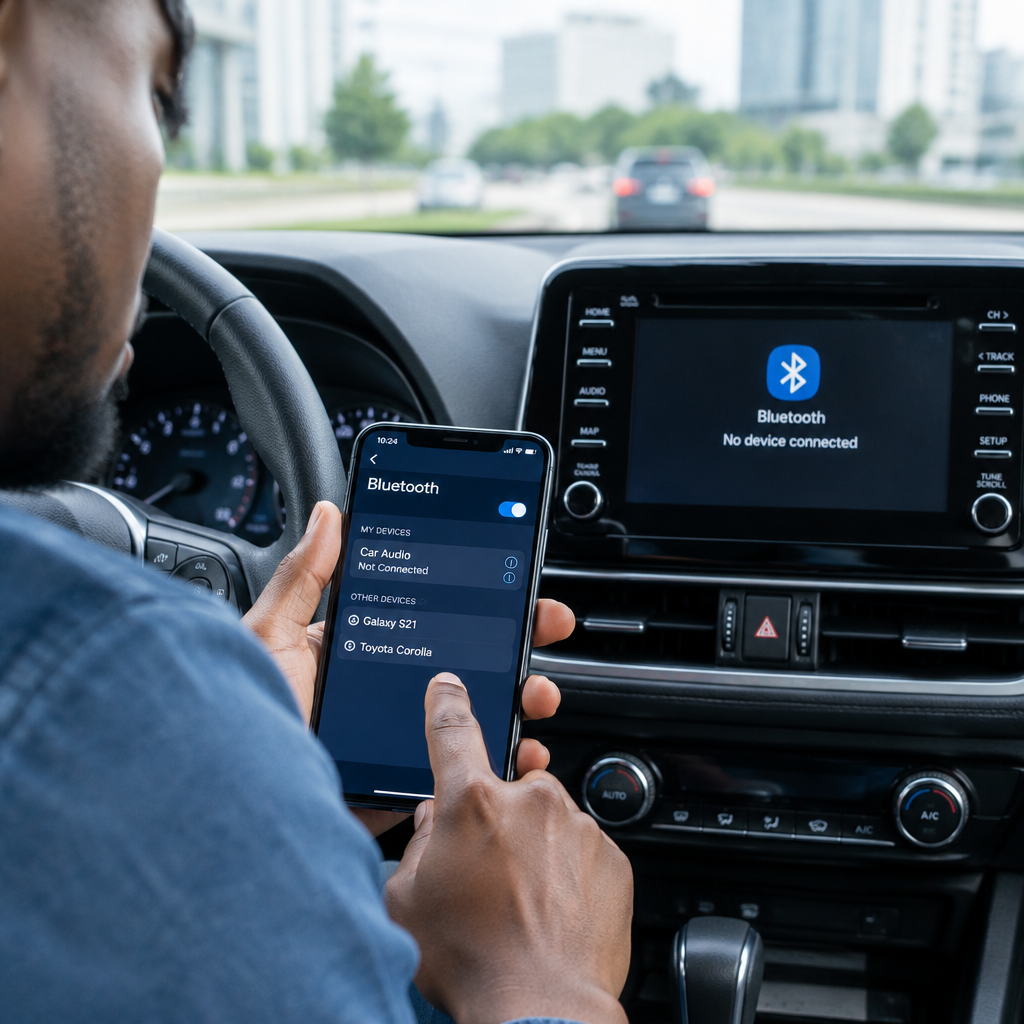
Bluetooth problems between a phone and a car can be frustrating, especially when you want to make a hands-free call, play music or use navigation without touching your phone. The problem may be caused by an old pairing record, a full list of saved devices, incorrect settings or interference from another nearby device.
In most cases, you can fix the connection without special tools. Work through the steps below in order, starting with the simplest checks. The menu names may differ slightly between Android phones, iPhones and car stereo systems.
Advertisement
Table of Contents
Start with the basic checks
Before changing advanced settings, confirm that both devices are ready to connect.
- Park the car safely before troubleshooting. Do not change phone or car settings while driving.
- Make sure Bluetooth is switched on on your phone.
- Turn on the car’s audio system and select its Bluetooth or phone menu.
- Keep the phone close to the car’s dashboard or stereo during setup.
- Check that the phone has enough battery and that the car stereo is not restarting repeatedly.
- Temporarily switch off Bluetooth on nearby phones that may be connecting to the car first.
Some vehicles only allow pairing when the car is stationary or when the transmission is in Park. If the car is moving, its Bluetooth menu may be unavailable.
When the phone cannot find the car
If the car does not appear in the Bluetooth list, make sure the car is in pairing or discoverable mode. Opening the vehicle’s phone settings is often not enough; look for an option such as Add phone, Pair device or Search for phone.
On an Android phone, open Settings, then Connected devices or Connections, and select Bluetooth. On an iPhone, open Settings and select Bluetooth. Wait for the car’s name to appear under available devices.
If it still does not appear, switch Bluetooth off, wait a few seconds and switch it on again. You can also restart the phone and turn the car off completely before trying again. In some vehicles, the stereo remains active after the engine is switched off, so allow enough time for it to shut down before restarting.
Delete the old pairing and connect again
A common cause of Bluetooth failure is an incomplete or damaged pairing record. Removing the old connection from both devices gives them a clean start.
Remove the car from your phone
- Open your phone’s Bluetooth settings.
- Find the car’s name under saved or paired devices.
- Tap the settings icon beside it.
- Choose Forget, Unpair or Remove device.
Remove the phone from the car
Open the car’s Bluetooth or phone menu and delete your phone from the list of saved devices. If several old phones are listed, remove devices that are no longer used. Some car systems have a limit on the number of saved phones, even if the list does not look full.
After deleting the old record, restart both the phone and the car system. Then begin pairing again from the car’s Bluetooth menu. Confirm that the PIN shown on the phone matches the code displayed by the car before accepting.
If pairing fails or the PIN does not work
When a pairing code is rejected, cancel the attempt on both devices and start again. Avoid repeatedly entering a code from an earlier attempt. The car may display a new code each time.
Check that you are selecting the correct device name. Nearby cars, wireless headphones and other accessories may appear in the list. If the car has multiple Bluetooth names, choose the one shown in its phone or connectivity menu.
If the car asks for permission to access contacts or call history, decide based on how you intend to use the connection. Phone calls can usually work without sharing all contacts, although some vehicles need contact permission for their built-in address book and voice-dialling features.
Bluetooth connects but calls or music do not work
A successful pairing does not always mean every Bluetooth function is enabled. Bluetooth can support separate profiles for calls and media.
On your phone, open the settings for the connected car and check whether options such as Phone calls and Media audio are enabled. On the car stereo, select the phone as the audio source rather than radio, USB or another input.
If music is connected but calls are not working, or calls work but music does not, disconnect and pair the devices again. Also check the volume on both the phone and the car. During a call, the volume may be controlled separately from music volume.
For navigation instructions, confirm that the car is selected as the phone’s audio output. If the car has Android Auto or Apple CarPlay, check that the phone is using the intended connection method. A phone may be connected for Bluetooth calls while sound is being routed through a different cable or wireless system.
When the connection keeps dropping
Frequent disconnections may result from distance, interference, software problems or the phone trying to switch between different audio devices.
- Keep the phone in the front cabin rather than inside a bag in the boot or another distant location.
- Disconnect unused wireless earbuds, speakers and smartwatches temporarily.
- Close apps that are repeatedly taking control of audio.
- Restart the phone and the car’s infotainment system.
- Test the phone without a protective case if the problem began after changing cases or accessories.
- Try a different phone to identify whether the problem is with the car or the original phone.
For Nigerian drivers who use their phone for navigation, music and calls during long trips, testing with another phone is particularly useful. If several phones disconnect from the same car, the vehicle’s stereo or firmware is more likely to be the source of the problem.
Check for phone and car software updates
Manufacturers sometimes correct Bluetooth compatibility problems through phone updates or car-stereo firmware updates. Check the phone’s normal system-update menu. For the car, consult its manual or the vehicle manufacturer’s official support information.
Do not install firmware from an unknown website or follow a random video that asks you to download suspicious files. An incorrect update can affect the stereo, and unofficial downloads may contain malware. This is especially important when looking for quick technology fixes online.
Try resetting network settings as a last phone-side step
If Bluetooth remains unreliable after re-pairing, resetting network settings may help. This can remove saved Bluetooth devices, Wi-Fi networks and some mobile-network settings, so use it only after trying the simpler options.
On many Android phones, the option is under System, Reset options and Reset Wi-Fi, mobile and Bluetooth. On an iPhone, it is commonly under Settings, General, Transfer or Reset iPhone, Reset and Reset Network Settings. Menu names can vary by phone version.
After the reset, you will need to reconnect to Wi-Fi networks and pair the car again. Make sure you know the necessary Wi-Fi passwords before proceeding.
How to identify the real source of the problem
| What you observe | Most likely area to check |
|---|---|
| The car never appears on the phone | Car pairing mode, Bluetooth visibility or stereo power |
| The phone pairs but will not reconnect | Old pairing records, saved-device limits or automatic connection settings |
| Calls work but music does not | Media audio setting or the car’s selected audio source |
| Music works but calls do not | Phone-call permission, call audio profile or car phone settings |
| Several phones disconnect | Vehicle stereo, interference or car software |
| Only one phone has the problem | That phone’s settings, software or Bluetooth hardware |
When professional help may be necessary
Contact the vehicle manufacturer, an authorised technician or a qualified car-audio professional if the stereo cannot enter pairing mode, repeatedly freezes, forgets every device or fails with multiple phones. If Bluetooth also fails with headphones and other accessories, the phone may need support from its manufacturer.
Keep your phone’s operating-system version, car model and stereo model available when asking for help. Describe what you have already tried instead of simply reporting that “Bluetooth is not working”. This makes diagnosis faster.
The practical fix to remember
For most phone-to-car Bluetooth problems, the best sequence is: place the car in pairing mode, delete the old connection from both devices, restart them, pair again and confirm that both call and media audio permissions are enabled. If the issue continues, test another phone. That simple comparison usually shows whether you need to adjust the phone or arrange help for the car’s stereo.
Advertisement