

Advertisement
Advertisement
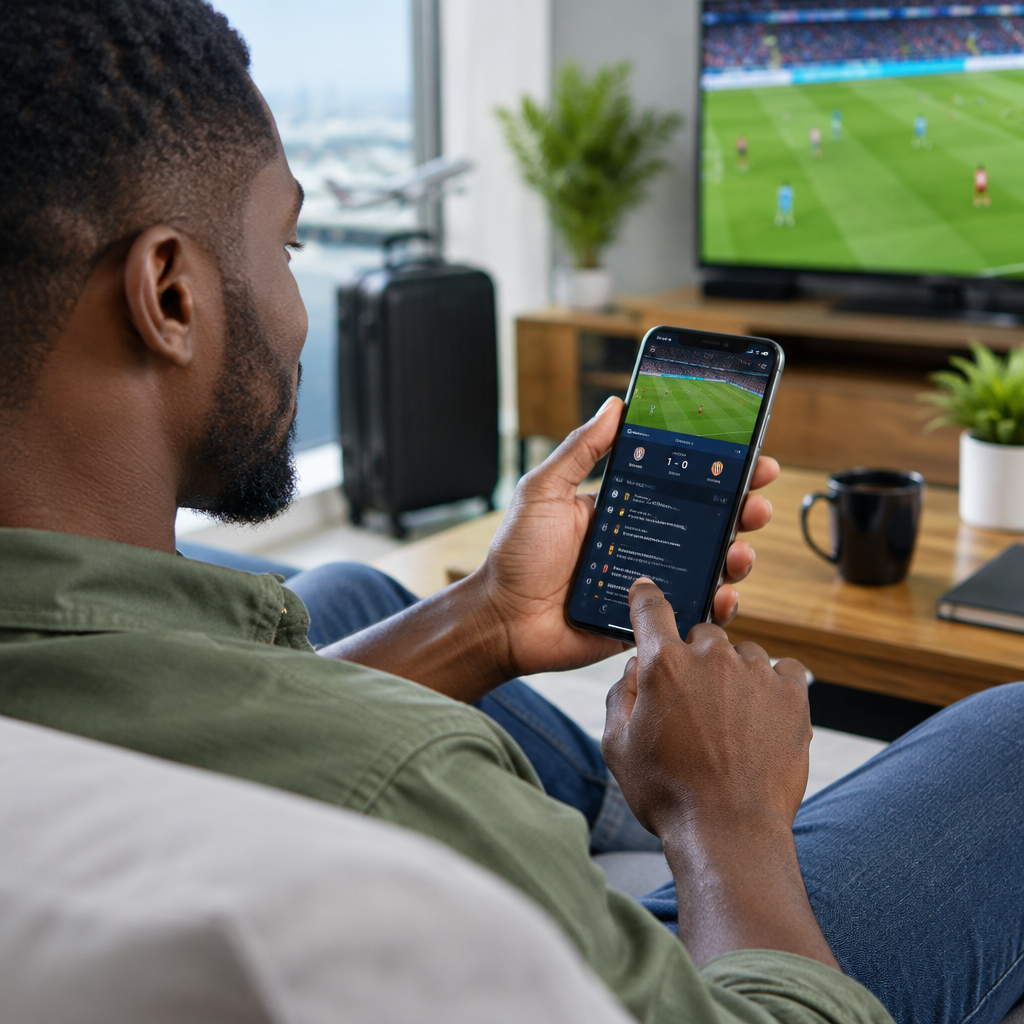
Following a football match on your phone does not have to finish your data bundle. Live video, autoplaying clips, high-quality images and constant background updates can consume far more data than a simple score notification. If you are using mobile data in Nigeria, especially when your bundle is limited or expensive, a few changes can make live updates much more affordable.
The main idea is simple: use text-based scores and alerts for routine updates, reserve video and livestreams for important moments, and stop other apps from using data in the background while you follow the match.
Advertisement
Table of Contents
Choose the right type of football update
Not every live update uses the same amount of data. Before changing your phone settings, decide what you actually need during a match.
- Lowest data use: text score updates, goal alerts, match status and short written commentary.
- Moderate data use: football news pages with images, team statistics and occasional short clips.
- High data use: photo-heavy feeds, animated commentary, video highlights and live audio.
- Highest data use: live video streaming, especially at high resolution.
If your main goal is to know the score, goals, cards and full-time result, a livescore service or text alert is usually more efficient than keeping a video stream open. You can then watch highlights later when you have Wi-Fi or a suitable bundle.
Turn on data-saving settings
Android phones
Android phones commonly include a Data Saver feature. Open your phone’s Settings app and look under options such as Network and internet, Connections or Mobile network. The exact wording differs between manufacturers and Android versions.
Turn on Data Saver when you are following football on mobile data. This can restrict background data for some apps while allowing the app you are actively using to work. If alerts stop arriving, check whether your livescore or news app has been allowed to use unrestricted data.
iPhone
On an iPhone, open Settings, select Mobile Service or Cellular, then look for Low Data Mode. Depending on the iOS version and network settings, you may be able to enable it for mobile data. Low Data Mode can reduce automatic downloads, background activity and some media quality.
You can also review the list of apps using mobile data on the same settings page. Turn mobile data off for apps that do not need to update while you are watching a match. They can continue working on Wi-Fi.
Reduce video quality before streaming
If you need to watch a live match or video commentary, do not begin with the highest quality setting. High-definition video uses data quickly, and a small phone screen may not require the same quality as a television.
Look for a video quality option such as Auto, Data saver, Low, 360p or 480p. Lower quality normally reduces data use, although the exact amount depends on the platform, video length and network conditions.
Autoplay is another important setting. In news and social media apps, disable autoplay for videos or set videos to play only on Wi-Fi. This prevents a clip from starting simply because you opened a page to read a score.
Use notifications instead of repeatedly refreshing
Constantly opening and refreshing a match page is inconvenient and can load the same adverts, images and scripts several times. A better approach is to activate only the alerts you need.
For example, you may choose notifications for:
- Kick-off and full-time
- Goals
- Red cards
- Half-time
- Major match events
Disable alerts for every minor event if your service offers that choice. Too many notifications can encourage you to open the app repeatedly, while a focused alert system gives you the important information with less effort.
Do not grant notification access to an unknown app merely because it promises free football updates. Download services from reputable app stores, check the publisher and avoid apps that request unnecessary permissions such as access to your messages, contacts or banking information.
Stop other apps from consuming your bundle
Football updates may not be the biggest source of data use. Social media, cloud backups, app updates and image-heavy messaging groups can continue working while you follow a match.
Before the game starts:
- Pause automatic app updates over mobile data.
- Stop cloud photo and video backups until you are on Wi-Fi.
- Close or restrict social media apps that autoplay videos.
- Disable automatic downloads in messaging apps.
- Check which apps have used the most mobile data recently.
On Android, an app’s mobile data settings may allow you to block background data. On iPhone, the Cellular or Mobile Service settings show which apps are allowed to use mobile data. The names and locations of these controls vary, but the principle is the same: allow data access only to services you need during the match.
Download what you can on Wi-Fi
If you already know which competition, team or football page you follow, prepare before leaving Wi-Fi. You may be able to download an app, update it, save articles for offline reading or download video highlights for later, depending on the service’s features.
Do not assume that opening a page once makes all future content available offline. Some apps refresh automatically, and saved pages may contain content that still needs an internet connection. Test offline access before relying on it during travel or in an area with weak network coverage.
Use a browser carefully
A mobile browser can be a practical way to read written football updates, but pages may include adverts, videos and large images. Use a reader or simplified view when available. Avoid opening several live blogs, social media feeds and video pages at the same time.
Bookmark a trusted football updates page instead of searching repeatedly. Each new search can lead to pages that load unnecessary content or redirect you to suspicious websites. Be careful with pop-ups claiming that you have won a prize or that your phone is infected. They are often attempts to make you click, install an app or disclose personal information.
A simple low-data match routine
Here is a practical workflow for someone using a limited Nigerian mobile data bundle:
- Before kick-off: connect to Wi-Fi if available, update your chosen livescore app and enable only important notifications.
- At kick-off: turn on your phone’s data-saving mode and disable autoplay in social media and video apps.
- During the match: rely on score and event alerts rather than repeatedly refreshing several pages.
- For major moments: open a written update or watch a short clip only when necessary.
- After full-time: turn off unnecessary alerts and return video, backup and update settings to normal if you changed them.
Check whether your data is really being saved
After following one or two matches, review your phone’s data-usage screen. Compare the apps that consumed data and look for unexpected users, such as a social media app, video platform or cloud-storage service.
You can also set a warning or limit for mobile data on many Android phones. This does not replace checking your balance with your network provider, but it can alert you before your phone reaches a level you consider too high. Remember that network-provider measurements and phone estimates may not always match exactly.
What to prioritise when data is limited
If you can use only a small amount of data, prioritise information in this order: final score and major events first, written commentary second, statistics and images third, and live video last. Video is the easiest feature to postpone because highlights and analysis are often available later.
The most effective saving habit is not a complicated application. It is choosing the lightest format that answers your question. For most football fans, text alerts plus occasional written updates provide enough information to follow a match without allowing one game to consume an entire data bundle.
Advertisement